![APPLICAA_LOGO-1024x350-4.png]](https://helpdesk.applicaa.com/hs-fs/hubfs/APPLICAA_LOGO-1024x350-4.png?height=40&name=APPLICAA_LOGO-1024x350-4.png)
Overview
Settings & Compliance is the expanded settings area for Communications. It has a strong focus on GDPR compliance, consent management, and audit visibility across all communication activity.
It is organised into the following sections:
- General
- Consent & Compliance
- Unsubscription & Preferences
- Template Defaults
- Permissions & Safeguards
- SMS Settings
- Audit
Why this was built
Schools need to demonstrate GDPR compliance, but the previous communications settings were limited. The unsubscribe model was binary — recipients either received everything or nothing — and there was no centralised way to manage consent categories, opt-back-in requests, SMS quiet hours, or an audit trail of changes.
This update introduces granular, GDPR-friendly controls and visibility across all of the above.
General
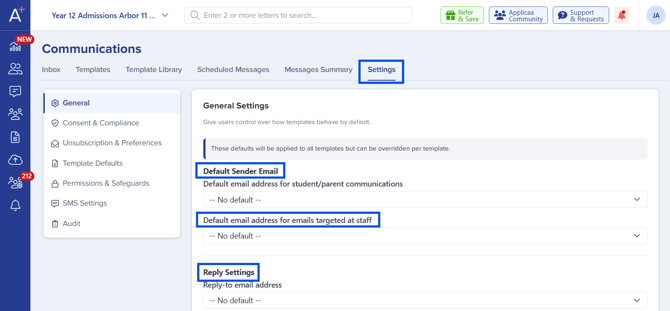
The General section is where you configure baseline communication settings:
- Default sender email addresses — the default From address used for outbound communications.
- Reply-to email addresses — the default address where replies should land.
- Inbox connections — manage the inboxes connected to Admissions+ — including the inbox setup demonstrated in the Inbox guide.
|
See also Step-by-step instructions for connecting an inbox are in the Inbox Guide. |
Consent & Compliance
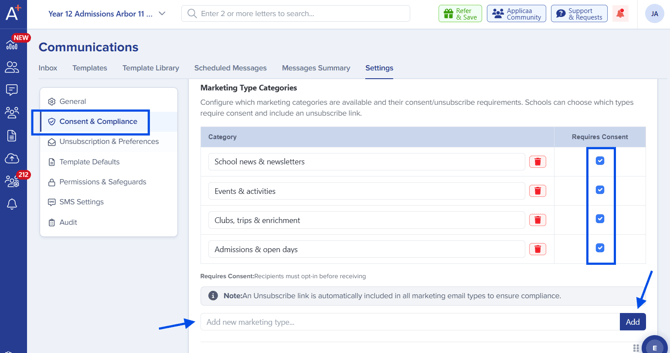
This section is where schools define which communication types require marketing consent.
Marketing categories
Schools can create additional marketing categories using the Add button. Typical categories include:
- Events & Activities
- School News
- Fundraising
- Alumni Updates
- …and any other categories that match how your school communicates.
These categories link directly to the Communication Purpose field on Marketing templates, so recipients can give or withdraw consent at category level rather than all-or-nothing.
Behaviour when consent is missing
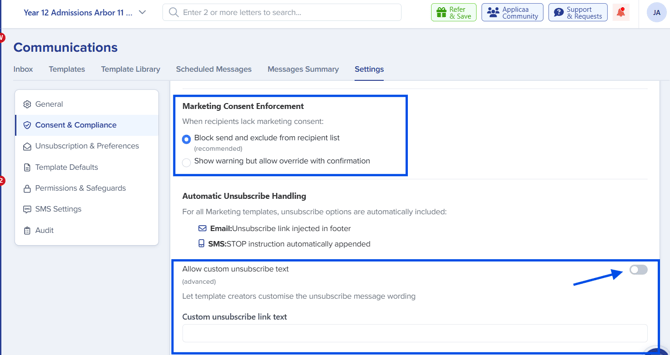
When a recipient does not have the required marketing consent, you can choose how Admissions+ should behave:
- Block the send completely — remove the recipient from the recipient list automatically.
- Show a warning but allow staff to override — with explicit confirmation by the staff user.
Custom unsubscribe text
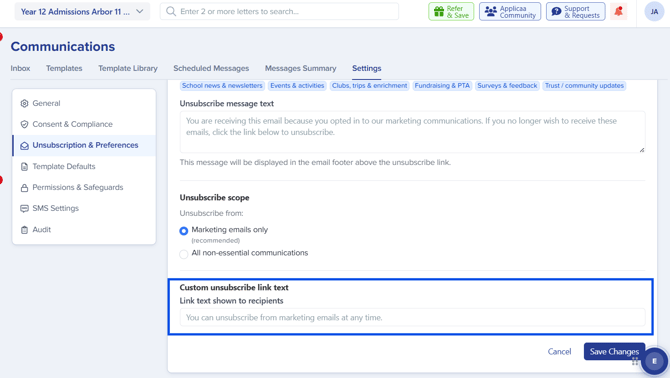
A toggle allows you to customise the unsubscribe message shown to recipients, so you can match your school’s tone and branding.
Opt-back-in requests
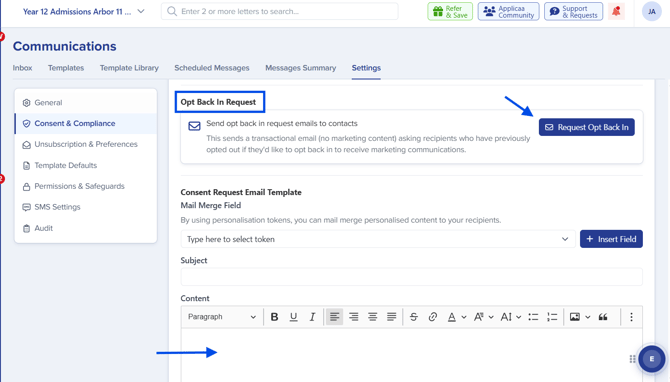
Opt-back-in is a particularly useful new feature. It lets you send a request to recipients who have previously unsubscribed, asking whether they would like to opt back in.
This is especially useful when:
- A parent or applicant has verbally asked the school to start receiving communications again.
- You want to refresh consent for a specific category.
You can customise the content of the opt-back-in email so the request is on-brand and clear.
Unsubscription & Preferences
This section expands further on consent management. Here you can:
- Choose where unsubscribe links appear — Email, SMS, or both.
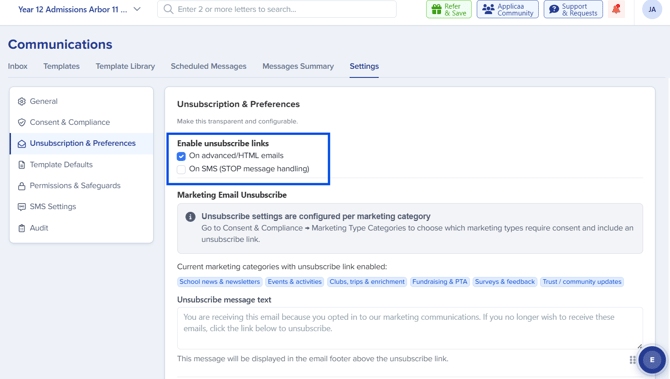
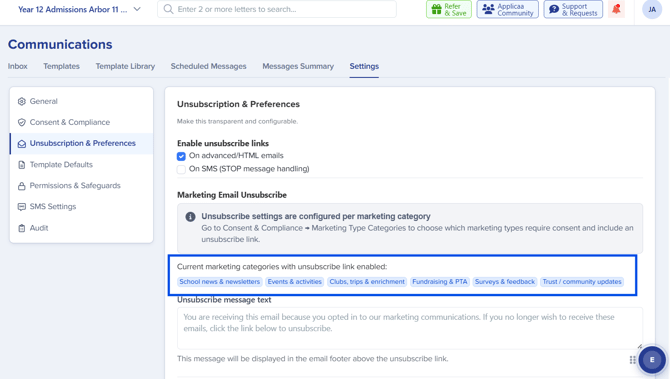
- View a summary of which marketing communication types have unsubscribe enabled — so you can confirm your setup at a glance.
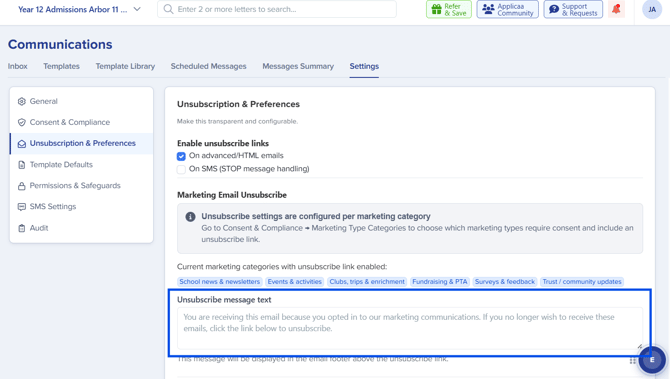
- Configure unsubscribe messaging — tailor the messaging used during the unsubscribe flow.
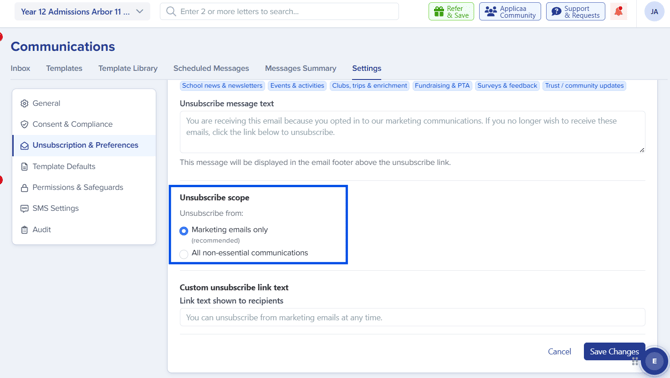
- Define unsubscribe scope — control whether unsubscribing applies at a category level or more broadly.
- Customise the unsubscribe link text itself — change the wording recipients see (e.g. "Unsubscribe", "Manage preferences").
Template Defaults
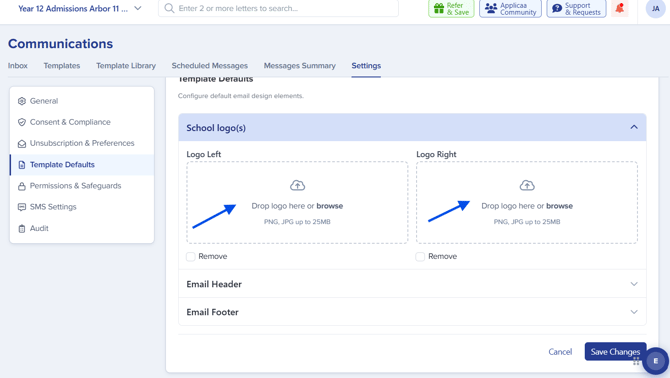
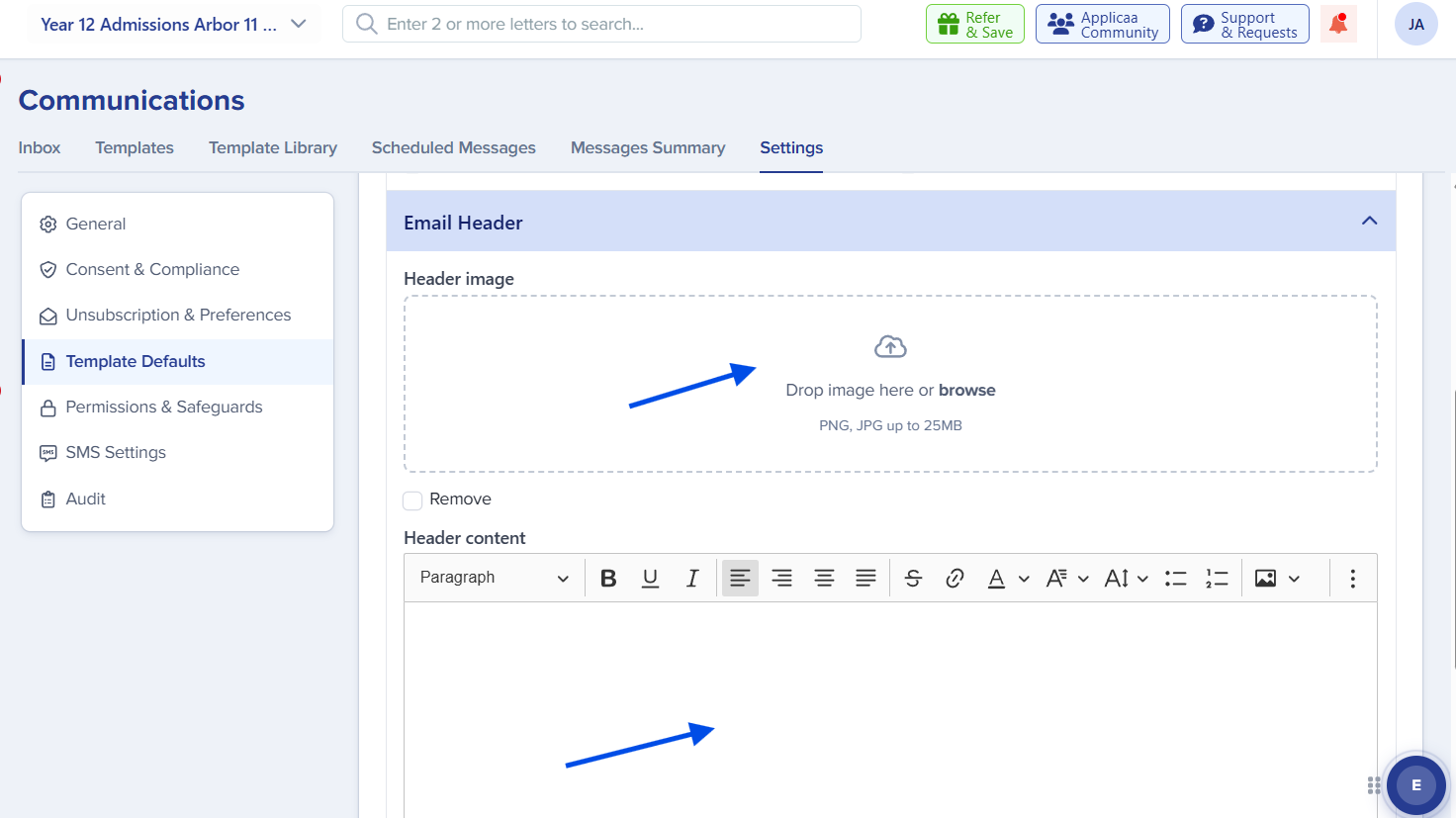
Under Template Defaults, you can configure branding elements globally so they apply consistently across all templates. These include:
- School logos
- Email headers
- Email footers
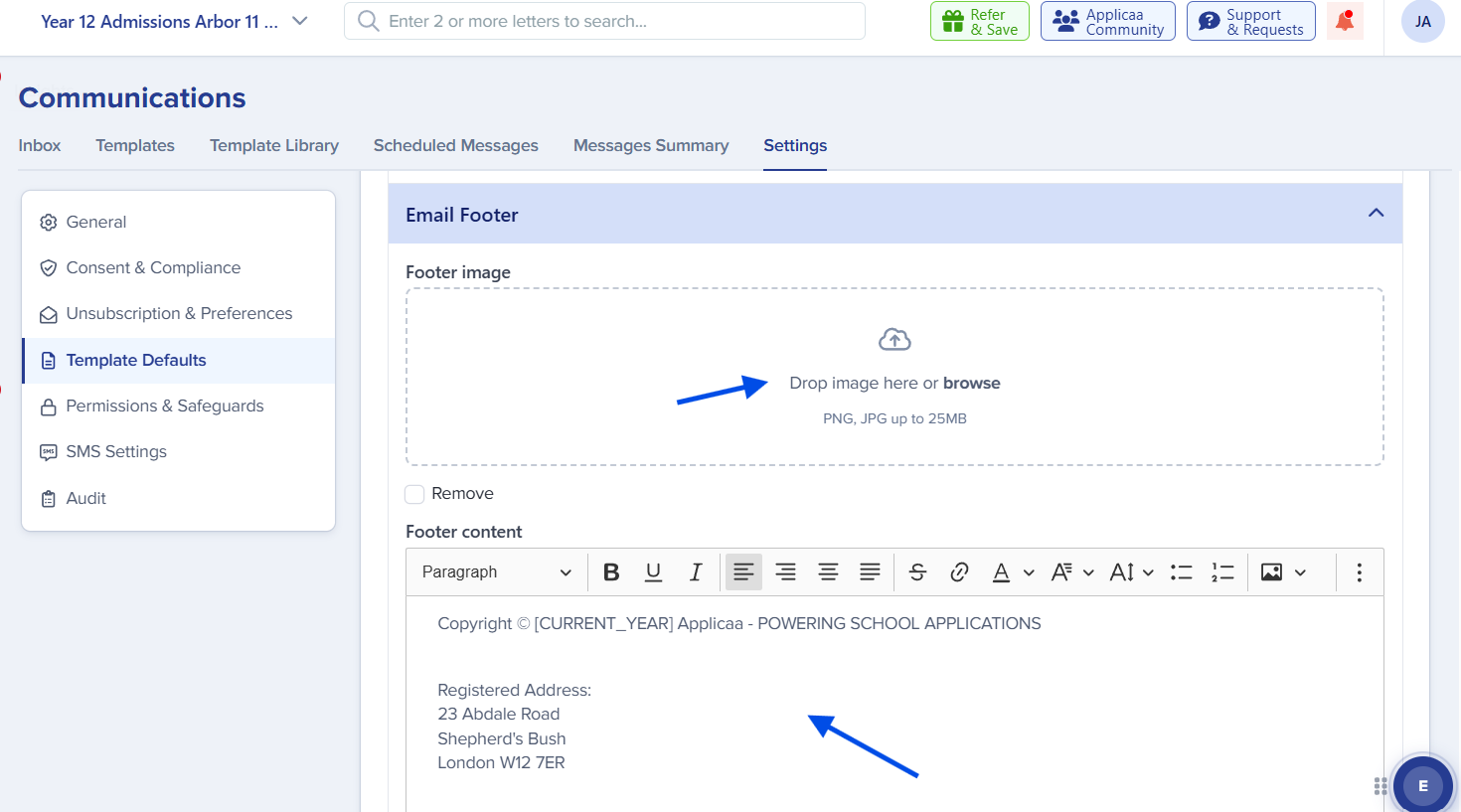
Once configured, these assets automatically apply across templates, ensuring all communications look consistent.
Permissions & Safeguards
Permissions & Safeguards lets you control communication permissions more securely. For example, you can:
- Define which user roles are allowed to send emails.
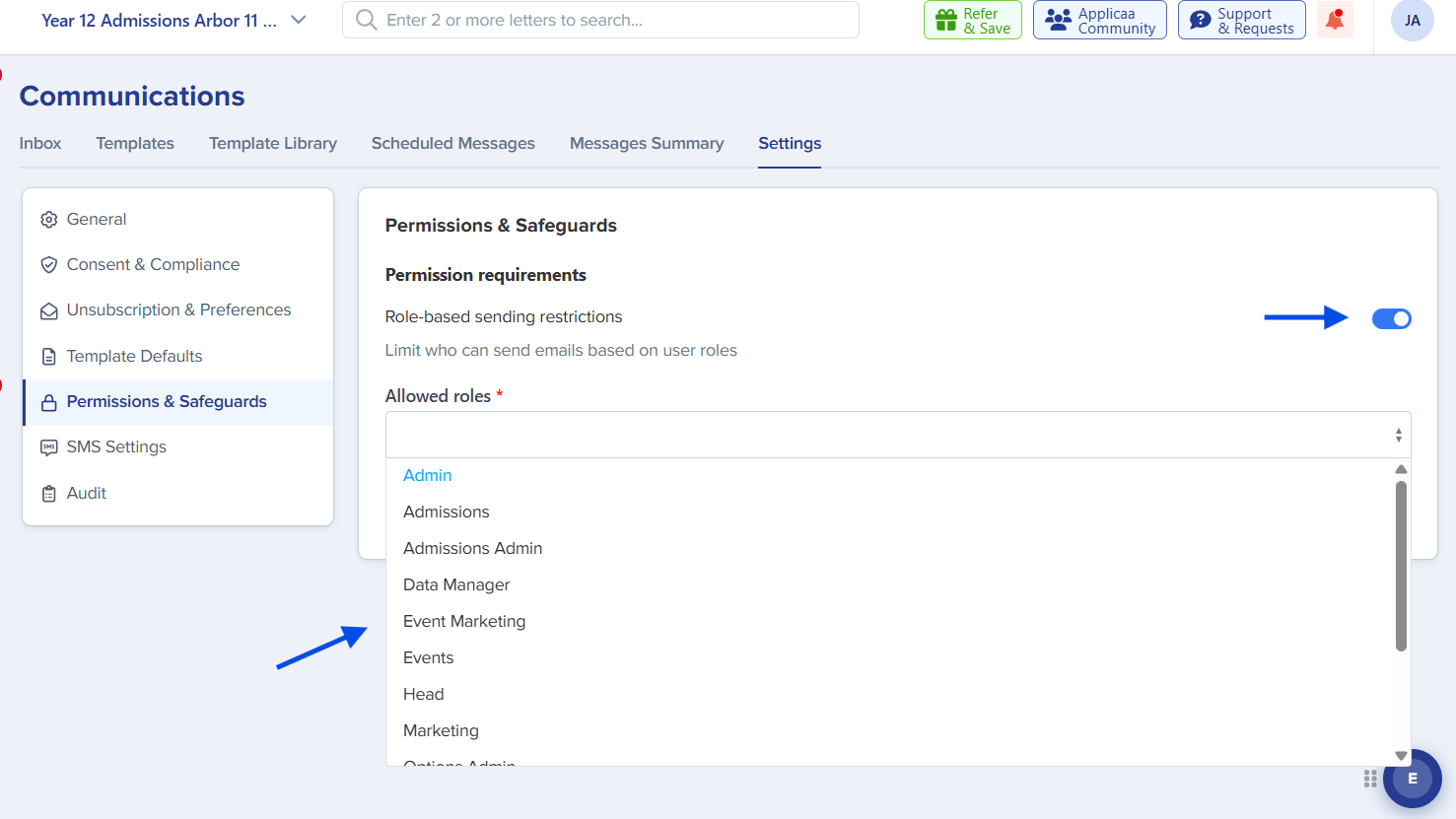
These controls help prevent accidental sends from staff who shouldn’t have communication-sending rights and reinforce data-protection responsibilities across the team.
SMS Settings
A dedicated SMS Settings section lets you configure:
- Default SMS sender name — the name recipients see as the SMS sender.
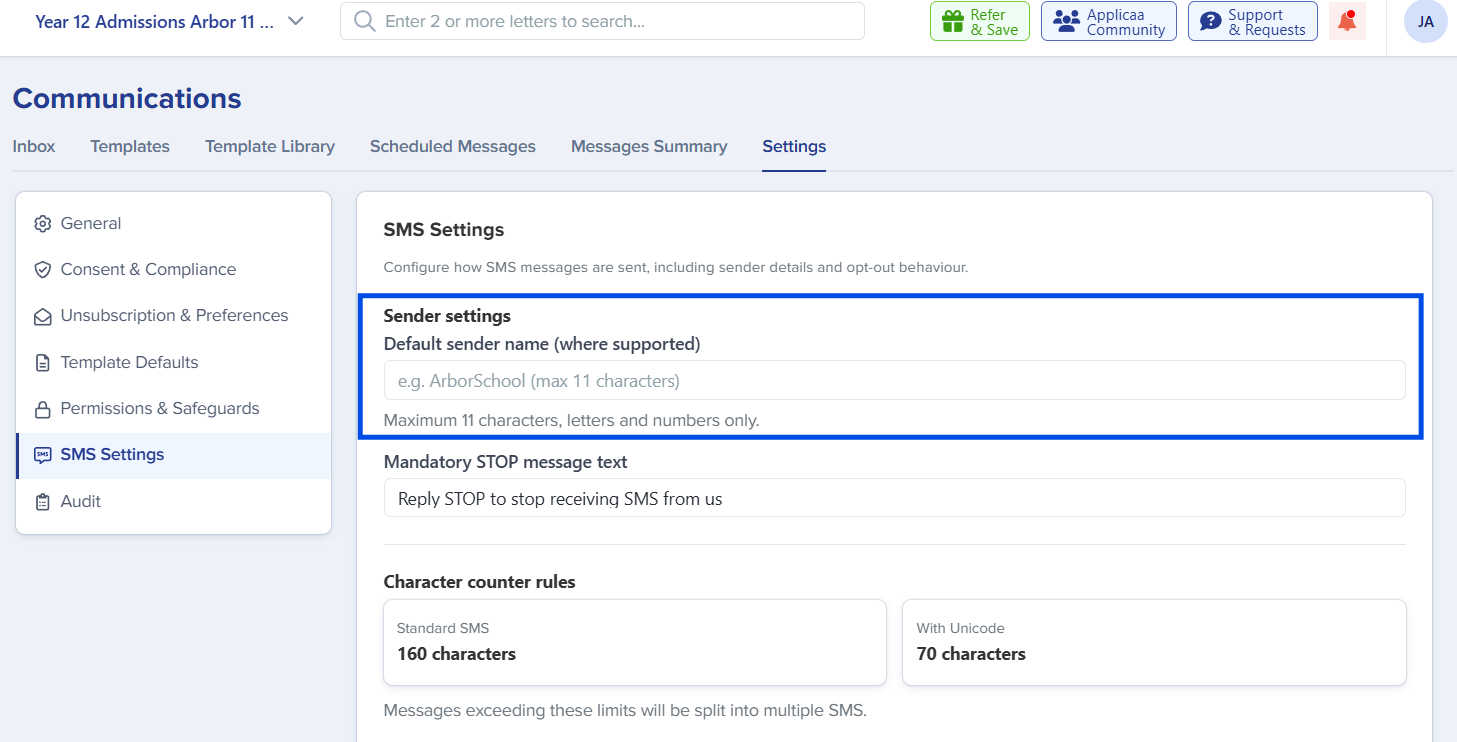
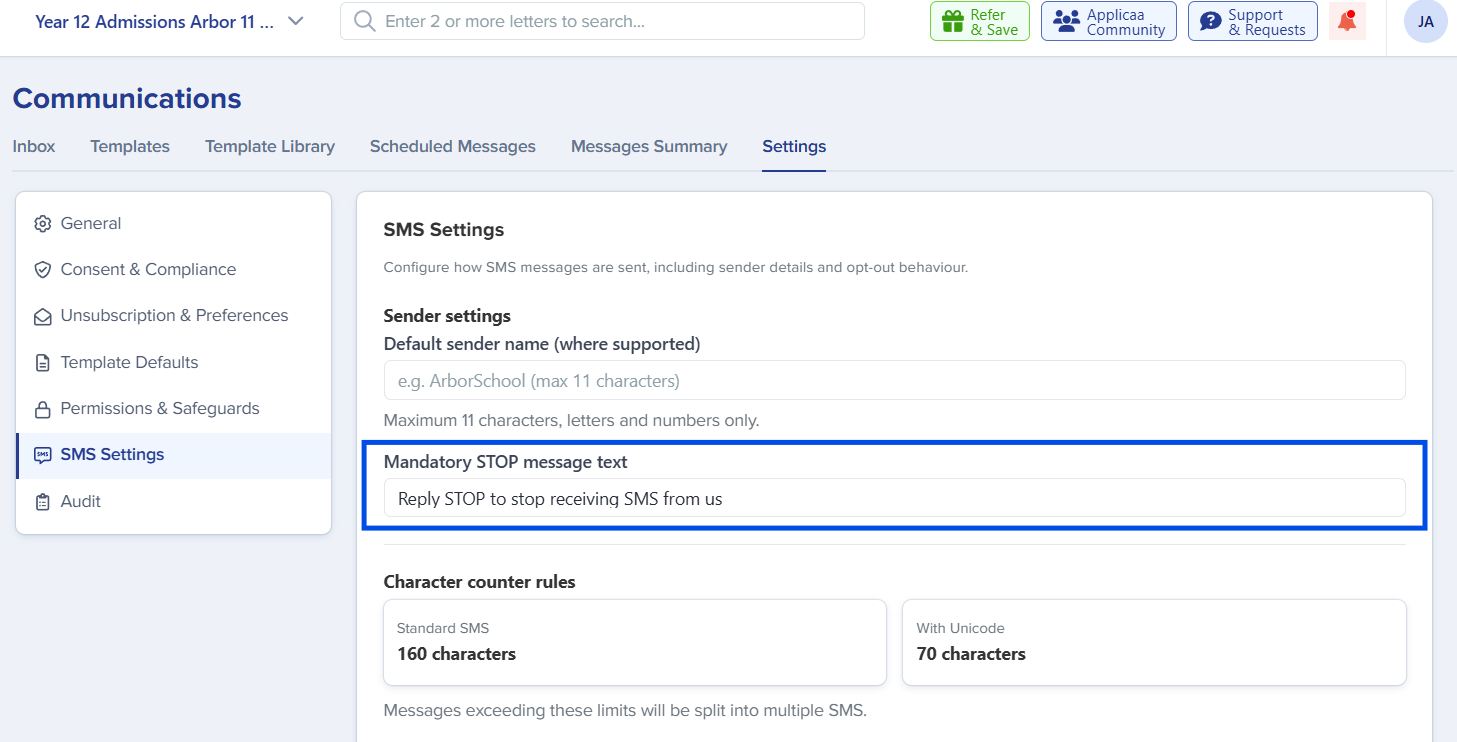
- Mandatory STOP messaging — ensure the required opt-out wording is included.
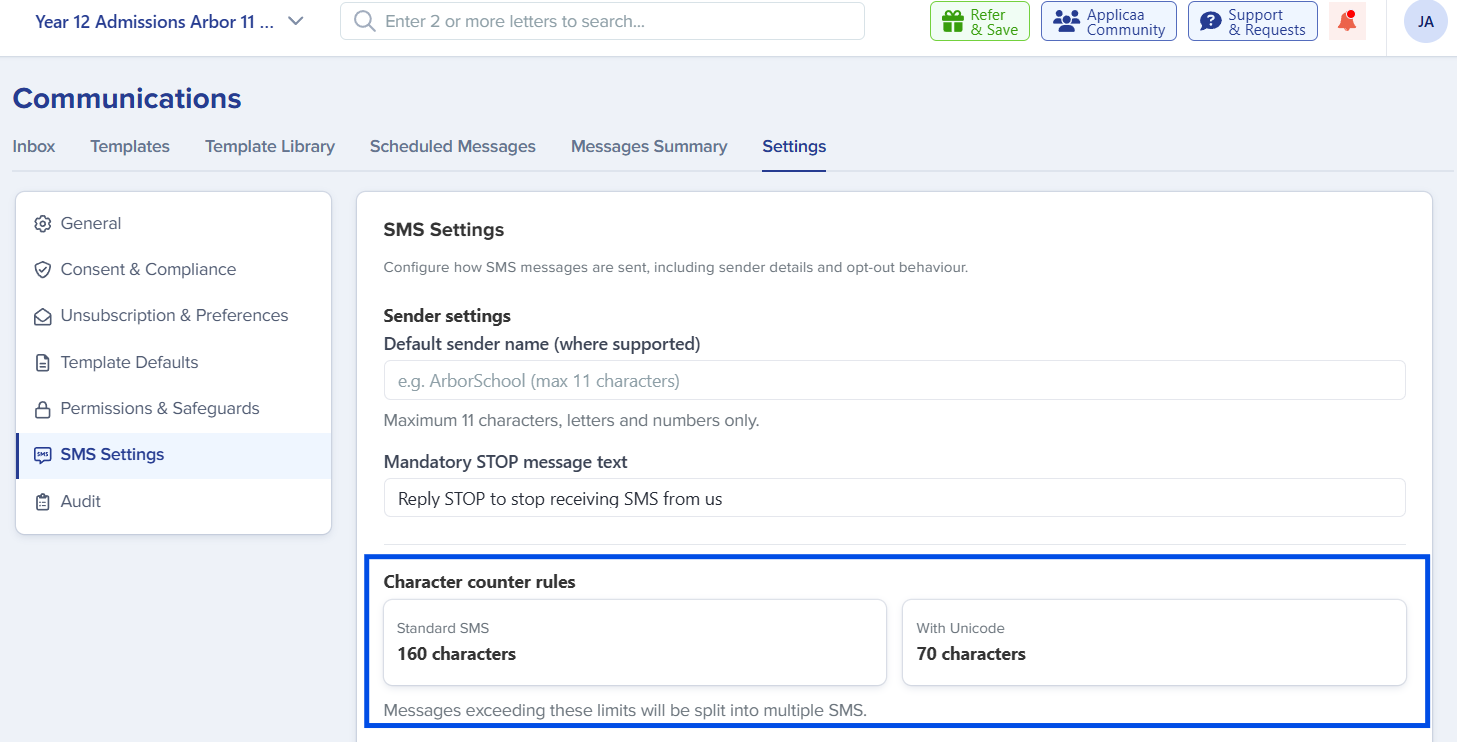
- SMS character count rules — visibility into how characters count towards SMS segments.
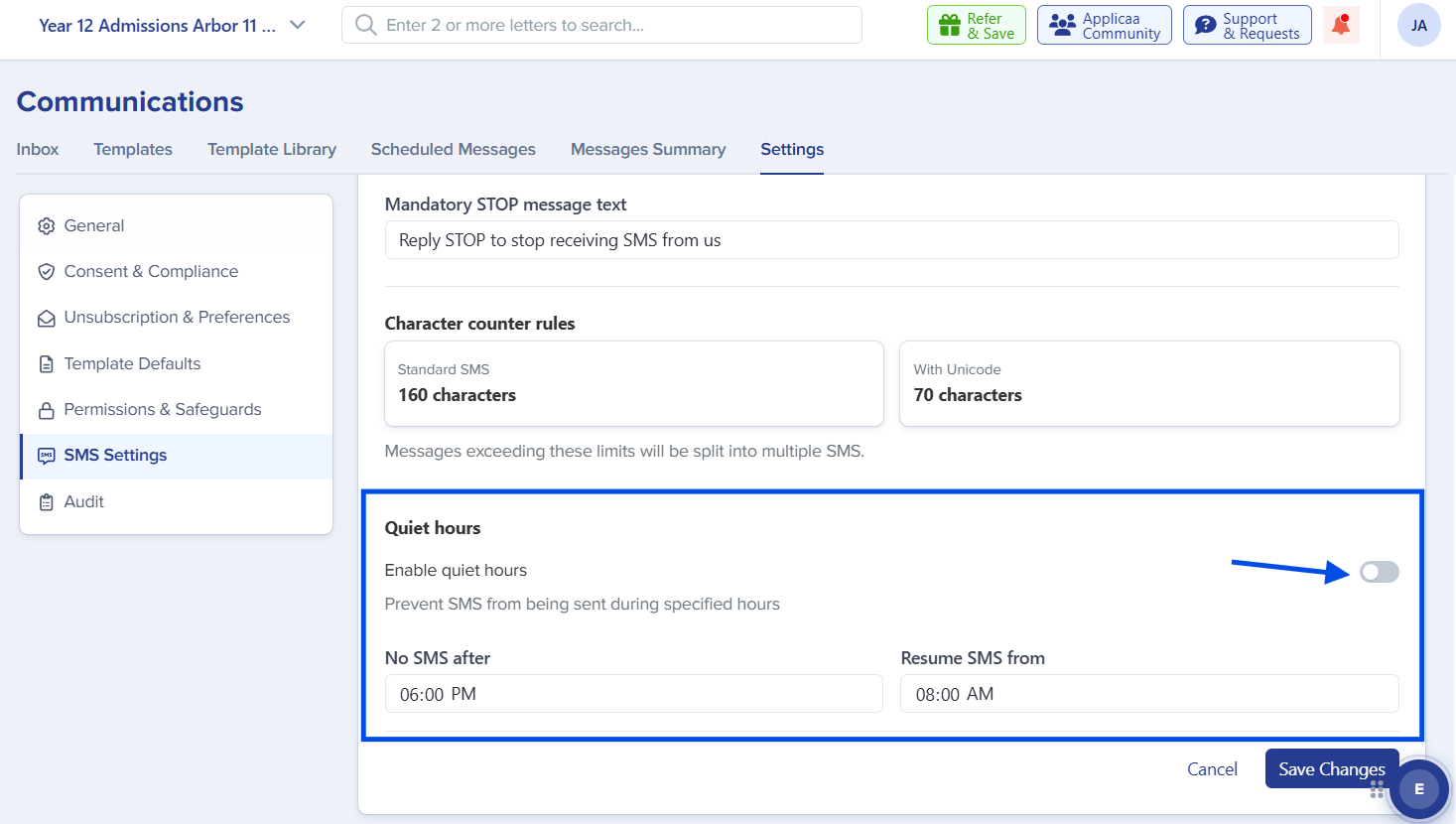
- Quiet Hours — prevent SMS messages from being sent during specified times.
|
Why Quiet Hours matter Quiet Hours prevent SMS messages from going out at times that would be inappropriate for parents and applicants (e.g. late at night). They are configured here and apply across SMS communications. |
Audit
The Audit section provides visibility into changes made to communication settings, including:
- Settings activity
- Recent changes
- Configuration history
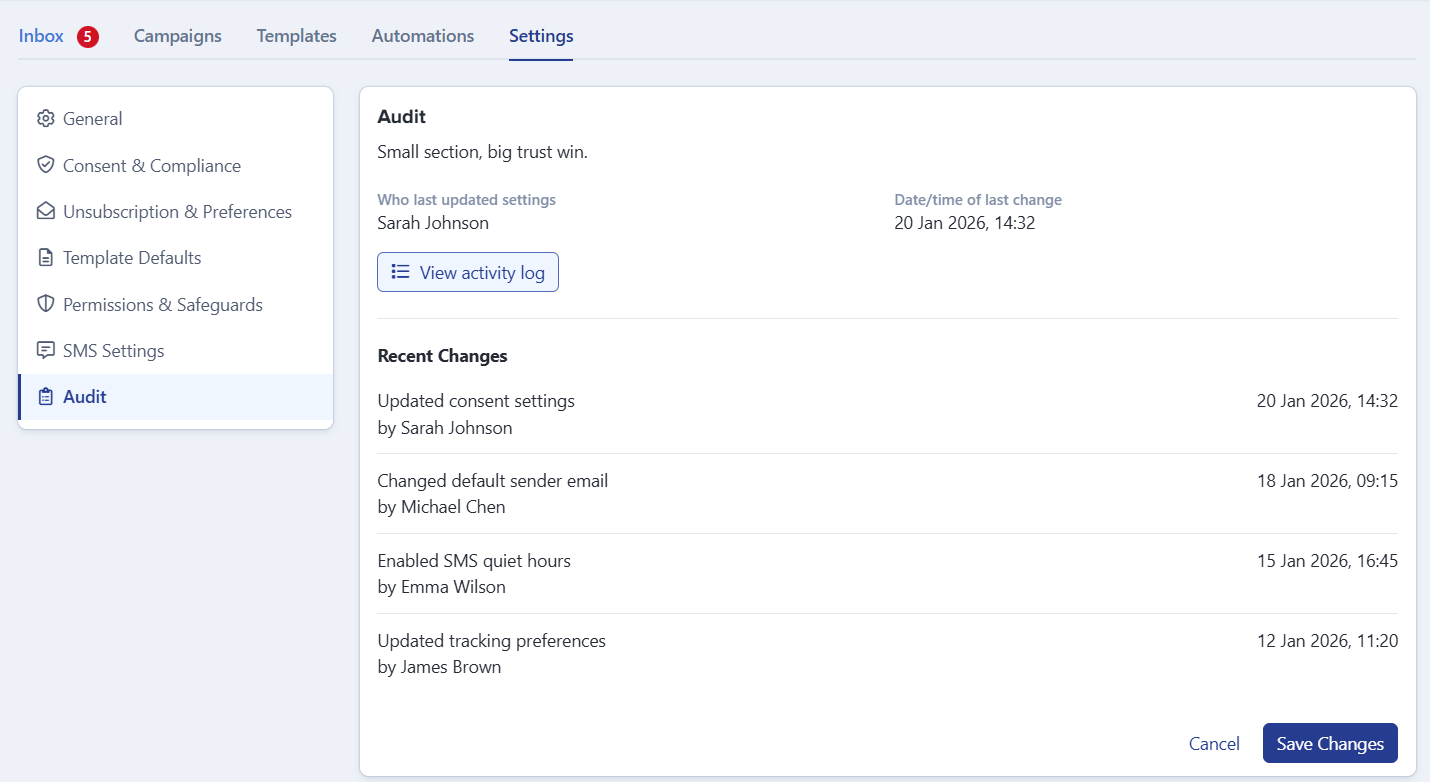
This gives schools a much clearer audit trail of communication-related changes and actions, which is especially valuable for GDPR and internal governance.
Recommended setup checklist
We recommend working through the following checklist when first adopting Settings & Compliance:
- Set your default sender and reply-to email addresses in General.
- Connect any inboxes you want to manage inside Admissions+ (see the Inbox guide).
- In Consent & Compliance, define your marketing categories and decide how to behave when consent is missing.
- Configure your unsubscribe channels, messaging, and link text in Unsubscription & Preferences.
- Upload your school logo and define default headers and footers in Template Defaults.
- Review user roles and permissions in Permissions & Safeguards.
- Configure SMS sender name, mandatory STOP messaging, and Quiet Hours in SMS Settings.
- Walk through the Audit view so your team knows where to look for change history.
Frequently asked questions
Will unsubscribing now block important admissions emails?
No. Unsubscribing applies to Marketing communications. Transactional communications (such as offers and key admissions updates) continue to be delivered, because they use a different Communication Purpose.
Can recipients re-subscribe after unsubscribing?
Yes — use the new Opt Back In Request functionality in Consent & Compliance to send a request to previously unsubscribed recipients, asking if they’d like to opt back in.
How granular can our marketing categories be?
You can create as many categories as you need (e.g. Events & Activities, School News, Fundraising, Alumni Updates). These link to the Communication Purpose set on each Marketing template.
How do Quiet Hours work?
Quiet Hours are configured in SMS Settings and prevent SMS messages from being sent during the time window you define. This ensures messages don’t go out at unsuitable times.
Can I see who changed a particular setting?
Yes. The Audit section records settings activity, recent changes, and configuration history, giving you visibility into who changed what and when.
Where do I manage inbox connections?
Inbox connections are managed in the General section of Settings & Compliance. The Inbox guide covers the connection workflow in detail.
A note from us
We hope this guide makes it easy to get your Settings & Compliance configuration right. GDPR, consent, and audit visibility are important responsibilities, and we’ve worked hard to give your team the granular controls needed to manage them confidently — without getting in the way of day-to-day admissions work.
If you have questions, feedback, or run into anything that doesn’t quite work the way you expected, please get in touch with your Applicaa contact. We always love hearing from the schools and colleges we work with.