![APPLICAA_LOGO-1024x350-4.png]](https://helpdesk.applicaa.com/hs-fs/hubfs/APPLICAA_LOGO-1024x350-4.png?height=40&name=APPLICAA_LOGO-1024x350-4.png)
Lookups are controlled within your MIS and any changes you wish to make should therefore be actioned in your MIS first, before the changes can be reflected in A+.
Cloud-based MIS Process
For cloud-based MIS (Bromcom, Arbor, iSAMS), you can update your lookups directly within your A+ system. Navigate to Settings > School Settings > Integration and click "Download Lookup Values".
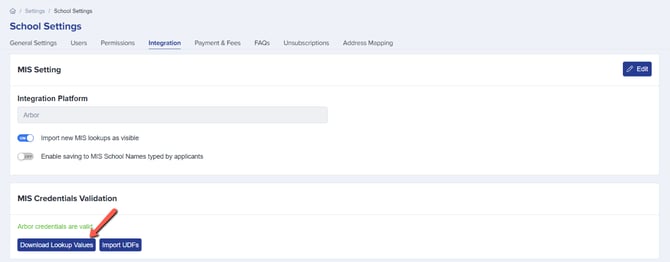
This will produce a CSV file which will be stored in the downloads area of your device.
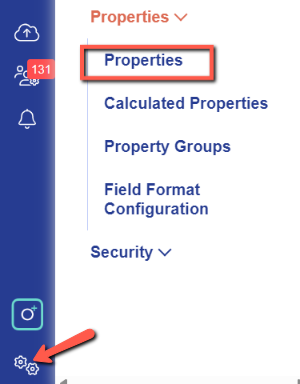
Navigate to Settings > Properties > Properties and select "Import answers".
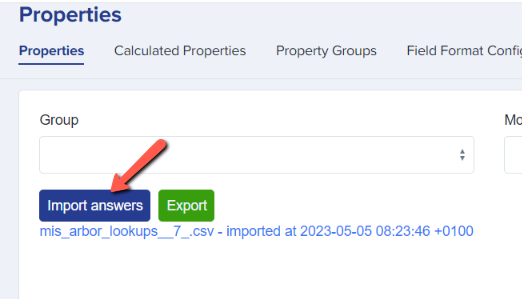
Click "Choose file" to attach the CSV you just downloaded, and then select "Import". The import will proceed, and your lookups will be up to date and synchronised with your MIS.
SIMS Process
For schools using SIMS, you need to log into your Admissions+ SIMS App in order for your lookups to be updated/synchronised. You may have a desktop app for this, or you may access it via your SIMS hosted service.
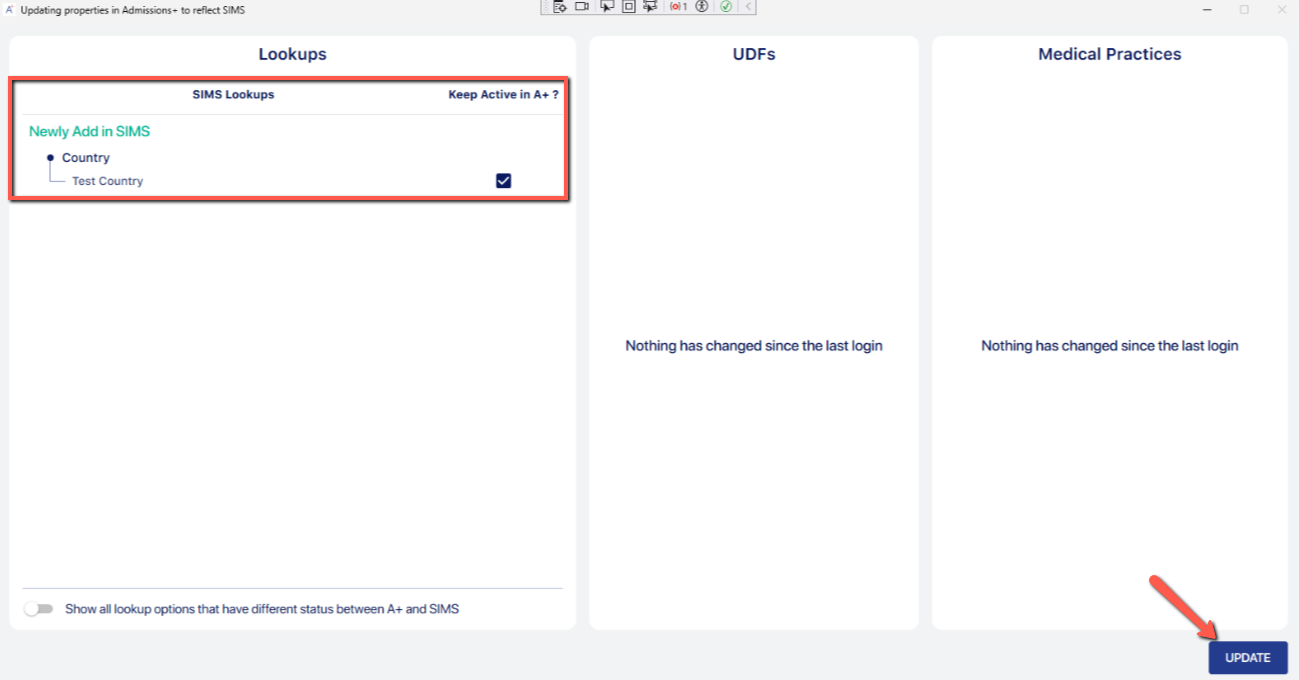
Upon logging into your Admissions+ SIMS App, a scan will take place to detect any changes made within SIMS and you will be shown a record of all changes, and can click the "update" button in order to synchronise those changes within SIMS to your A+ system.
You can also import your User-Defined Fields (UDFs) to use within your A+ forms as well - see our separate UDF guide here.