![APPLICAA_LOGO-1024x350-4.png]](https://helpdesk.applicaa.com/hs-fs/hubfs/APPLICAA_LOGO-1024x350-4.png?height=40&name=APPLICAA_LOGO-1024x350-4.png)
Based on the pathway settings you have added, applicants will only be able to select pathways for which they qualify (or are predicted to qualify, if used at Application Form phase).
As a staff member, you can override their pathway selection if you wish, and this can be useful if you need to permit them onto a pathway for which they do not fulfil the entry requirements.
Navigate to the profile of a student, and access their Application Form or Enrolment Form tab (depending where you need to make the change).
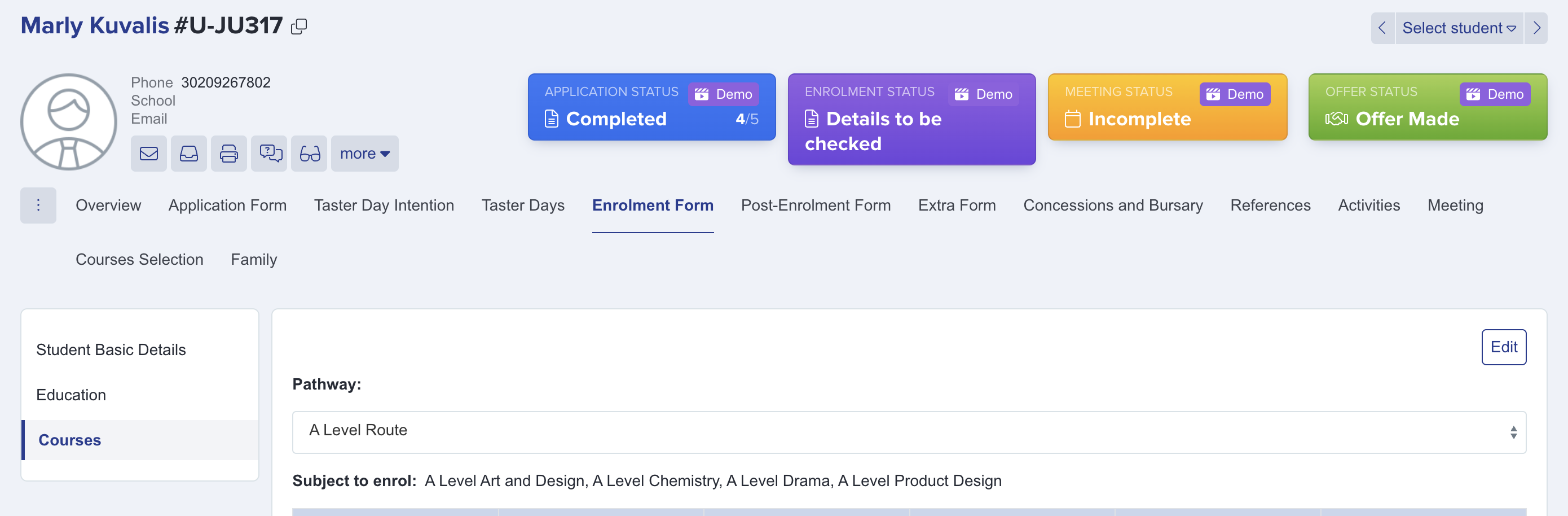
Click their Courses step, and you will see the pathway dropdown menu - here you can open the menu and you will see the list of all available pathways, and whether or not the student is eligible for them.
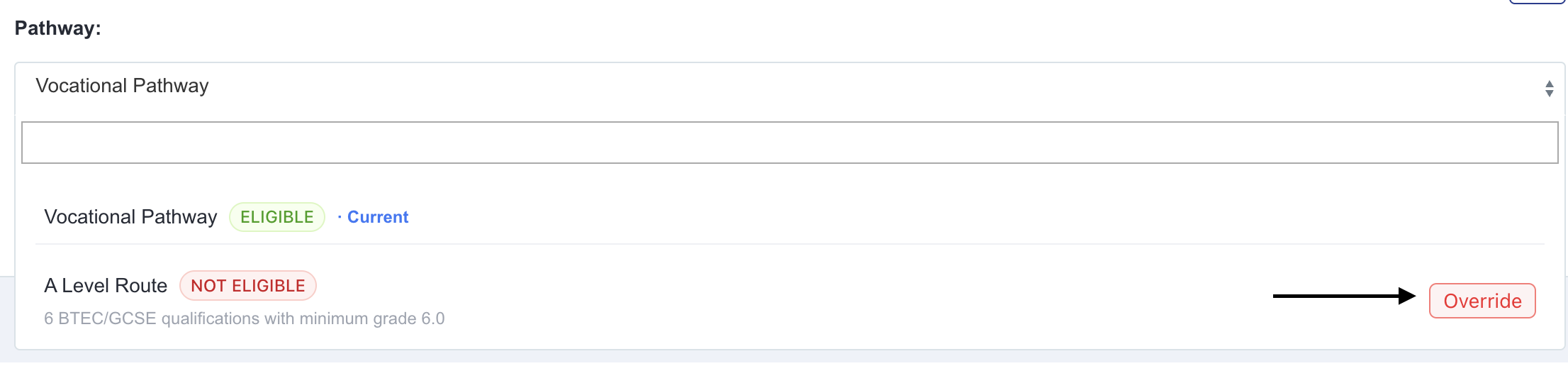
You can use the override function to allow them onto a pathway for which they do not qualify, and if you change a student's pathway, this will leave a footprint to show who made the change, when and what from/to.
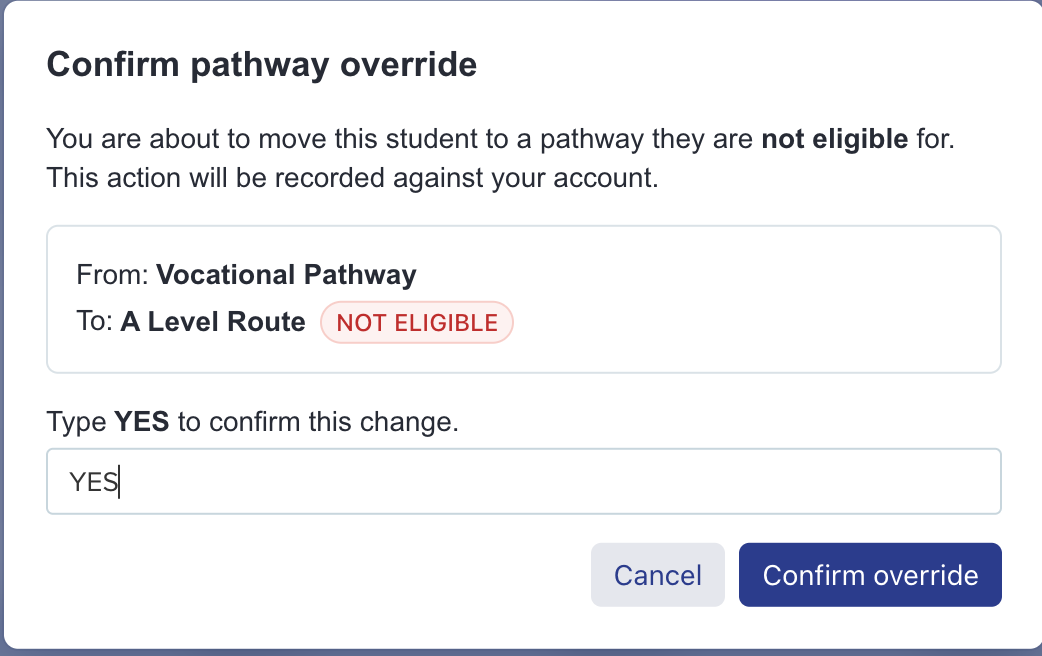

You can control which staff have the permissions to be able to make pathway overrides in step 5 of your Enrolment Navigator.