![APPLICAA_LOGO-1024x350-4.png]](https://helpdesk.applicaa.com/hs-fs/hubfs/APPLICAA_LOGO-1024x350-4.png?height=40&name=APPLICAA_LOGO-1024x350-4.png)
Candidate Sheets can be set up within Exams+ systems, or on Entrance Test forms within your A+ system in order for you to produce a one-page document with the relevant test data on it.
This feature has to be enabled in your system by Applicaa - if you would like to use it but it is not visible within your system, please contact us on 0203 667 0764.
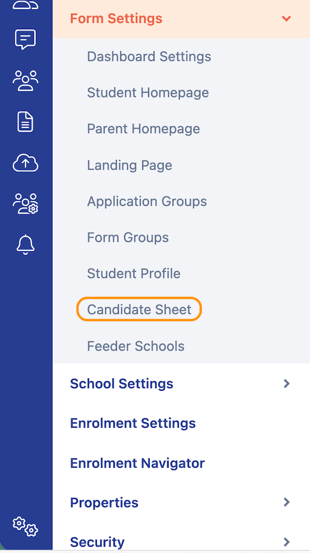
Navigate to Settings > Form Settings > Candidate Sheet.
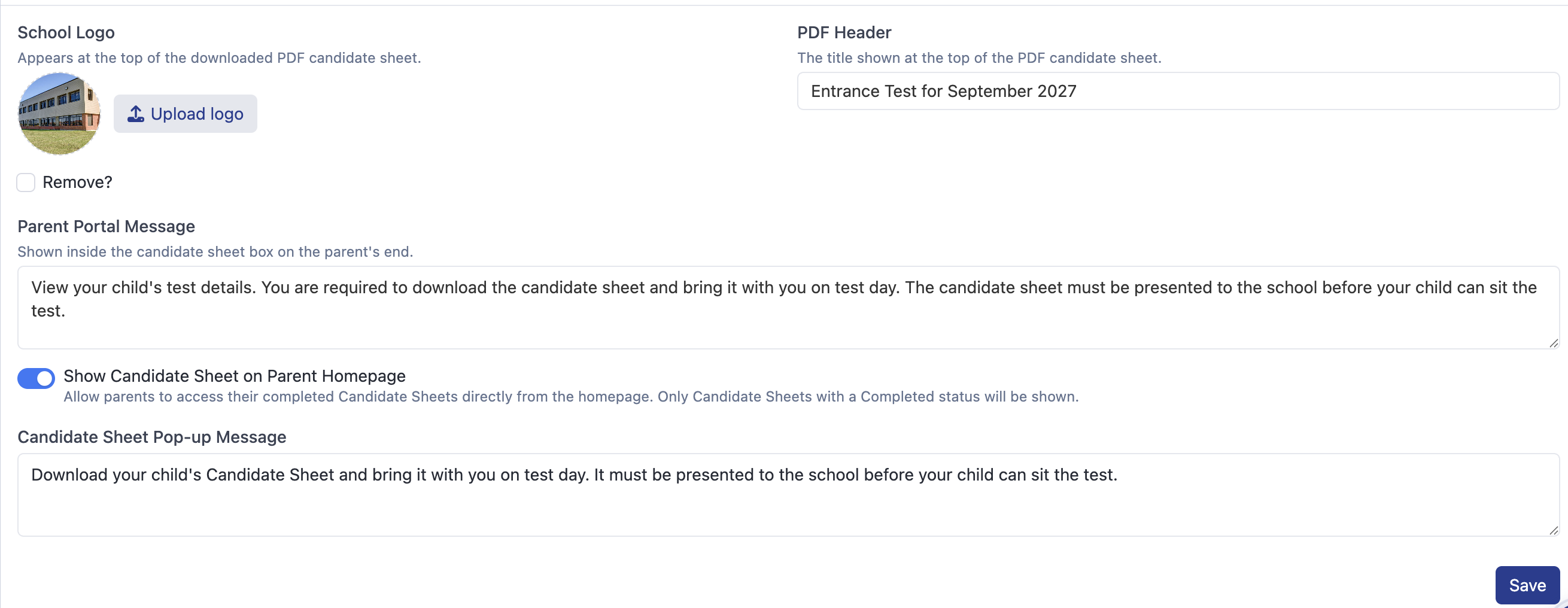
Here you can customise how your sheet will look, by adding a logo and header for the PDF - these will be visible at the top of your PDFs.
If you need parents to be able to view and/or print the Candidate Sheet, you can add a Parent Portal message which will be visible to them on logging into their account, and you can also make the Candidate Sheet visible to the parent alongside a pop-up message if desired. These are pre-filled with example text, but you can customise as desired.
Ensure to click Save if you make any changes in this section.
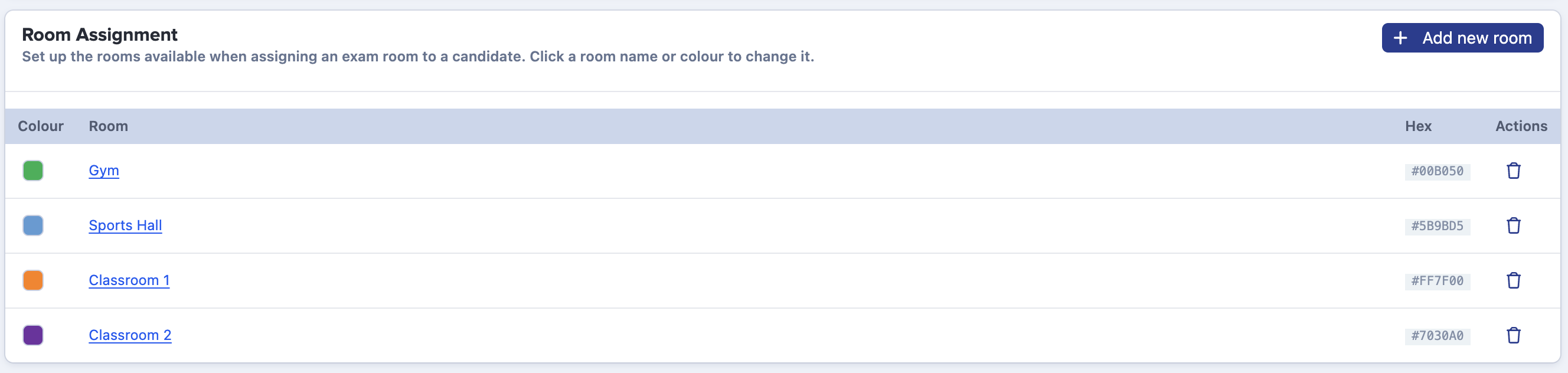
If your test is taking place across several different rooms, you can use the Add new room function to list the names of the rooms, and assign each room a colour if desired. The room name and colour would then be displayed at the top of the PDF.
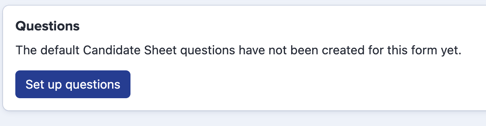
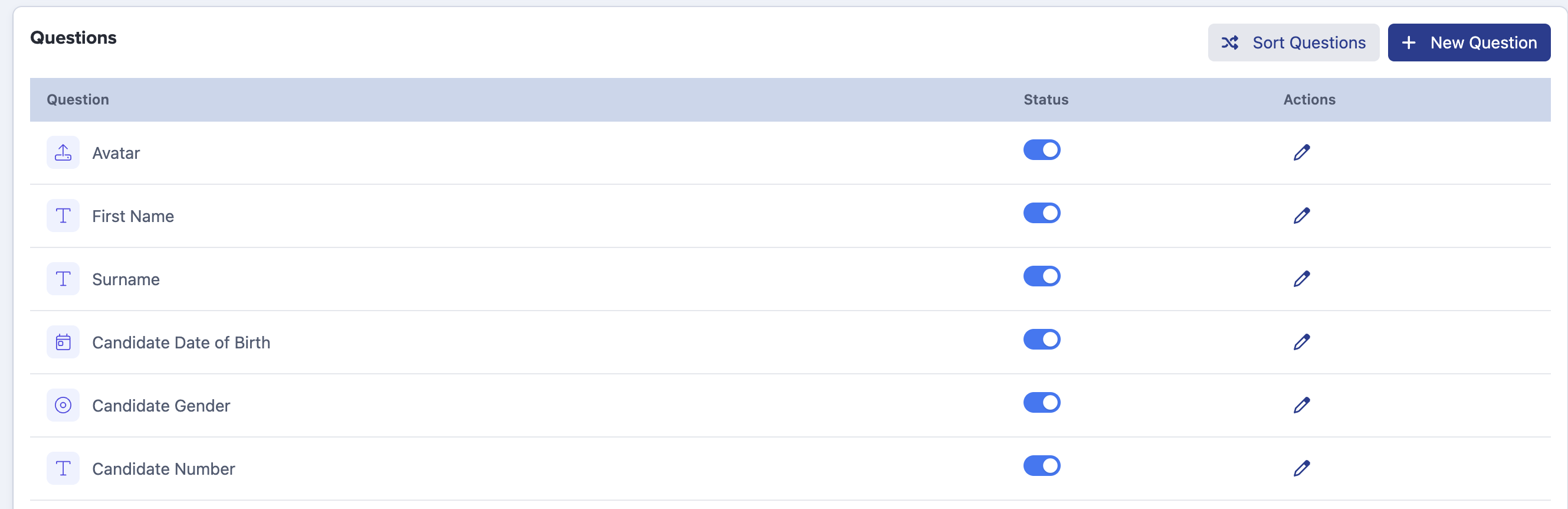
There is a default list of questions pre-written for the Candidate Sheet and you can generate these by clicking Set up questions. The default list of questions will appear, and you Sort Questions into the order of preference, turn off any fields you don't require, add new questions as needed, and edit those which already exist using the pencil icons. A blue toggle switch indicates the field is active, and a grey toggle denotes a field which has been turned off.
Once you have completed your customisation, you should Import Test Details for the students. Clicking Download sample CSV will produce A CSV file with the correctly named and formatted columns for your sheet. Complete the data and then save your file as CSV in order to import.

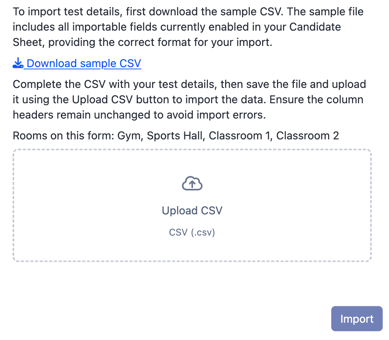
You will receive a confirmation message to show which data was imported, and any errors if applicable.
Importing the data for all of the fields you enabled marks the Candidate Sheet as Completed and only completed sheets are visible to parents - we therefore recommend importing the data first, and then making the sheets visible to parents (if applicable as part of your process). If a field is enabled, but you do not import the data for it, the status will show as Incomplete.
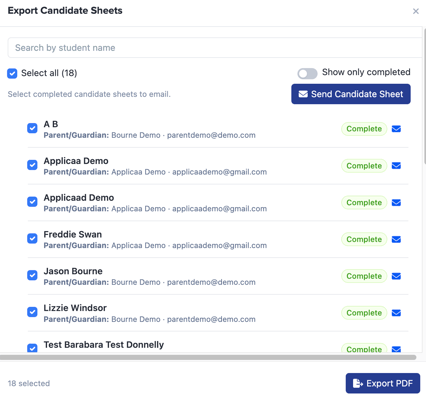
Click Export PDF if you need to export the files for yourself (only completed sheets will be exportable). Select at least one person using the checkboxes in order to activate the button. You can also choose to Send Candidate Sheet if you'd like to send a copy of the PDF to each parent. This generates a per-person PDF to ensure the parent only receives the PDF relating to their child, even when sending the email to multiple parents simultaneously.
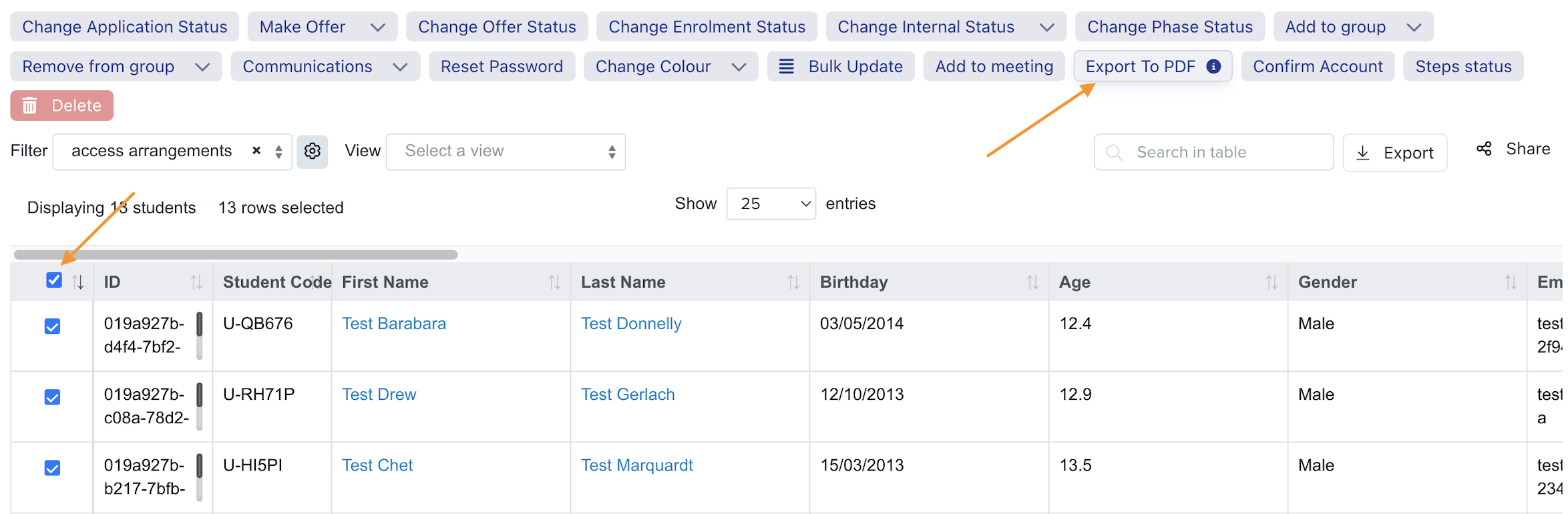
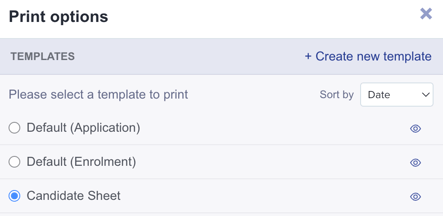
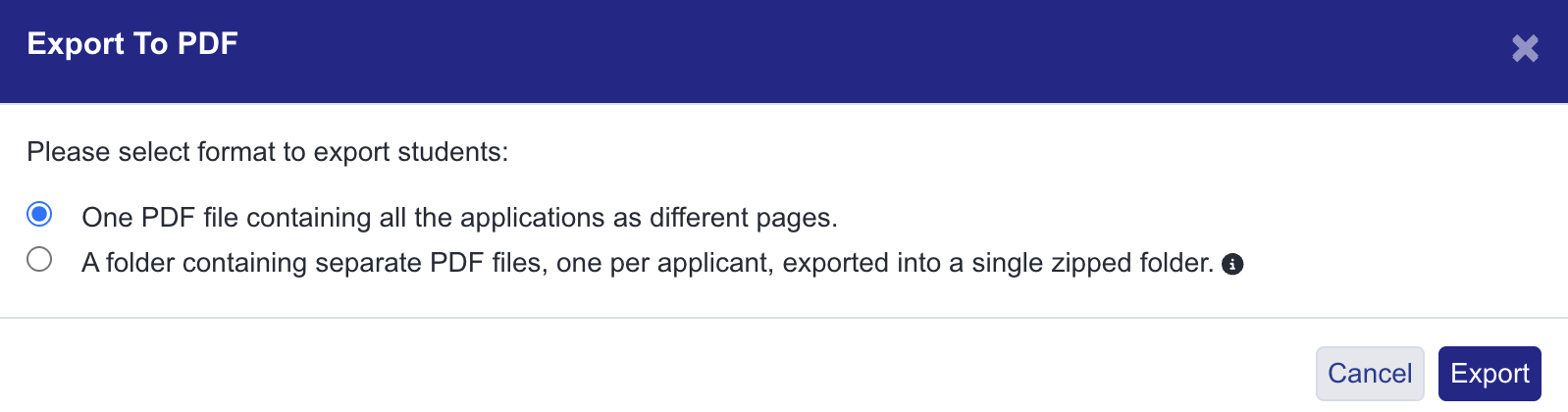
Your Candidate Sheet PDFs can also be generated directly from a group or dashboard tile on your main dashboard. Once you have a list of students, you can select them and use the Export to PDF function to generate a single file containing all PDFs (one per page), or a zipped folder containing a separate file per student.
Parent view:
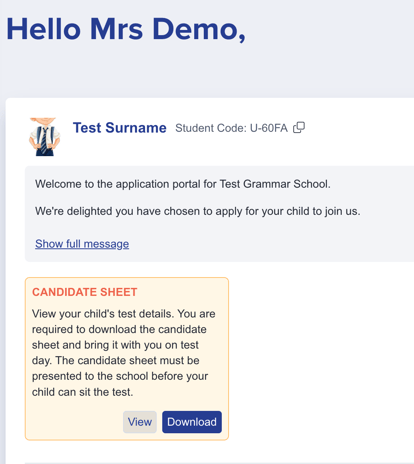
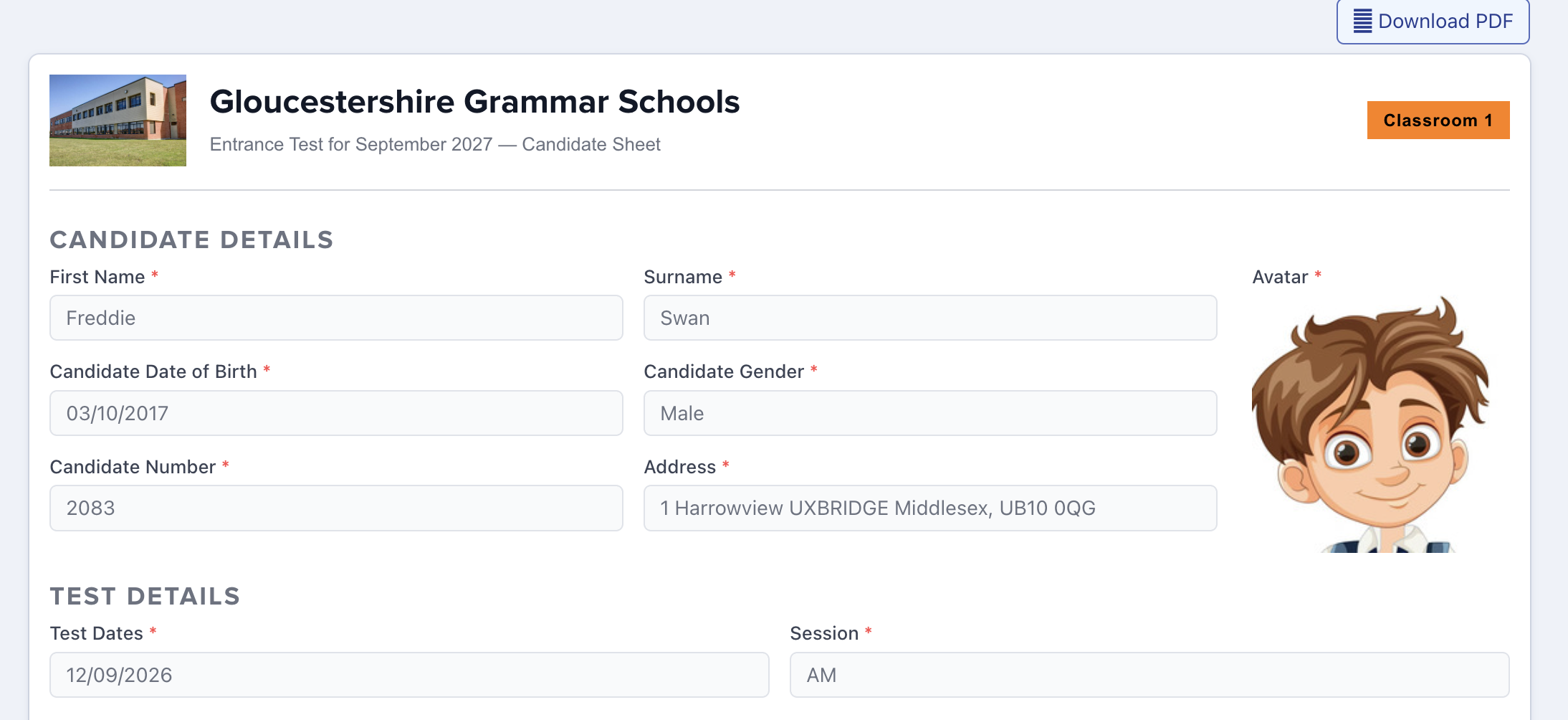
If you have enabled the setting which allows parents to view and download the Candidate Sheet, this would be their view. They would see separate action buttons for each child (in case they have multiple children registered).
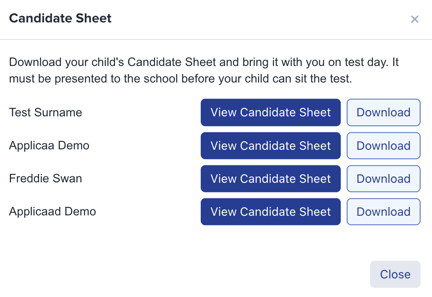
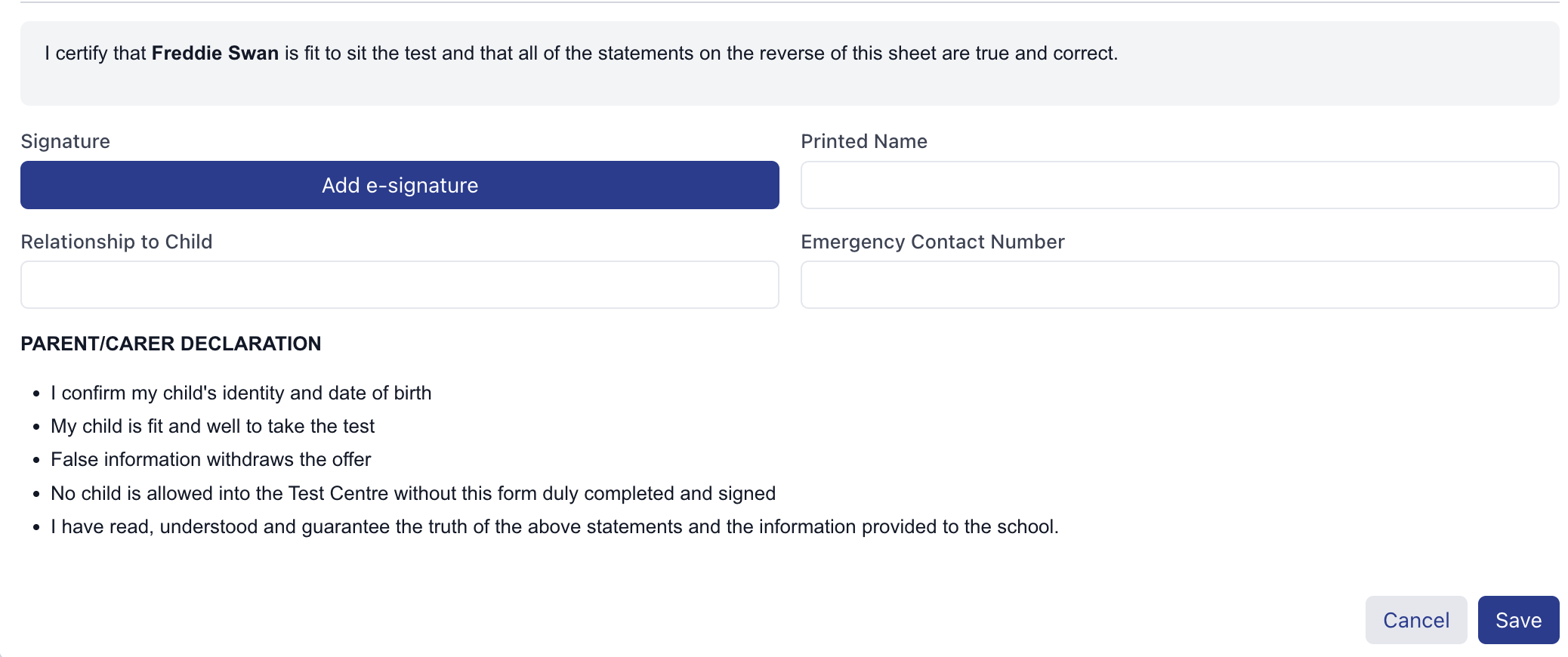
When they click View Candidate Sheet, the details would be visible but greyed out (so they can see but not amend them!) and if you enabled fields for their completion such as their signature, name and relationship to the child, they can complete those digitally or print the PDF and complete them offline to bring with them on the day if that is part of your process.
The sheets remain visible to them afterwards in case they need to check them again or download a new copy.