![APPLICAA_LOGO-1024x350-4.png]](https://helpdesk.applicaa.com/hs-fs/hubfs/APPLICAA_LOGO-1024x350-4.png?height=40&name=APPLICAA_LOGO-1024x350-4.png)
- Bulk Export: Send multiple applications to First Media in one run via the Export Admissions+ to First Media Portal feature.
- Single Student Export: Sync one student at a time directly from their profile.
Both methods achieve the same outcome — creating a First Media profile for an Admissions+ applicant — so choose whichever fits your situation.
Why This Is Needed
Applications are normally created through the First Media Portal and then imported into Admissions+. When an application is instead created directly in Admissions+, it will not yet exist on First Media. These export methods push those applications across so the student has a matching First Media profile.
How to Identify a Student Who Is Not Yet on First Media
There are two ways to spot an application that has not yet been synced to First Media:
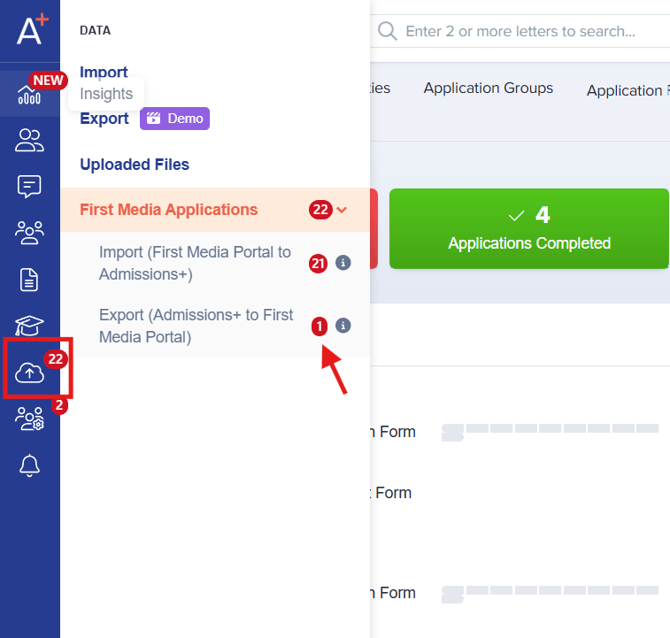
1. Check the First Media Applications menu for a notification
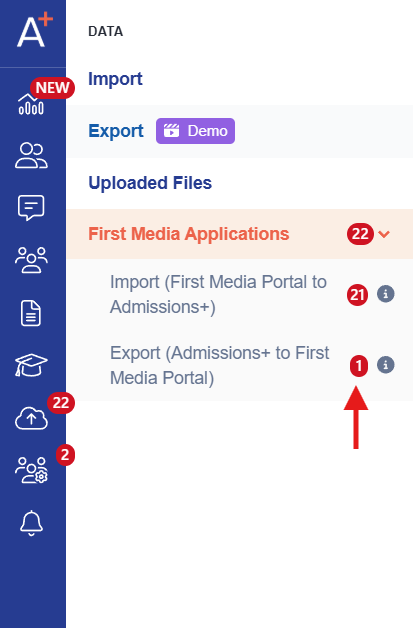
A notification will appear on the First Media Applications menu — specifically on the Export Admissions+ to First Media Portal menu — whenever there are applications in Admissions+ that have not yet been pushed across to First Media. This is the quickest way to see at a glance that there is work to do.
2. Check the properties on the student's application
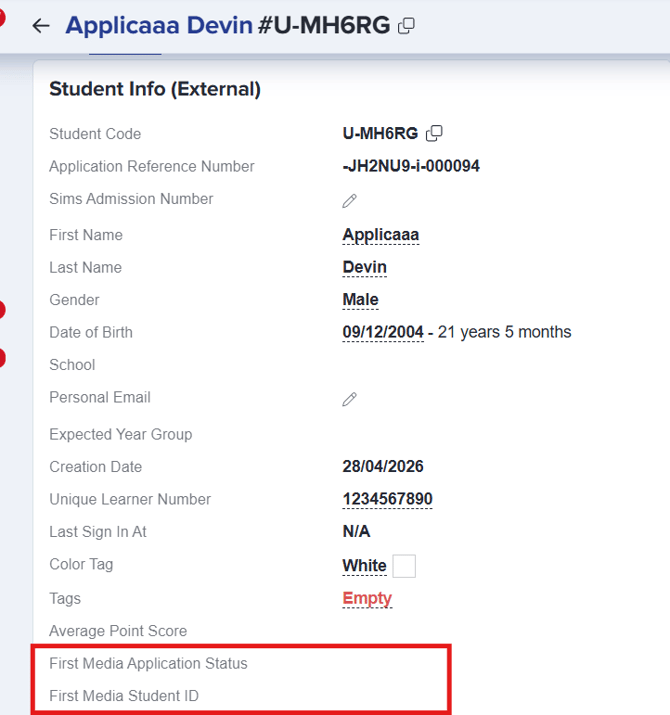
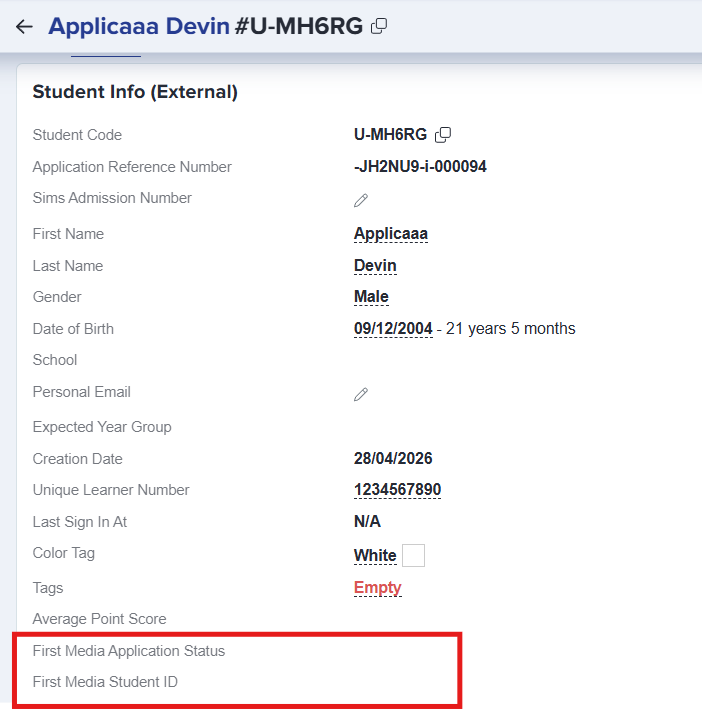
Open the student's application and look at these two properties:
* First Media Application Status
* First Media Student ID
If both are empty, the application has not yet been synced to First Media and is a candidate for export.
Mandatory Fields for First Media
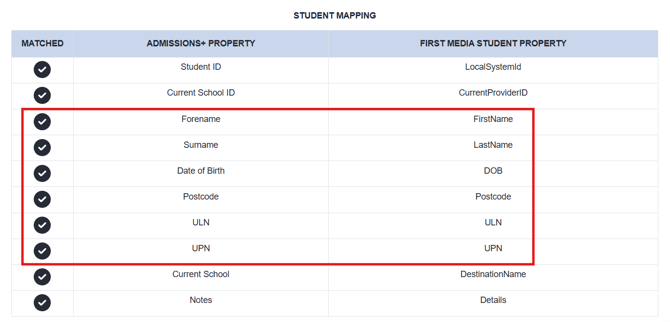
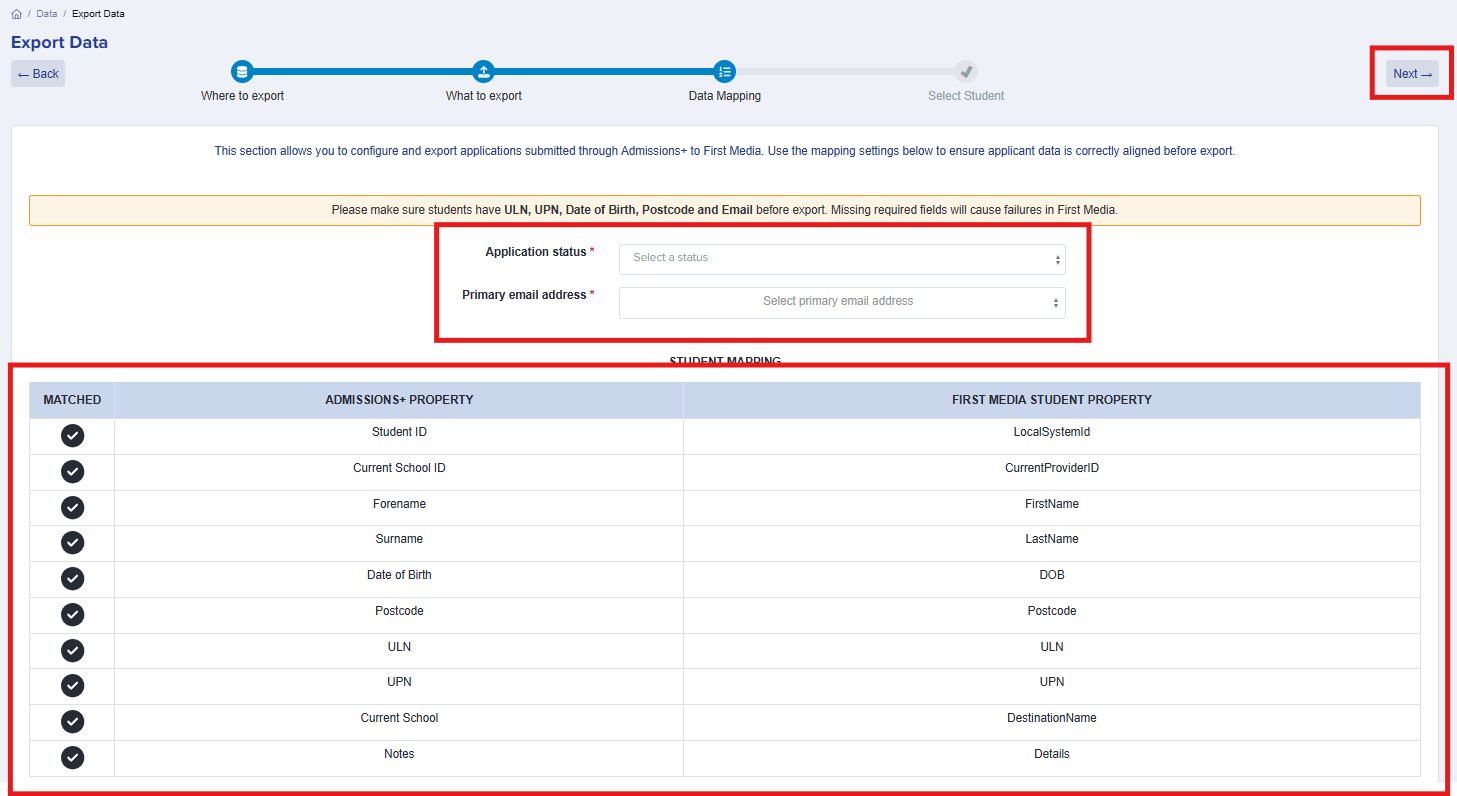
Regardless of which method you use, First Media requires a specific set of properties to create a student profile. These are the same fields shown on the Data Mapping step of the bulk export flow.
As long as these mandatory properties are present on the Admissions+ application, the export will succeed. If any are missing, the export will fail with an error indicating what is needed.
Bulk Export from Admissions+ to First Media
Use this method when you have multiple applications to send to First Media at once.
Step 1: Open the First Media Applications menu
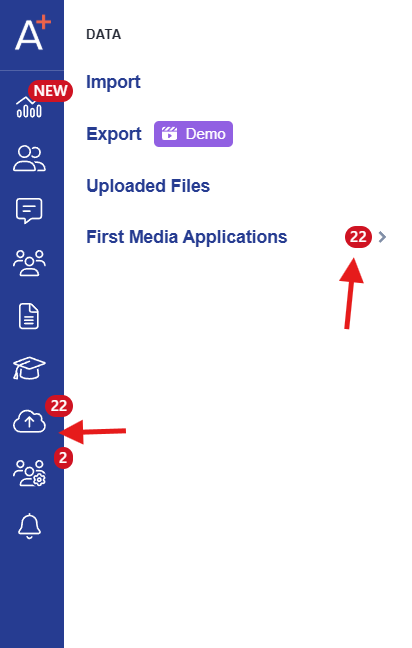
From the Admissions+ dashboard, click the Data button on the left hand panel. You will see notifications for on the First Media Applications menu. Click on it to view the available actions.
Step 2: Choose "Export Admissions+ to First Media Portal"
Select Export Admissions+ to First Media Portal.
What happens next depends on your entry point:
If the flow has been automated for you — you will land directly on the Select Student step, with the export type, what to export, and data mapping already pre-filled. In this case, skip ahead to Step 6 below.
If the flow has not been automated — you will start at the beginning of the export wizard. In this case, continue with Steps 3, 4, and 5 to set up the export manually.
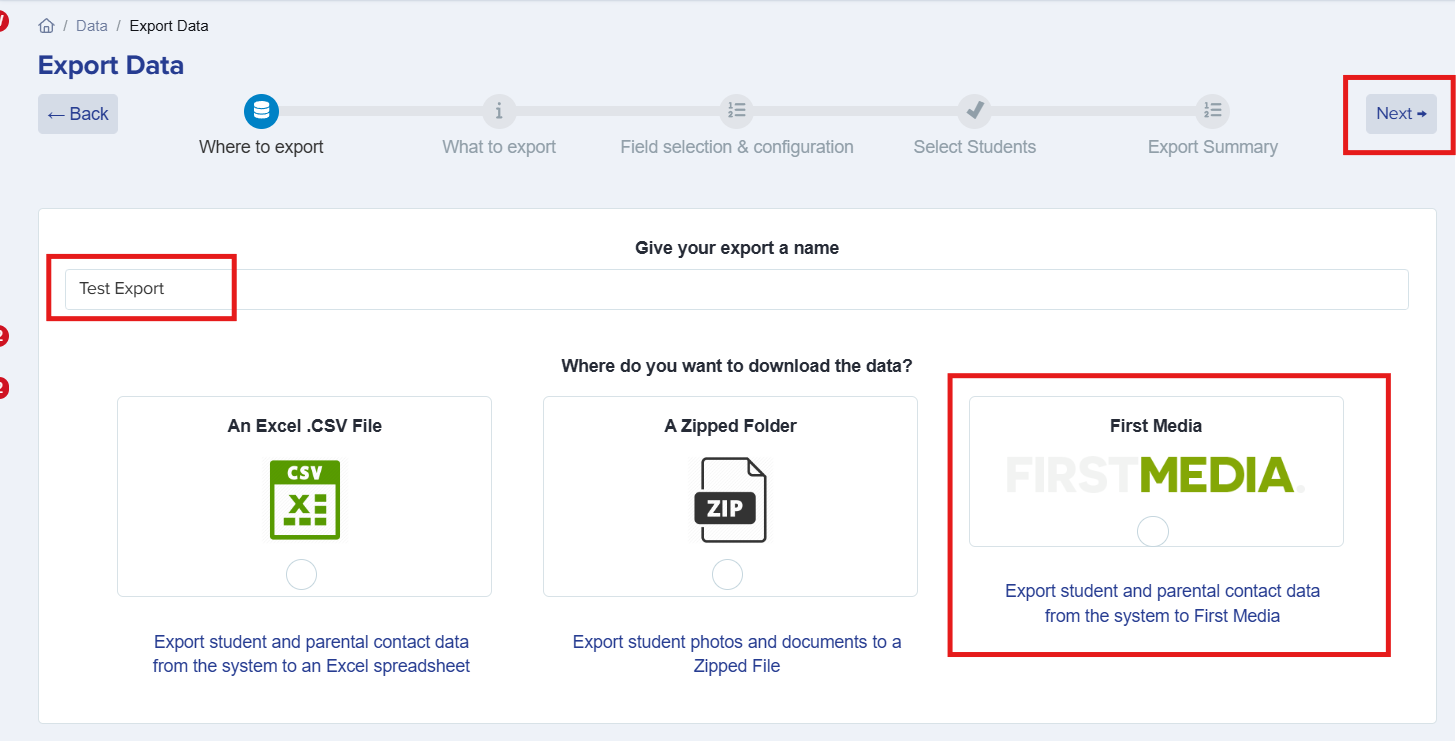
Step 3: Set the Export Type (skip if automated)
On the Export Type step:
* Give your export a name so you can identify it later.
* Tick the First Media box to set First Media as the destination system.
Click Next to continue.
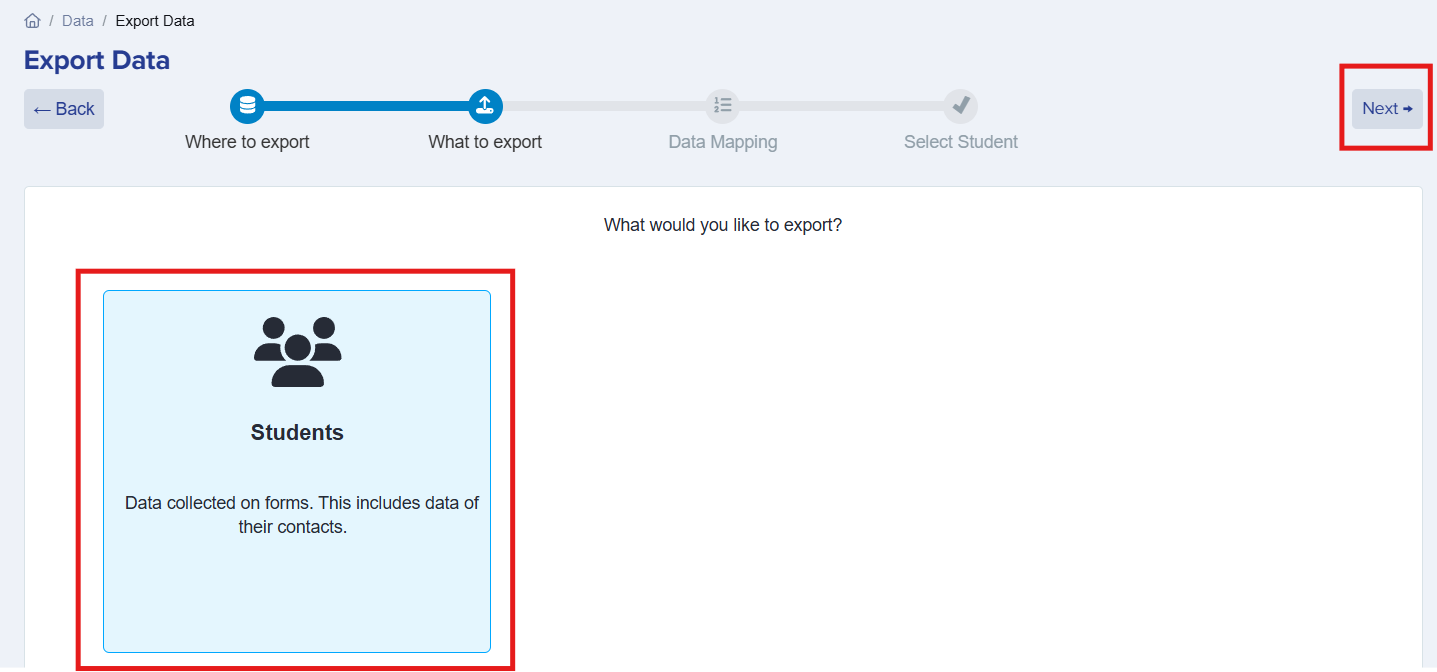
Step 4: Choose What to Export (skip if automated)
On the What to Export step, select Student, then click Next.
Step 5: Complete the data mapping (skip if automated)
On the Data Mapping step, configure how Admissions+ fields map onto First Media:
* Application Status — choose the status to apply on First Media (for example, Acknowledged).
* Primary Email Address — choose which email becomes the primary on First Media. You can pick either the school email address or the personal email address.
* Mandatory fields — the fields required to create a record on First Media have already been pre-matched for you, so no manual mapping is needed.
Once your selections are made, click Next.
Step 6: Select the students to export
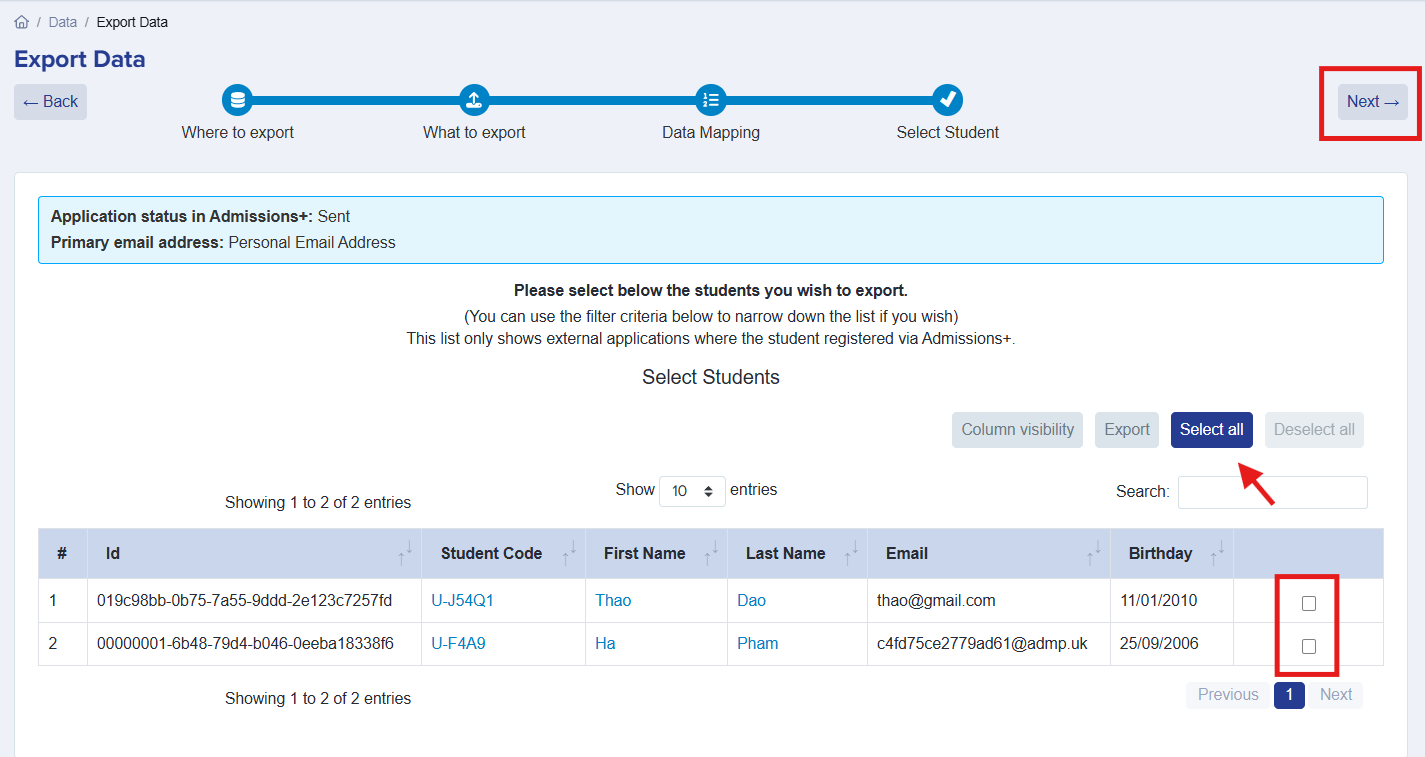
You will now see the Select Student step. This page lists all students who have an Admissions+ application but do not yet have a First Media profile.
* If there are multiple students, you can use Select All.
* Otherwise, tick the individual students you want to export.
Click Next to begin the export.
Step 7: Wait for the export to complete
The export will run automatically. Wait for it to finish — once it is done, a confirmation will appear indicating the export was successful, along with an export report.
Step 8: Review the export report
Click the export report to confirm that the export succeeded. The report will show either:
* Success — your students have been created on First Media as expected.
* Error — an error message will be displayed describing what went wrong.
Single Student Export from the Profile
Use this method when you only need to sync one student to First Media.
Step 1: Open the student's application
Locate and open the student's application in Admissions+.
Step 2: Confirm the student is not yet on First Media
Browse through the application properties and check:
* First Media Application Status — should be empty
* First Media Student ID — should be empty
If both are empty, the student is ready to be synced.
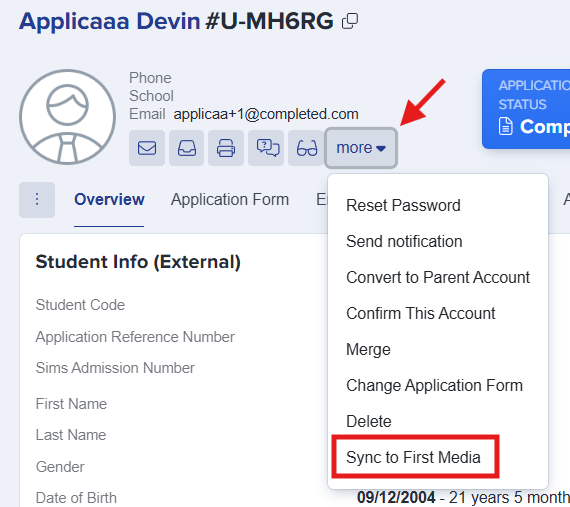
Step 3: Select "Sync to First Media"
Click the More button on the student profile. From the dropdown, select Sync to First Media.
Step 4: Confirm the sync
A pop-up will appear asking you to confirm that you want to sync the student to First Media. Click OK to proceed.
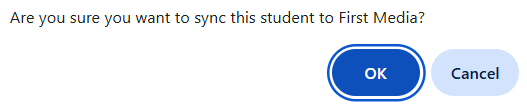
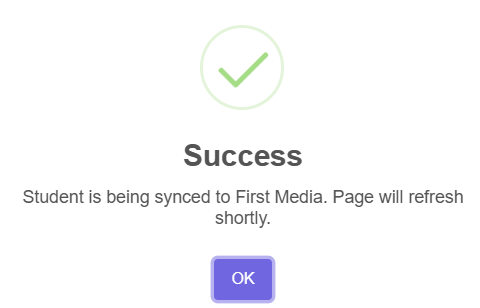
A second confirmation pop-up will then appear, indicating that the student is being synced to First Media and that the page will refresh shortly. Click OK and wait for the sync to finish.
Step 5: Verify the sync was successful
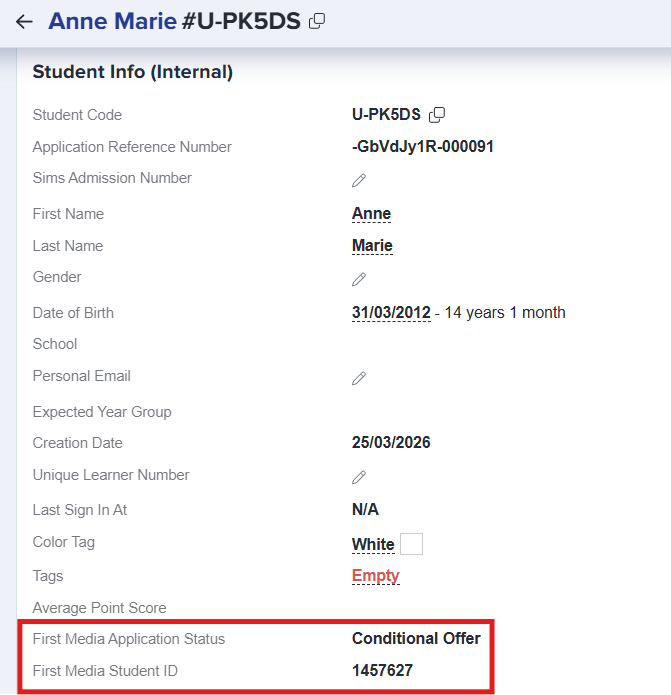
Once the sync completes, return to the student profile and confirm that:
* First Media Application Status is now populated.
* First Media Student ID is now populated.
On the First Media portal — log in to First Media and confirm that the student's application is now present there.
If both checks pass, the export was successful.
Step 6: Manage the status going forward
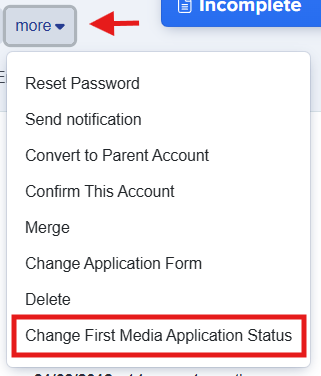
After a successful sync, click the More button again. You will notice that the Sync to First Media option has been replaced with Change First Media Application Status.
This new option lets you update the student's First Media status directly from within Admissions+ — simply choose from the list of available statuses.
Troubleshooting
If an export or sync reports an error (either via the bulk export report or after a single-student sync):
* Review the error message that is displayed.
* Check the application against the mandatory First Media fields — missing properties are the most common cause of failure.
* Check with your team — or our support team — to confirm what the error means if it is unclear.
* Make the necessary corrections on the Admissions+ application.
* Re-run the export (bulk) or sync (single student) once the issue has been addressed.
Hope you find this guide helpful! If you run into any issues or have questions along the way, don't hesitate to reach out to our team.