![APPLICAA_LOGO-1024x350-4.png]](https://helpdesk.applicaa.com/hs-fs/hubfs/APPLICAA_LOGO-1024x350-4.png?height=40&name=APPLICAA_LOGO-1024x350-4.png)
Students allocated through this process are assigned a reserved enrolment place, rather than a confirmed enrolment. Their enrolment is only confirmed once they accept their allocated place.
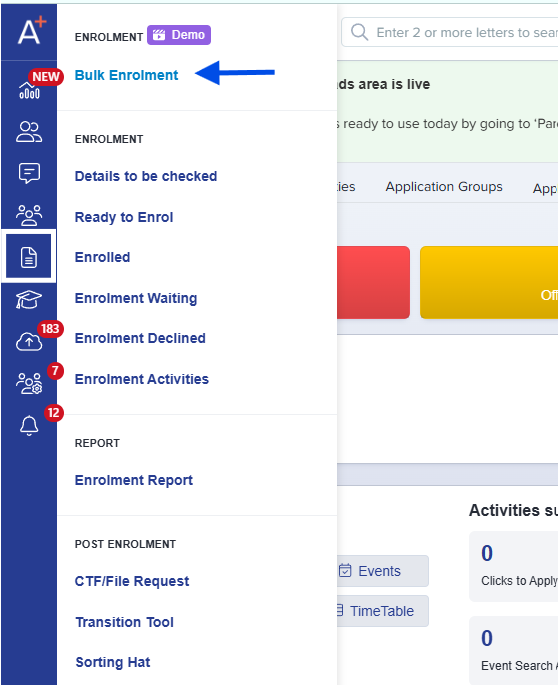
You can access Bulk Enrolment from the top of the Enrolment menu, above the grey separator that divides it from the enrolment status views.
Note: Before you begin, ensure that your courses, option blocks, and class capacities have been configured for the academic year you are enrolling into. You should also ensure that the relevant application group (for example, Year 11 → Year 12) is ready for enrolment.
Dashboard
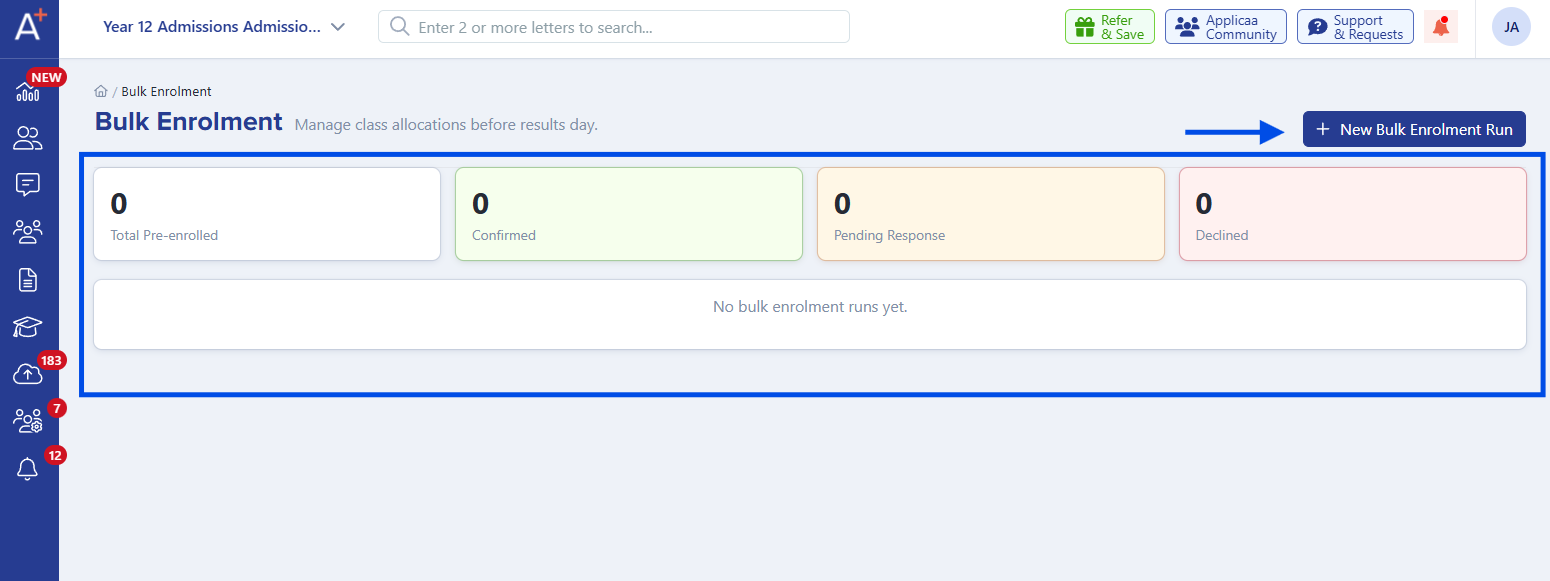
The Dashboard is the central hub for managing your bulk enrolment runs.
It provides an overview of every bulk enrolment run—both current and previous—and displays key statistics, including:
- Pre-enrolled students
- Confirmed enrolments
- Pending responses
- Declined responses
From here, you can:
- Select + Create New Run to start a new bulk enrolment process.
- Open an existing run to continue where you left off.
You can maintain multiple enrolment runs simultaneously. For example, you may have separate runs for:
- Main Year 12 intake
- Scholarship applicants
- External applicants
Add Students
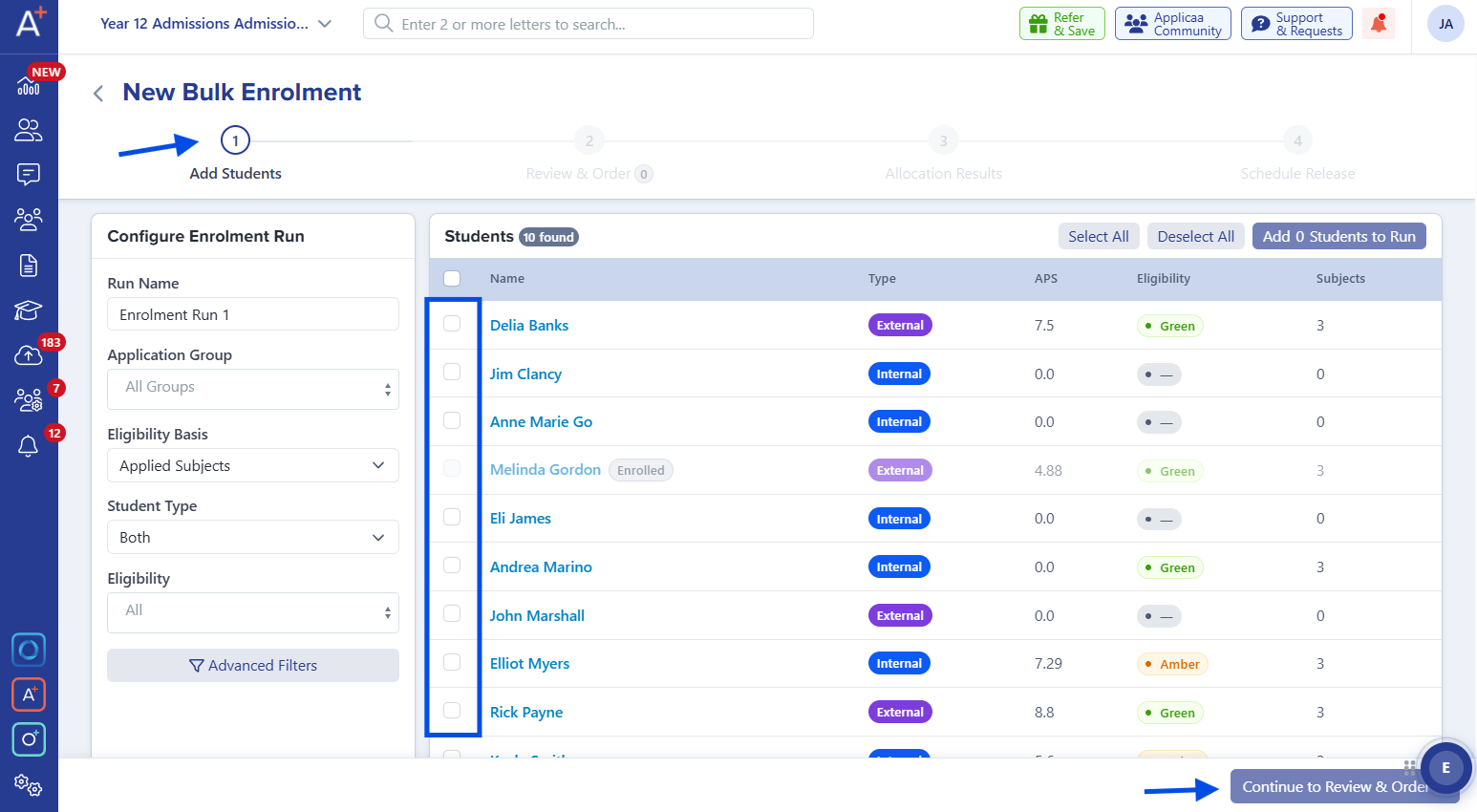
The Add Students step allows you to configure your enrolment run and select the students to include.
Begin by:
- Entering a name for the enrolment run.
- Selecting the Application Group.
- Choosing whether student eligibility should be based on Applied Subjects or Offered Subjects.
You can quickly narrow your student list using the available filters:
- Student Type
- Eligibility Status (Green, Amber, or Red)
For more advanced filtering, open the Advanced Filters panel from the right-hand drawer. Here, you can build complex filter combinations using fields such as:
- Application Status
- Year Group
- Feeder School
- Gender
- Offer Status
- ...and many other available fields.
Once you have selected the appropriate students, add them to the enrolment run.
Review & Order
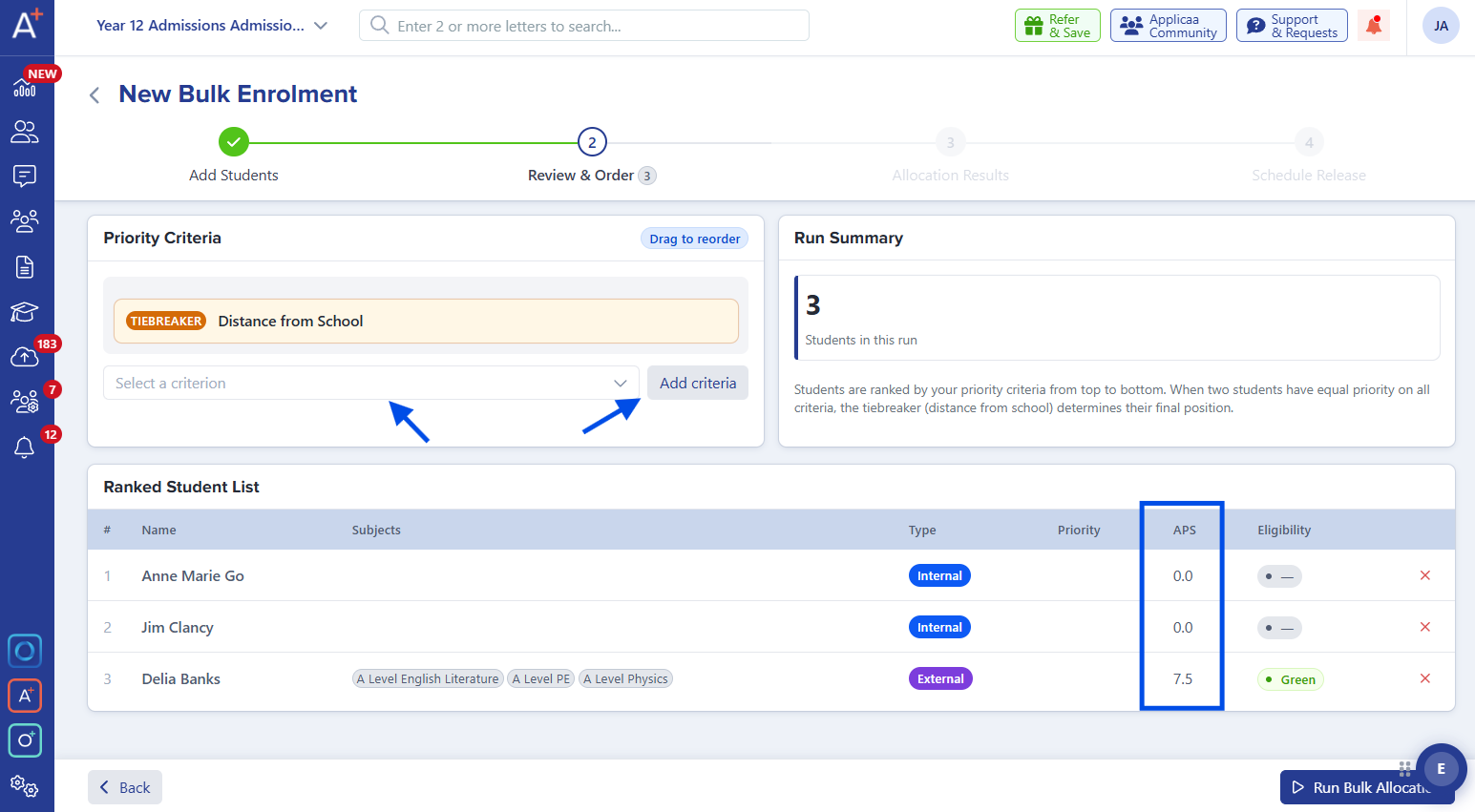
In the Review & Order stage, you determine the priority in which students will be allocated when course or class capacity is limited.
The system includes one default ranking criterion:
- Total Point Score (or Average Point Score, depending on your school's configuration)
You can then add additional ranking criteria using Custom Properties.
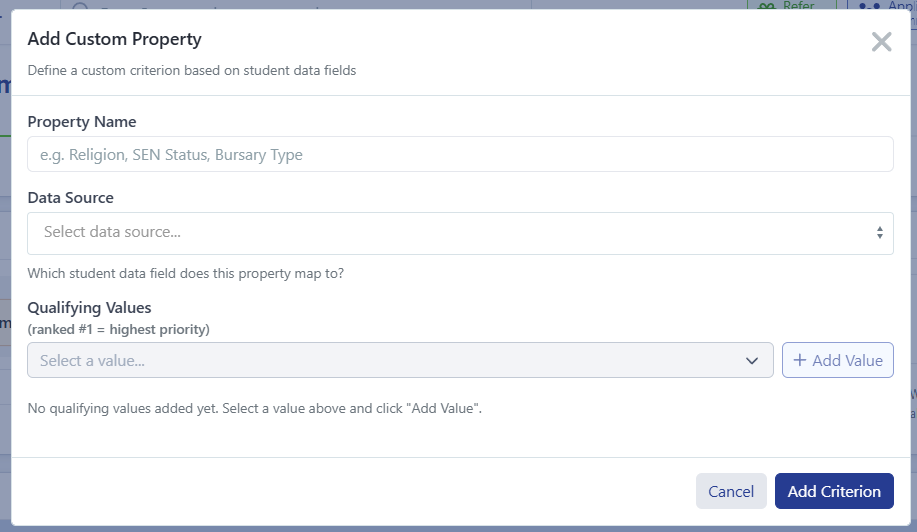
Creating Custom Properties
Each custom property consists of:
- A name (for example, EHCP Status, Sibling at School, or Religion)
- A data source
- A ranked list of qualifying values
Available data sources include:
- EHCP Status
- Looked After Child
- Sibling at School
- Staff Child
- Religion
- SEN Status
- Ethnicity
- Bursary Type
- Feeder School
- Catchment Area
Students matching the highest-ranked value receive the greatest priority. Students who match any configured value will always rank above those who do not match any value.
You can drag and drop the priority criteria to determine their order of importance.
Note: If two students receive identical rankings across all criteria, the final tie-breaker is distance from the school, with students living closest receiving higher priority.
Allocation Results
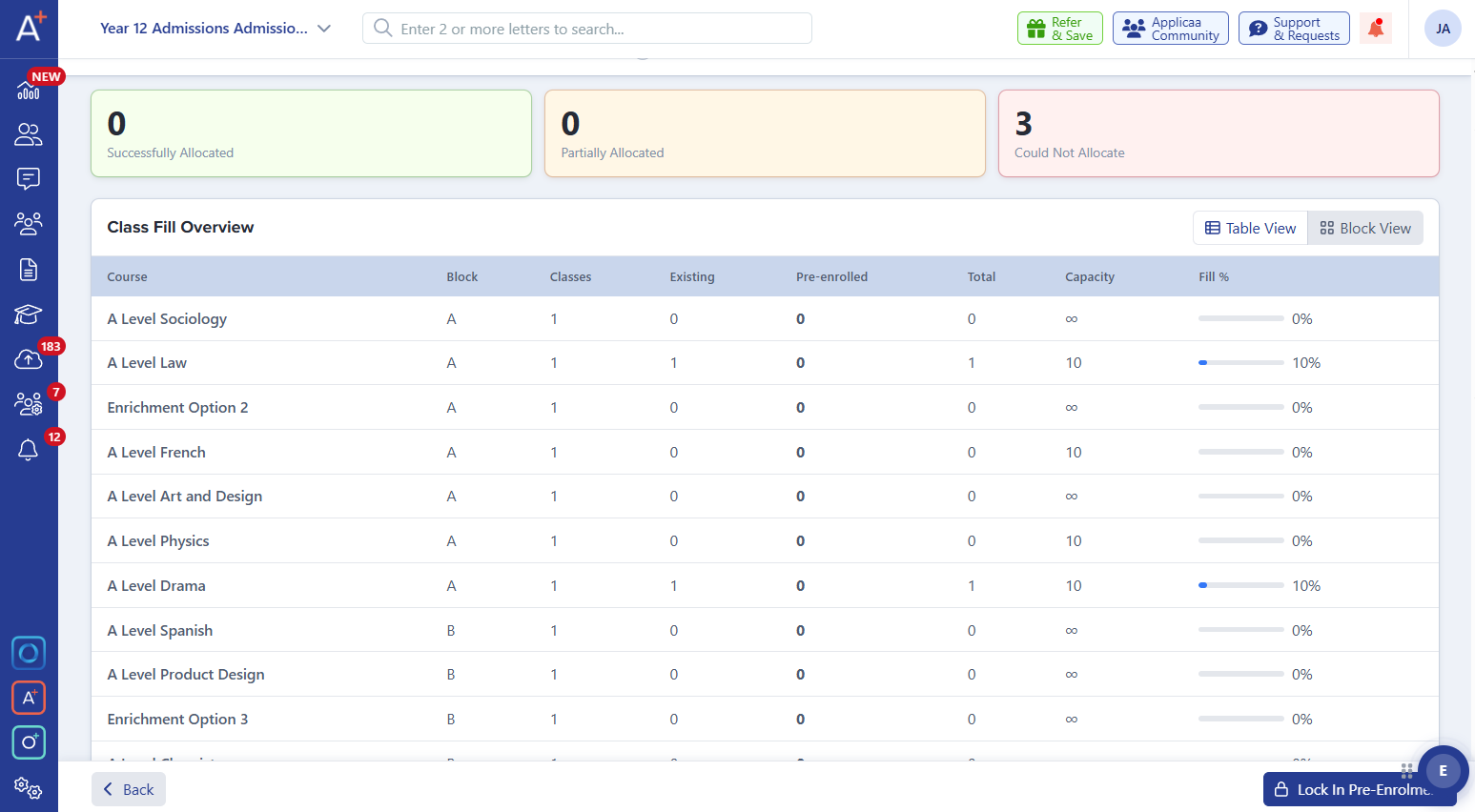
Once priorities have been configured, the system generates the Allocation Results.
Students are automatically allocated to classes based on:
- Their priority ranking
- Their subject preferences
- Available class capacity
The results clearly indicate whether each student has been:
- Successfully allocated
- Partially allocated
- Unable to be allocated
For every course, you'll also see a class capacity overview showing:
- Existing enrolments
- Reserved (pre-enrolled) students
- Total places allocated versus capacity
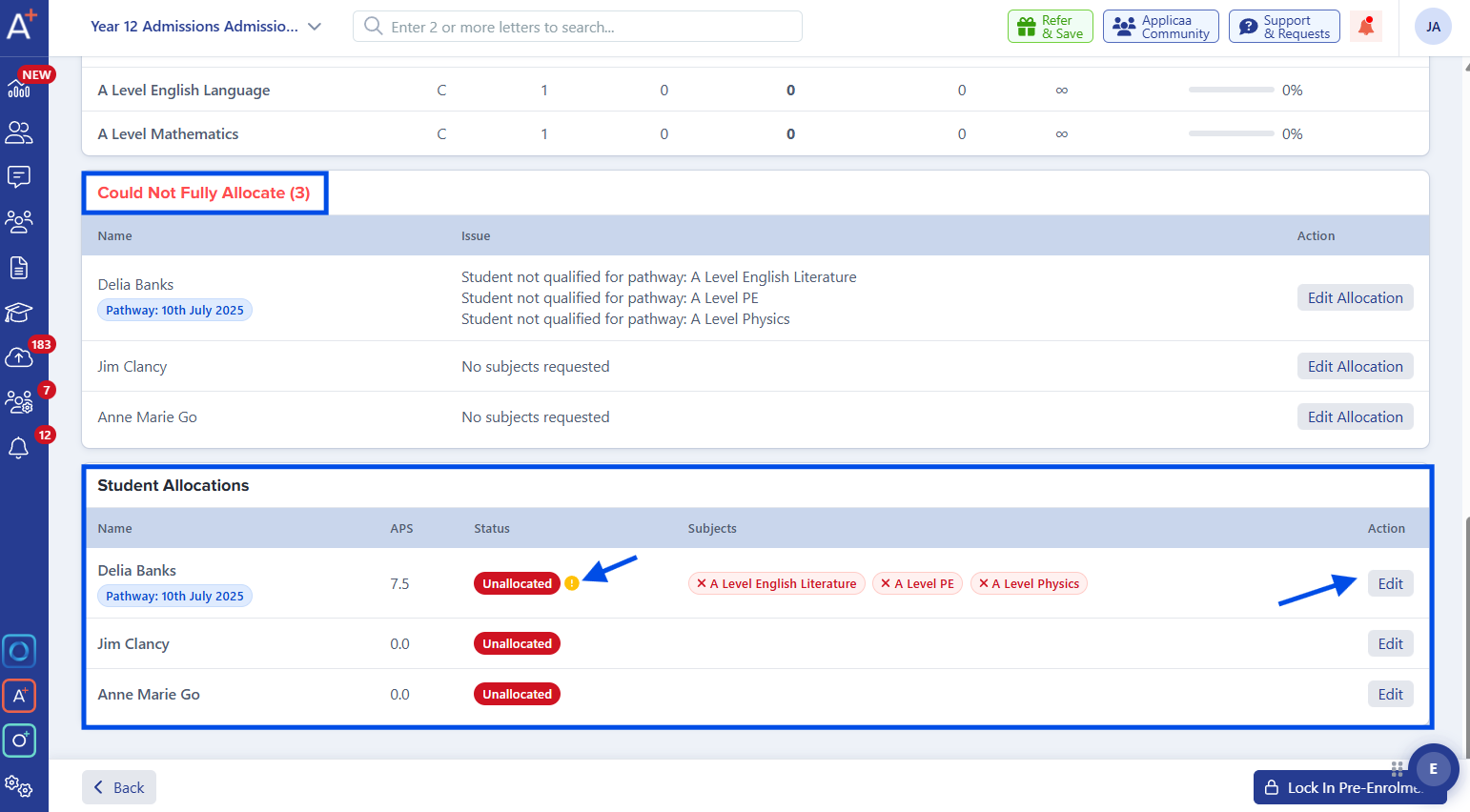
Where a student cannot be fully allocated, the system explains why—for example:
- Class is full
- Option block clash
- Capacity restrictions
If adjustments are required, select Edit Allocation to manually move students between available classes within their option blocks. Live capacity information is displayed throughout the process to help you make informed decisions.
Once you are satisfied with the allocations, confirm the pre-enrolment run.
Schedule Release
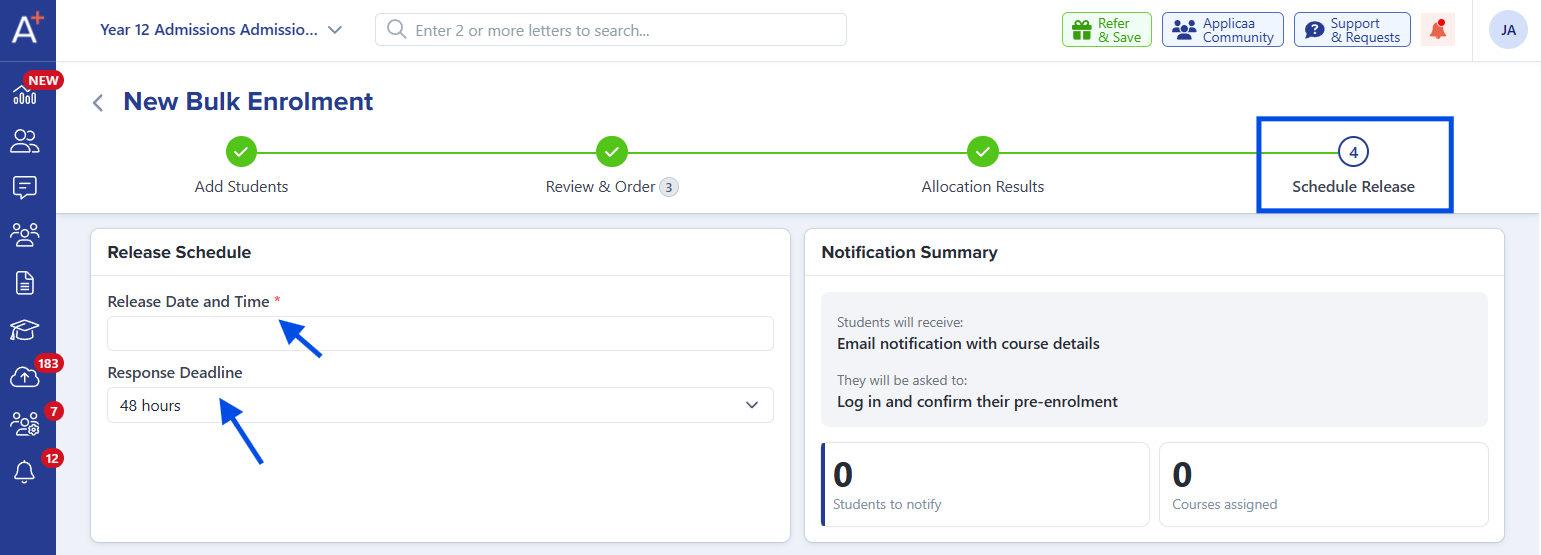
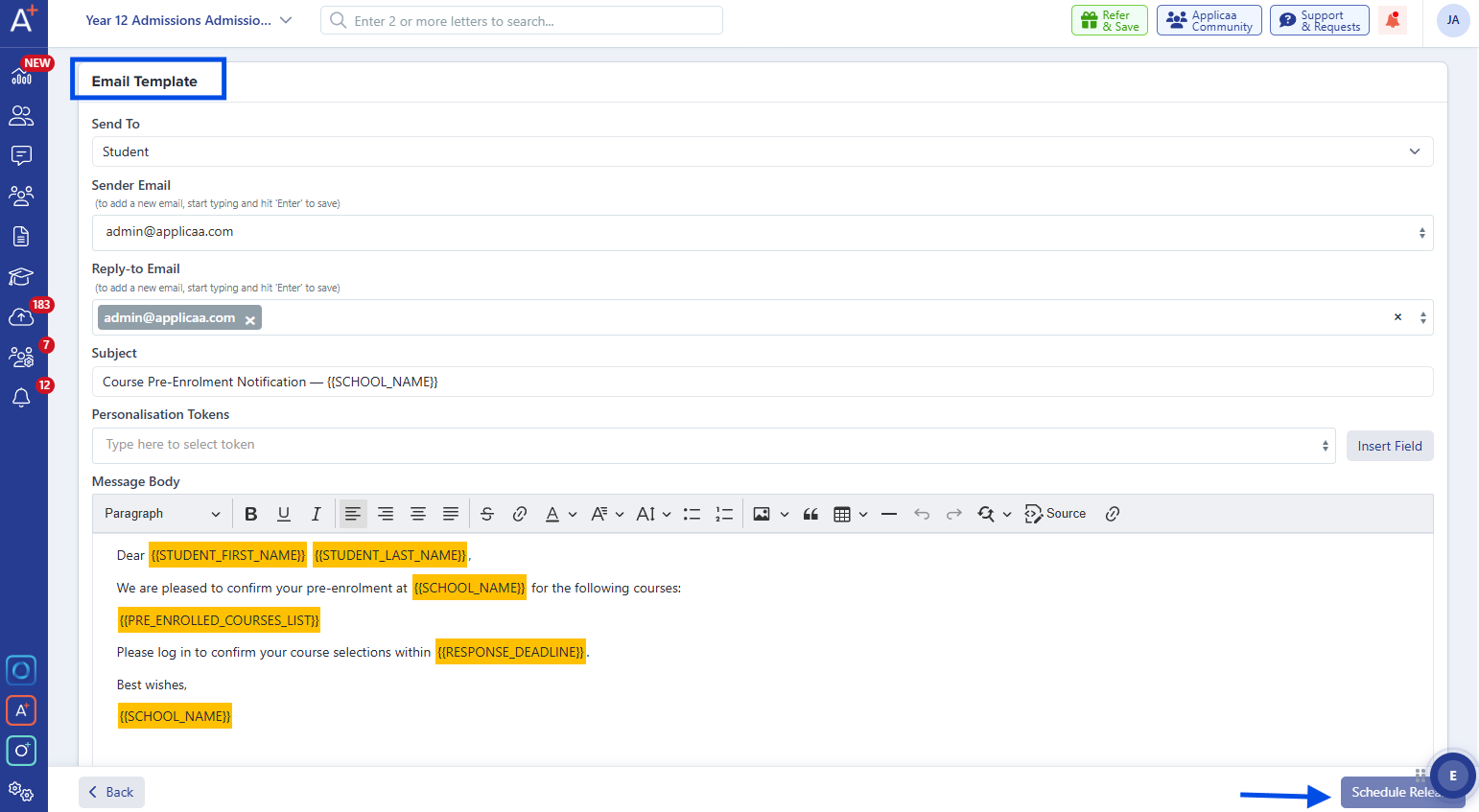
After confirming allocations, schedule when students will receive their pre-enrolment invitations.
Configure:
- Release date
- Release time
- Response deadline
Available response deadlines include:
- 24 hours
- 48 hours
- 72 hours
- One week
- Custom date
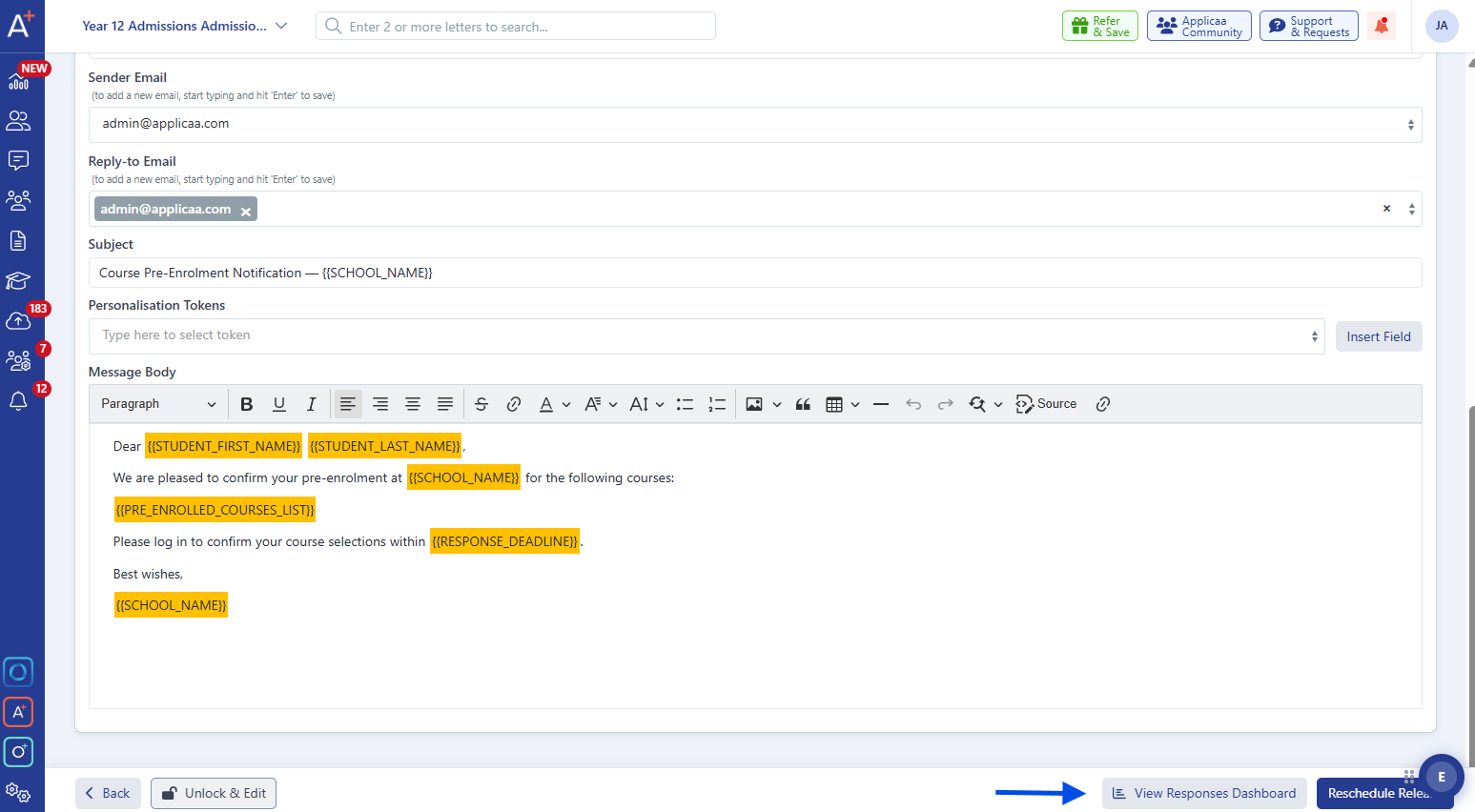
You can also customise the notification email using merge fields such as:
{student_first_name}{school_name}{courses_list}
At the scheduled time, all pre-enrolled students will receive their invitation and can log in to review and confirm their reserved place.
Monitor Responses
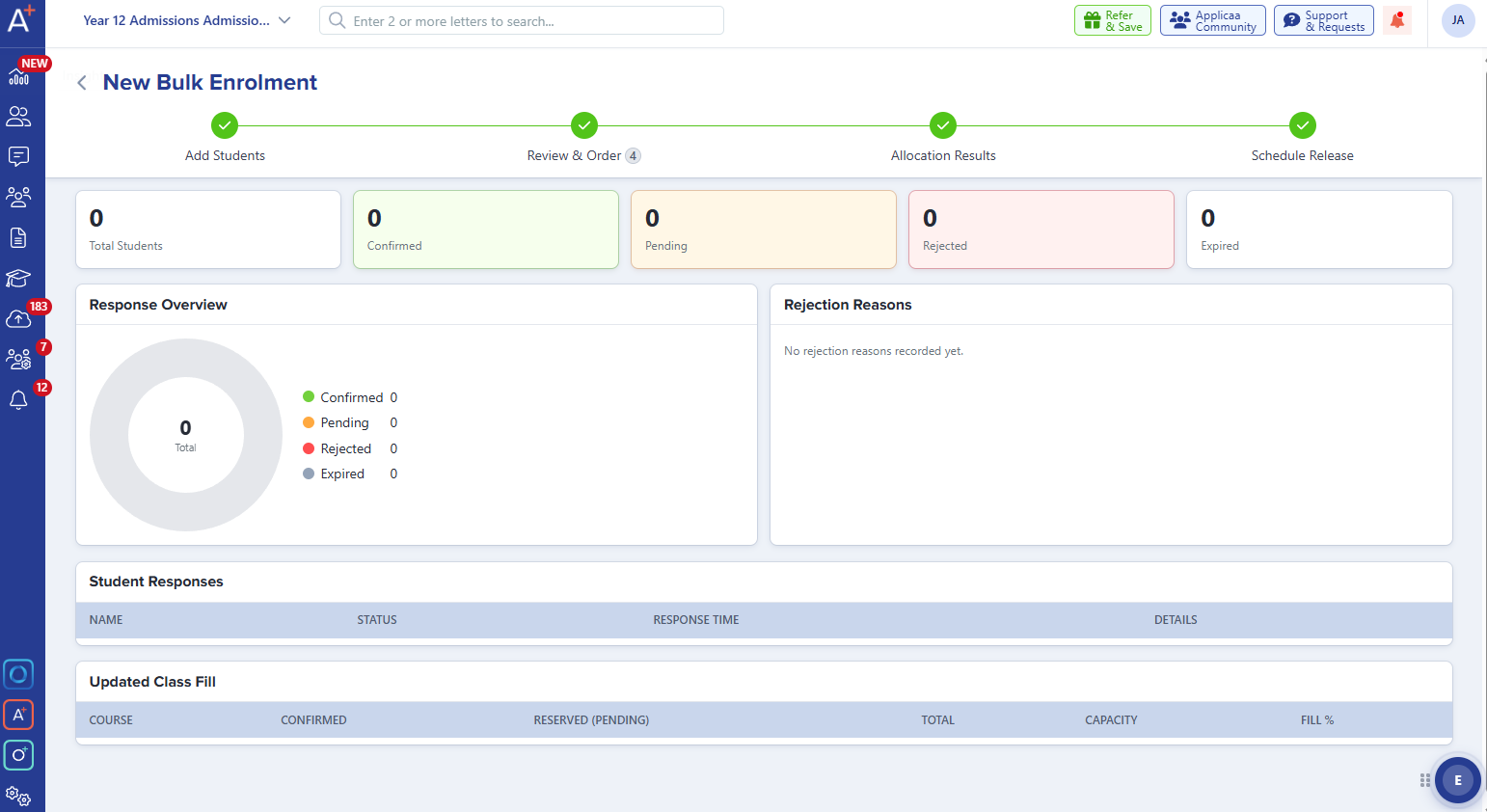
The Monitor Responses stage provides a live overview of student responses after invitations have been sent.
Each student will display one of the following statuses:
- Confirmed — The student has accepted their place.
- Pending — The student has not yet responded.
- Rejected — The student declined their place (with the reason recorded).
- Expired — The response deadline has passed.
- Change Requested — The student has requested a change to their allocated subjects. Staff can review and approve or decline these requests.
This page also includes:
- A response summary donut chart
- A breakdown of rejection reasons
- An up-to-date class capacity overview showing:
- Confirmed enrolments
- Reserved (pending) places
- Remaining capacity
This allows you to distinguish between students who have committed to their place and those who have yet to respond.
Important: A reserved place is not a confirmed enrolment. An enrolment is only confirmed once the student accepts their allocated place. Throughout the Bulk Enrolment process, class capacity reports distinguish between confirmed and reserved (pending) places, giving you an accurate view of both committed and provisional numbers at all times.