![APPLICAA_LOGO-1024x350-4.png]](https://helpdesk.applicaa.com/hs-fs/hubfs/APPLICAA_LOGO-1024x350-4.png?height=40&name=APPLICAA_LOGO-1024x350-4.png)
Overview
First Media supplies the post-16 application portal used by many local authorities — KentChoices in Kent, Sheffield Progress in Sheffield, and eProspectus and other local names elsewhere.
Until now, applications were created on the portal and imported into Admissions+. Admissions+ can now also export applications to First Media, so students register and apply directly on your Admissions+ form rather than on the portal. The application still reaches First Media, so your local authority's tracking and reporting are unaffected.
Both directions run on the same connection, which you set up once below. Before moving students onto the new route, confirm your local authority is happy for applications to originate in Admissions+.
Connect Admissions+ to First Media
- Go to Settings → Integration.
- On the First Media Integration card, click Edit.
- Enter your First Media ProviderID and First Media API Key, then click Save.
- Admissions+ immediately checks the credentials against the portal — look for “First Media credentials are valid.”
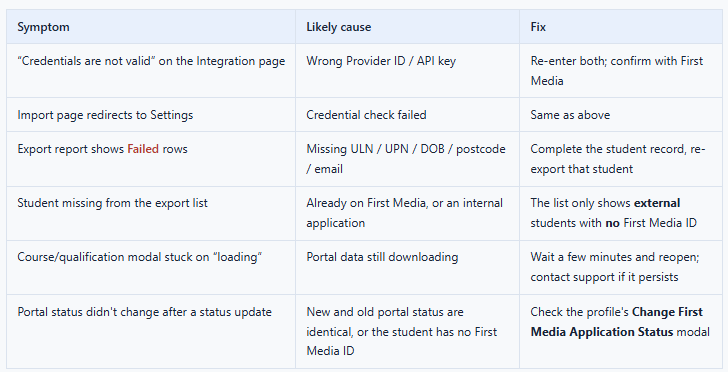
If you instead see “Credentials are not valid”, re-check both values with First Media — nothing will import or export until this message is green.
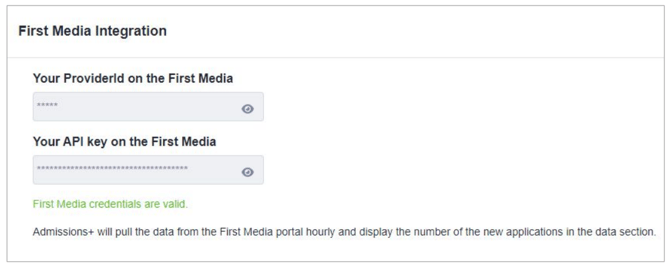
Once saved, the connection is live and does not need setting up again unless your credentials change.
Student Account Creation
Where students apply through Admissions+ rather than the portal, your Student Registration form becomes their first point of contact. Configure it before you make it live, so you are not editing questions once students have already started registering.
Checking your registration form
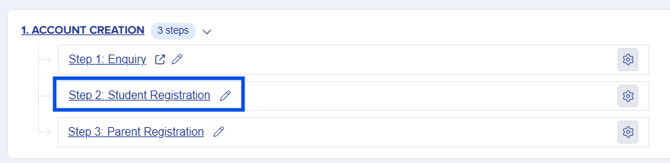
1. Go to Settings > Application Form > Account Creation > Student Registration
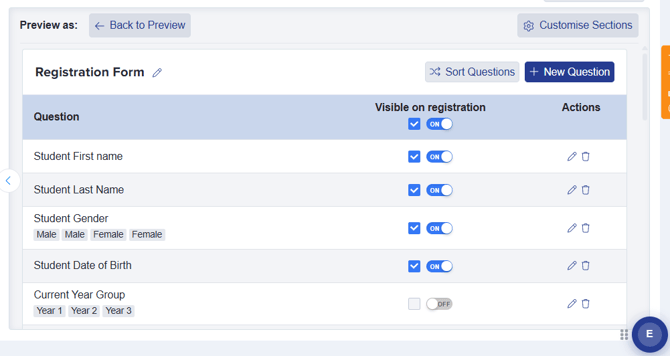
2. Review the available questions and enable the ones you want to ask
Note: Click 'I want to make more changes' to configure the form
3. Save your changes, then make the form live
Getting Applications
Once your registration form is live, students who register through Admissions+ appear in the Registered Students box on your dashboard. This is your working list — everyone who has created an account, whether or not they have finished applying.
Tracking progress with dashboard tiles
The Registered Students box shows everyone at once, which becomes unhelpful as numbers grow. To see where individual students have reached, check dashboard tiles that filter by:
- Application status
- Offer status
- Reference status
- Enrolment status
Most teams set up a tile per status they actively chase, so the dashboard shows at a glance who is waiting on a reference, who has an outstanding offer, and who still needs to enrol.
Applications from the portal
Students can still apply through the First Media portal — for example when applying to several providers at once, or where they are outside your usual intake. These do not appear automatically.
Admissions+ notifies you when there are First Media applications waiting to be imported, so you do not need to check for them manually. (Data → First Media Applications → Import (First Media Portal to Admissions+)
Import applications from the portal
Start the import
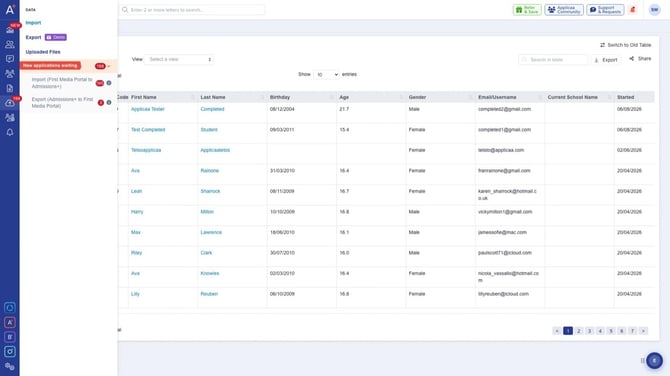
In the sidebar, open Data → First Media Applications. The badge shows how many new applications are waiting on the portal (status Sent). Click Import (First Media Portal to Admissions+).
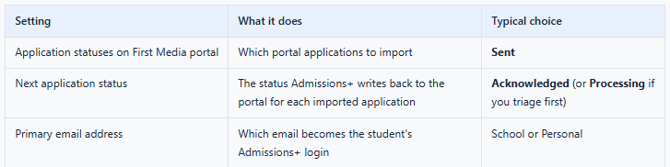
Configure statuses and mapping
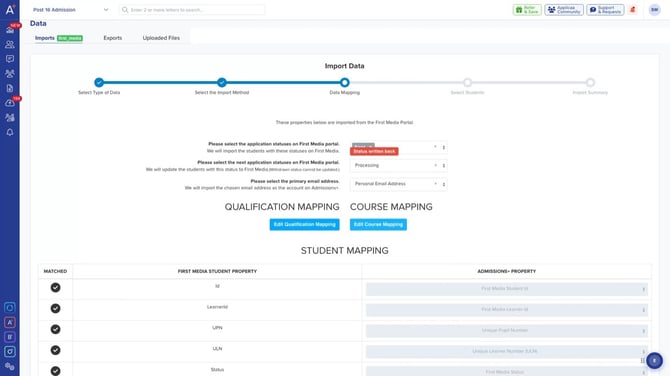
Qualification Mapping and Course Mapping tell Admissions+ how the portal's subjects and course codes line up with your own. Map each item once — mappings are remembered for every future import. Any course left unmapped is created automatically during import.
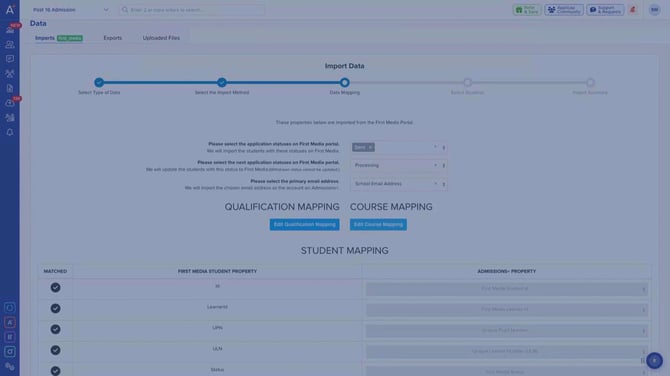
Below these, every First Media field is pre-mapped to an Admissions+ property (Student, Contact, Reference and Reference Details tables). You rarely need to change them.
Select students and run
Click Next. Admissions+ downloads the waiting applications from the portal and lists every applicant with their name, date of birth, current school, and First Media identifiers. Filter by name, year group or academic year; tick individual applicants, or click Select All.
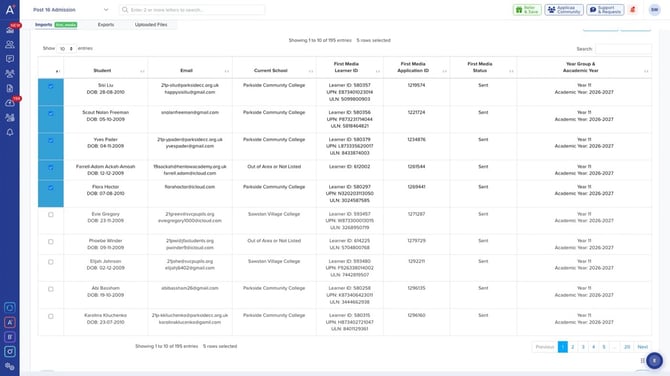
Click Next to start. The import runs in the background: each student is created with their parent contacts, predicted grades, course choices and references, and the “next status” you chose is posted back to First Media as each one lands.
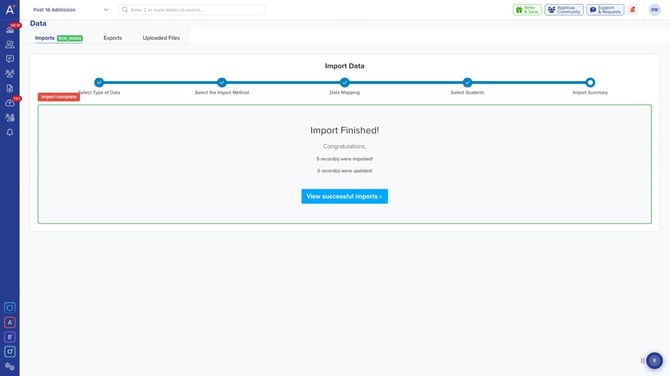
Exporting Applications to First Media
Students who registered directly with you through Admissions+ (external applications) can be exported so they exist on the portal too. Go to Data → Export, choose the First Media card, and continue. (Shortcut: Data → First Media Applications → Export jumps straight to student selection for completed applications.)
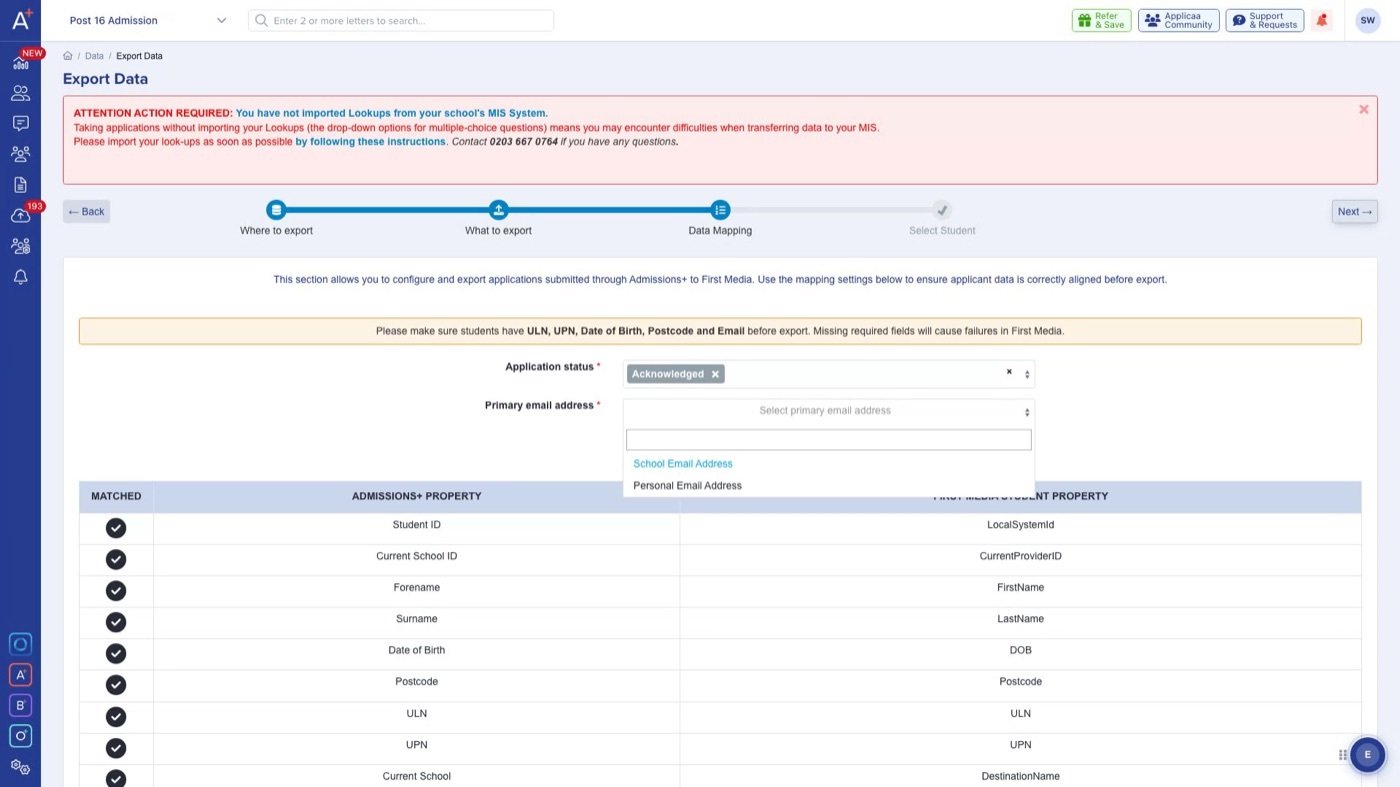
⚠️ First Media requires ULN, UPN, Date of Birth, Postcode and Email for every student. Missing fields are the number-one cause of export failures.
Choose which application statuses to export and the primary email address, review the fixed field mapping, and click Next.
Only external students not yet on First Media are listed. Select them and click Next. Each student is posted to First Media individually, and the report shows the outcome per student:
- Success — the student now carries a First Media application ID in Admissions+
- Failed — the reason is shown (e.g. “ULN is missing or invalid”). Fix the record and re-export just that student.
Keeping statuses in sync — automatic
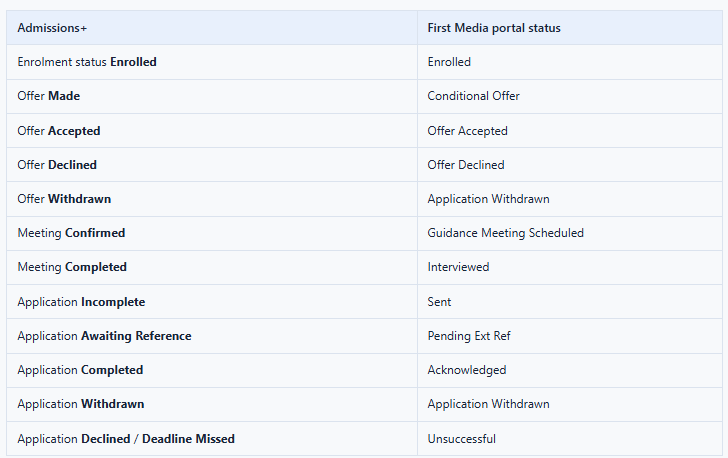
You never update the portal by hand. Whenever a student's application, offer, meeting or enrolment status changes in Admissions+ — individually or in bulk — the matching First Media status is pushed to the portal automatically in the background.
How Admissions+ statuses map to First Media
Highest-priority rule wins, top to bottom:
Bulk status updates
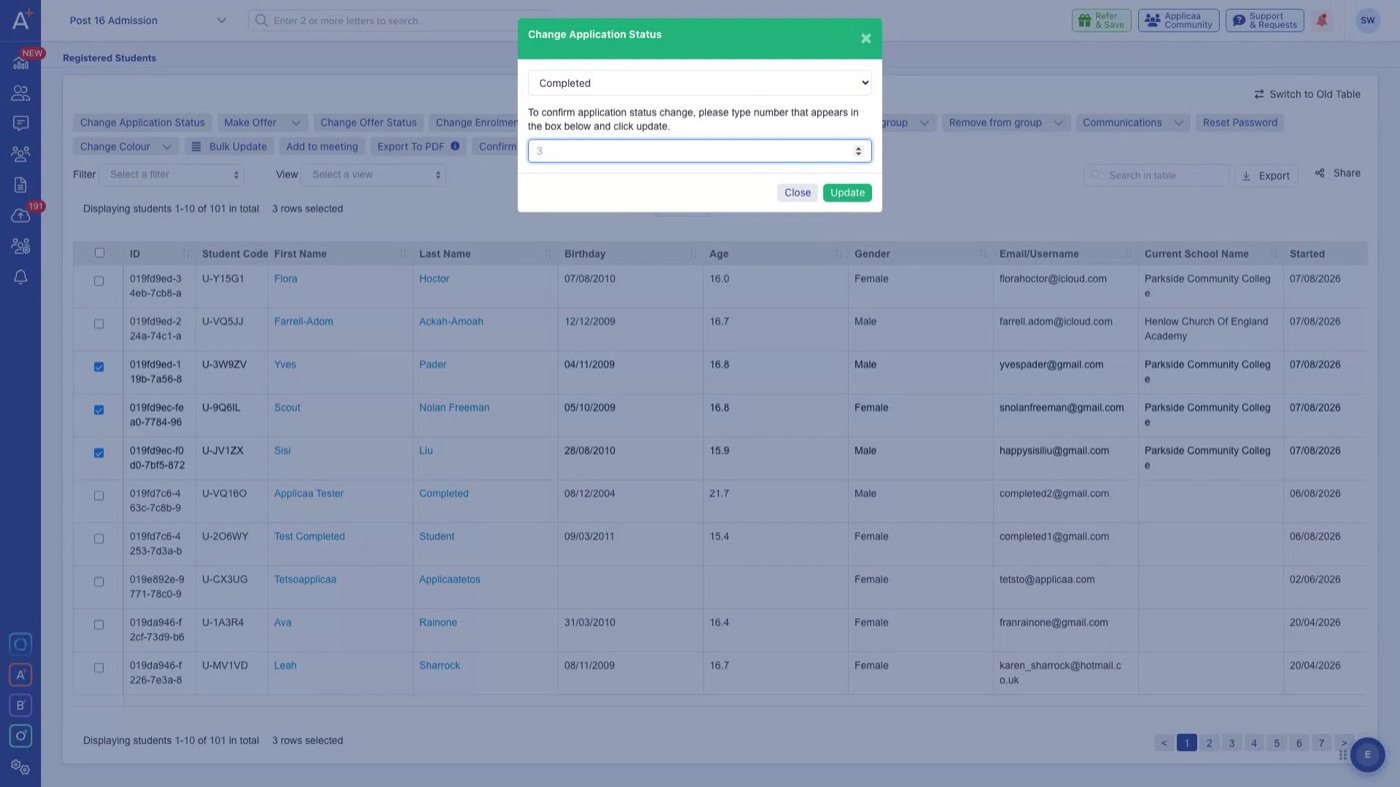
On the student list: select students → Change Application Status → pick the new status → type the confirmation number → Update. Every selected student's portal status updates automatically moments later.
Per-student control
On any student profile (Actions menu):
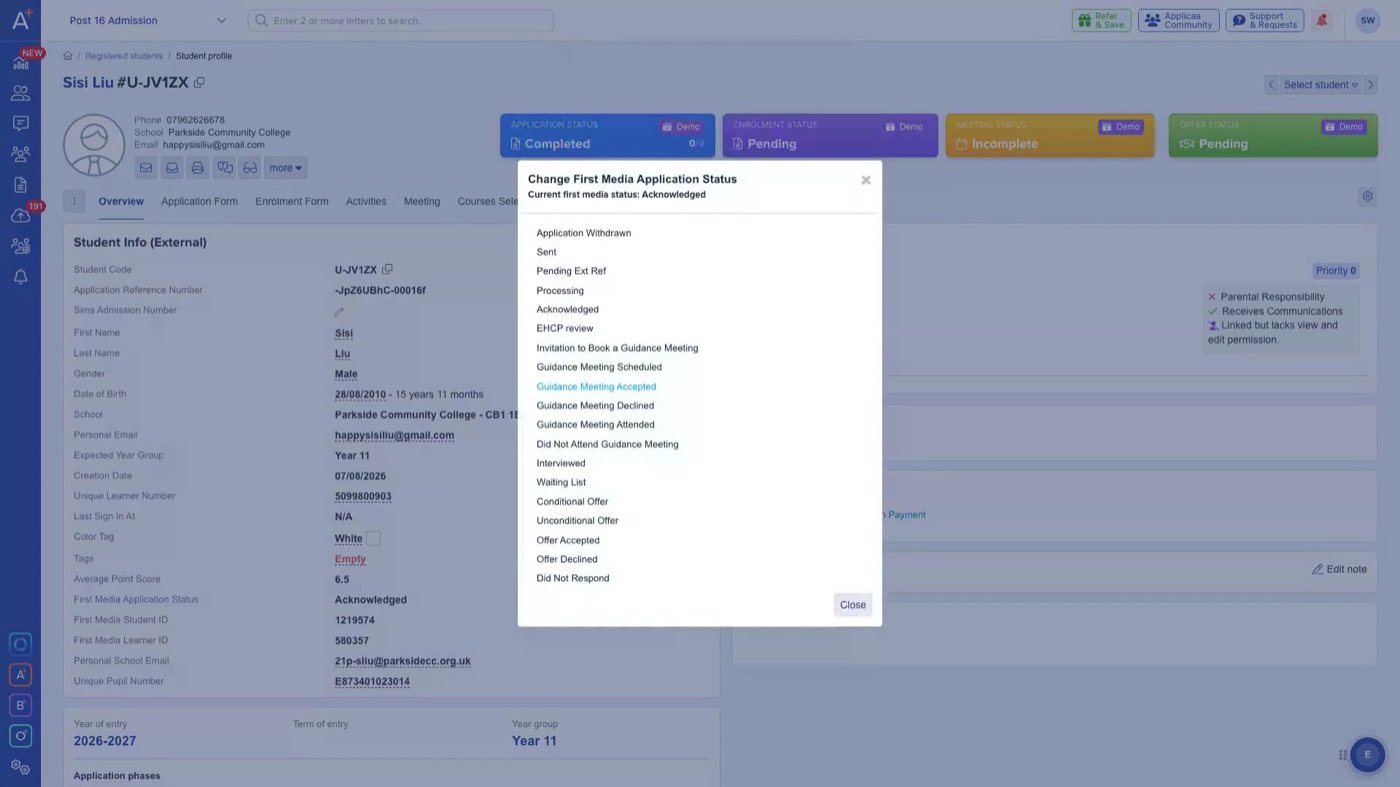
- Change First Media Application Status — see the student's current portal status and set any status by hand; it's pushed to First Media immediately.
- Sync to First Media — send a single student to the portal without running a full export (shown only for students not yet on First Media).
Troubleshooting