![APPLICAA_LOGO-1024x350-4.png]](https://helpdesk.applicaa.com/hs-fs/hubfs/APPLICAA_LOGO-1024x350-4.png?height=40&name=APPLICAA_LOGO-1024x350-4.png)
Note: When SSO is enabled, two-factor authentication (2-FA) is automatically disabled for staff accounts.
Who This Applies To
-
Staff accounts only (not students or parents).
-
Staff emails must already exist in Applicaa.
-
Only active staff members can log in via SSO. Disabled users will see an “Account Deactivated” message.
-
Students continue using the standard login form.
Setting Up SSO
Before staff can use SSO, your school must activate it:
-
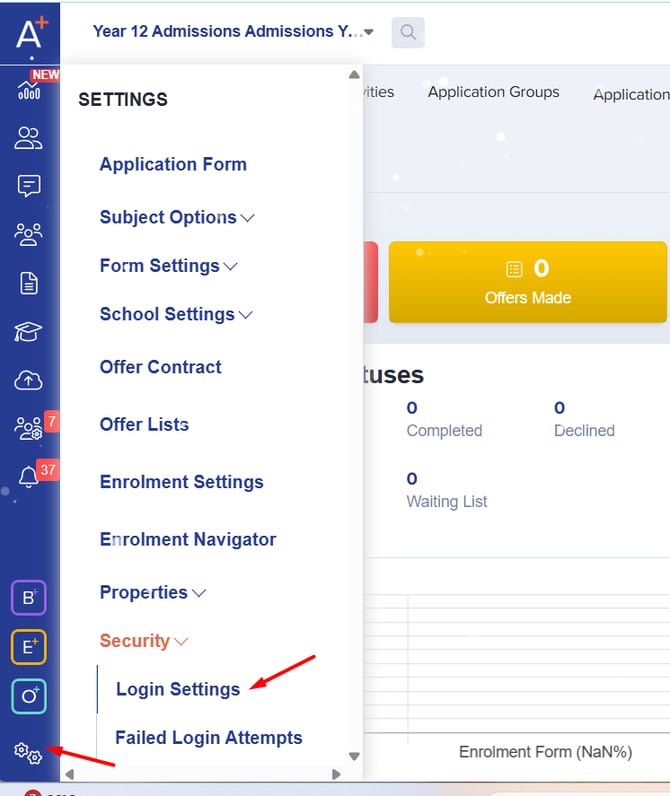
From your Admissions+ dashboard, click Settings.
-
Select Security, then Login Settings.
-
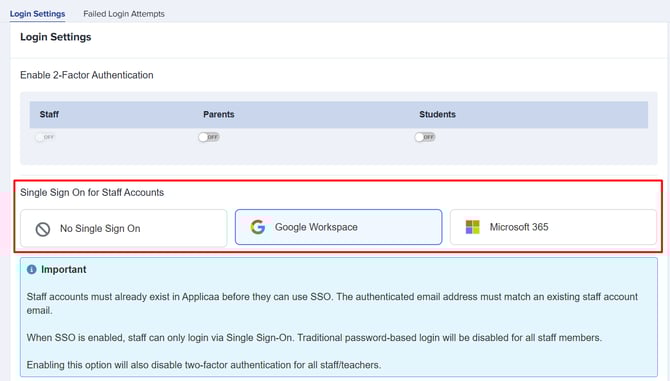
In the Single Sign-On for Staff Accounts section, you’ll see three options:
-
No Single Sign-On – leave SSO disabled.
-
Google Workspace – select if your school uses Google accounts.
-
Microsoft 365 – select if your school uses Microsoft accounts.
-
-
Choose the option that matches your school’s provider.
-
Optionally, enable Session Time-outs and set your preferred duration.

Note: Once SSO is configured, all staff accounts will no longer be able to use their email and password to log in.
Logging In with SSO
-
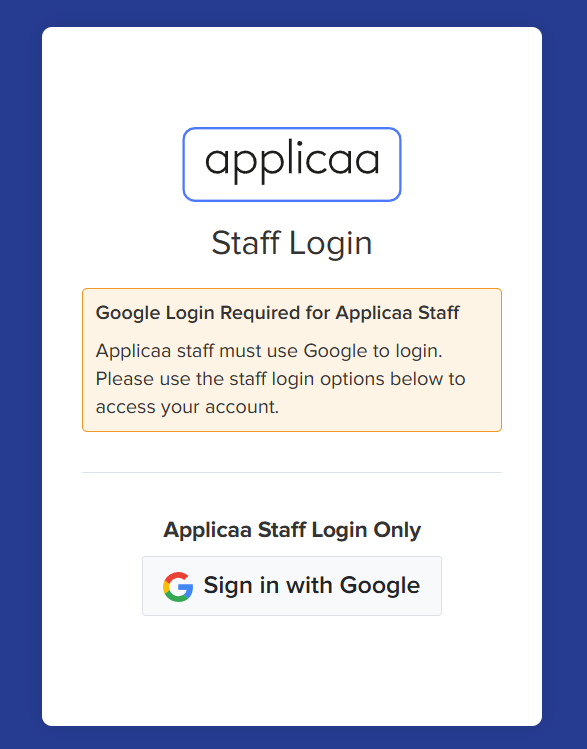
Click Staff Login on the login page, or enter your email and click Login—you will be directed to the Staff Login page.

-
Depending on your school’s setup, click Sign in with Google or Sign in with Outlook.
-
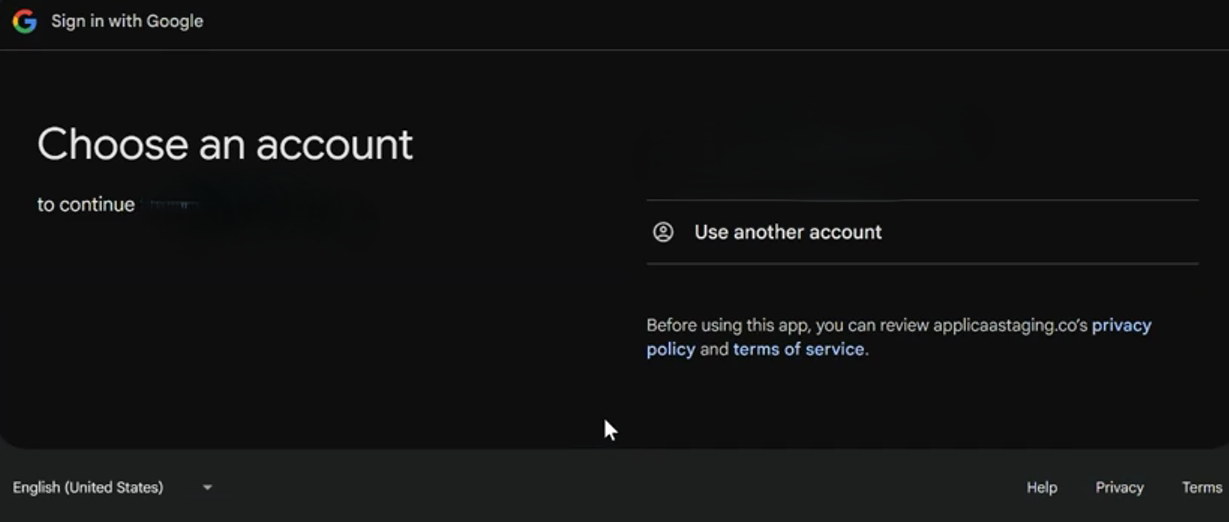
You will be prompted to select the account you wish to use—make sure to choose your school email account.
-
Once selected, you will be logged in successfully and redirected to your dashboard.
Note: If you attempt to log in during embargo times and do not have permission, an error message will appear explaining that access is not allowed at that time.

Failed Login Attempts
Next to Login Settings is the Failed Login Attempts tab. This allows admins to:
-
View all failed login attempts made by staff.
-
Use the search and filter functions to track attempts efficiently.
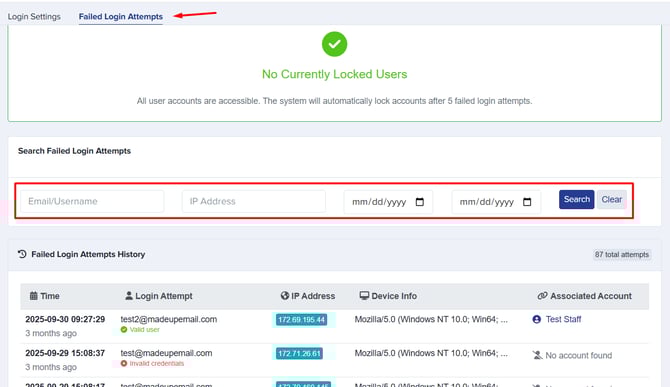
Note: The system will automatically lock accounts after 5 failed login attempts to enhance security.
What Happens If Something Goes Wrong?
1. Account Not Found
If your email is not registered in Applicaa:
"Account Not Found
We couldn't find a staff account associated with [email].
Please contact your system administrator to have your account added."
2. Disabled Staff Account
If your account is inactive or disabled, you will see:
"Account Deactivated. This staff account is no longer active. Please contact your system administrator."

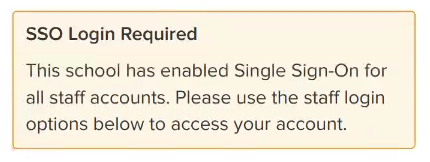
3. Attempting Email/Password Login After SSO Activation
Traditional email/password login is disabled. You’ll see:
"This school has enabled Single Sign-On for all staff accounts. Please log in by clicking the [Google/Outlook] button below."
Only the SSO buttons will be active.
Benefits of SSO
-
Faster, simpler login process
-
No need to remember separate passwords
-
Improved security aligned with your school’s identity providers
-
Reduced login errors and support requests
-
Two-factor authentication (2-FA) is automatically handled when SSO is active
Tips for Staff
-
Ensure your staff email is registered in Applicaa before using SSO.
-
Always use the Staff Login section for SSO; students should not use these buttons.
-
If you encounter any login issues, contact your system administrator.
SSO is now the standard way for staff to access Applicaa. Use your Google or Microsoft account to log in, and enjoy a faster, safer, and more convenient experience.