![APPLICAA_LOGO-1024x350-4.png]](https://helpdesk.applicaa.com/hs-fs/hubfs/APPLICAA_LOGO-1024x350-4.png?height=40&name=APPLICAA_LOGO-1024x350-4.png)
Navigate to Communications & Events > Taster Day > Student Timetables. There you will see an overview of all students who have registered to attend, and you will find the Scan QR Button.
This function is available to any staff member who is logged into your A+ system, and can be accessed on any device with a camera (for example a laptop, work phone, school iPad etc).
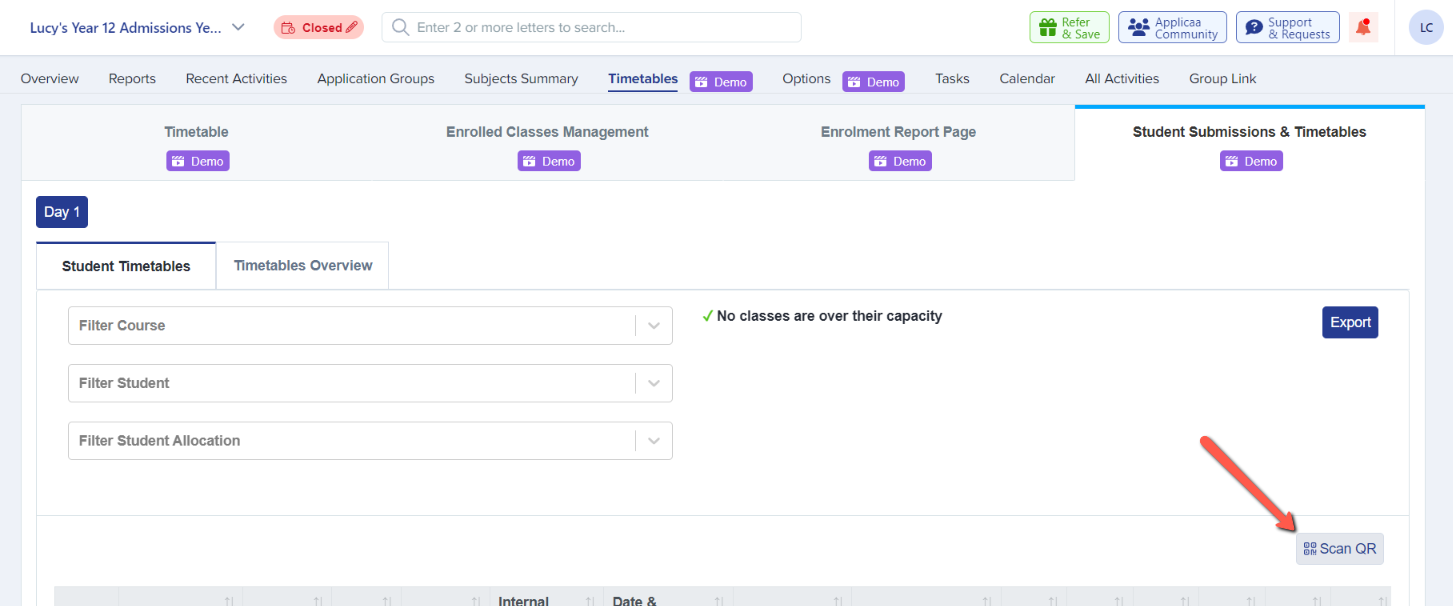
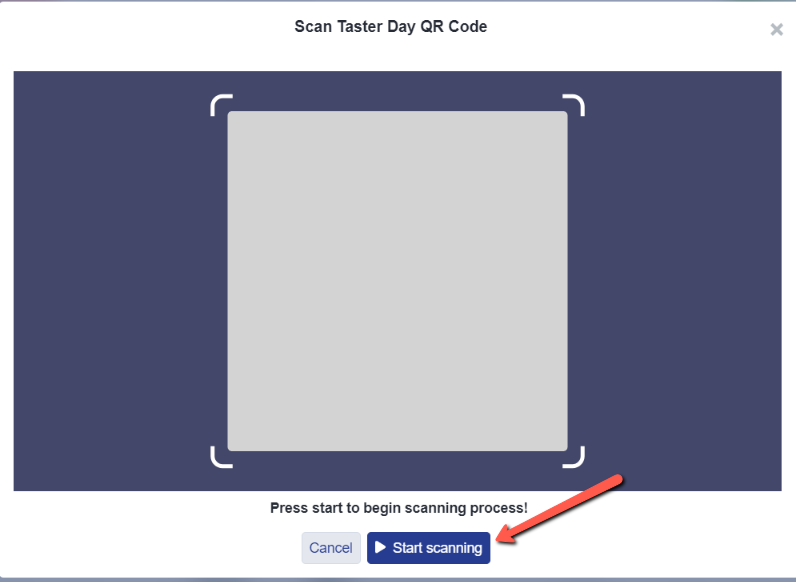
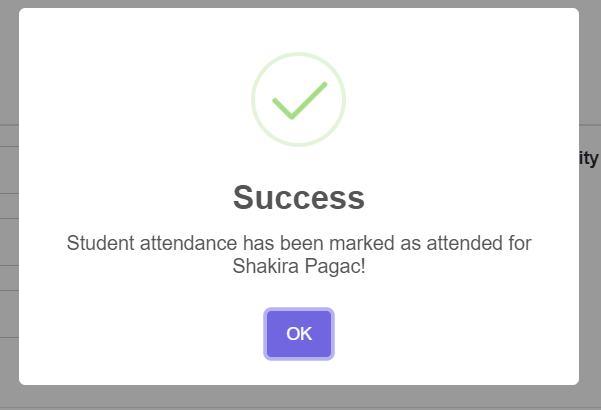
Click Scan QR to open the feature, and it may require you to enable camera access. You can then proceed to Start scanning and your device's camera will become active. The student should present their QR code to your camera and this will notify you once it has successfully been scanned - a status box will appear to let you know that student has been marked as attended.