---
title: Tracking and Following Up on Incomplete Bursary+ Applications
description: This article explains how to send a follow-up email to students with incomplete bursary+ applications.
---
[Skip to content](https://helpdesk.applicaa.com/bursaryplus/tracking-and-following-up-on-incomplete-bursary-applications#main-content)
English - United Kingdom
Show submenu for translations
.png?width=150&height=52&name=Applicaa%20Logos%20(2).png)
Open main navigation
Close main navigation
- English - United Kingdom
Show submenu for translations
How can we help you?
- There are no suggestions because the search field is empty.
1. [Bursary+](https://helpdesk.applicaa.com/bursaryplus?hsLang=en-gb)
2. [Getting Started](https://helpdesk.applicaa.com/bursaryplus/getting-started?hsLang=en-gb)
# Tracking and Following Up on Incomplete Bursary+ Applications
## This article explains how to send a follow-up email to students with incomplete bursary+ applications.
1. **Find Students with Incomplete Applications:**
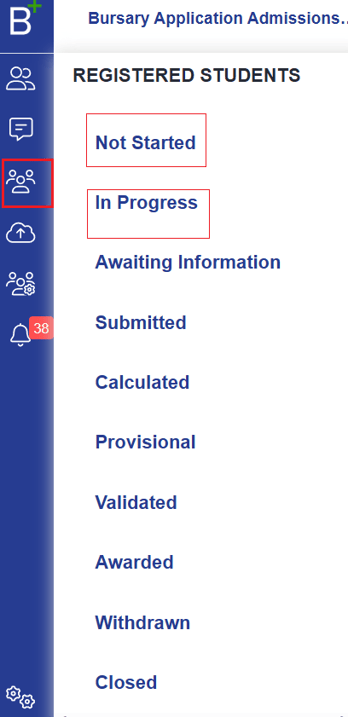
1. - Click **Registered Students** on the left menu.
- Select '**Not Started'** for students who registered but haven’t begun.
- Select '**In Progress'** for students with partially completed applications.
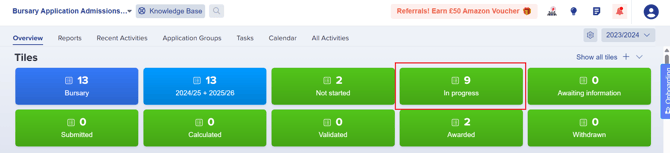
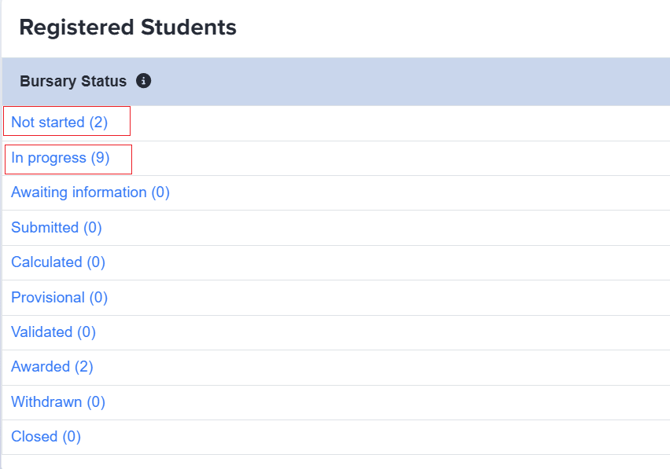
- You can also access this via **dashboard tiles** or the **Bursary Status widget**.
2. **Send a Follow-Up Email:**
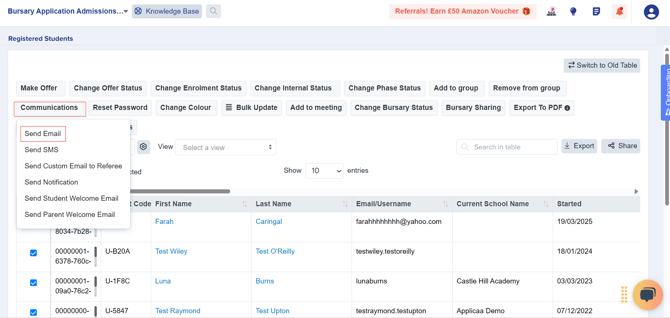
- A table will display students based on your selection.
- Select all students, then click **Communications \> Send Email**.
3. **Compose Your Message:**
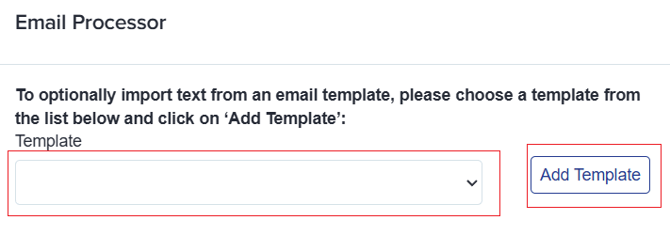
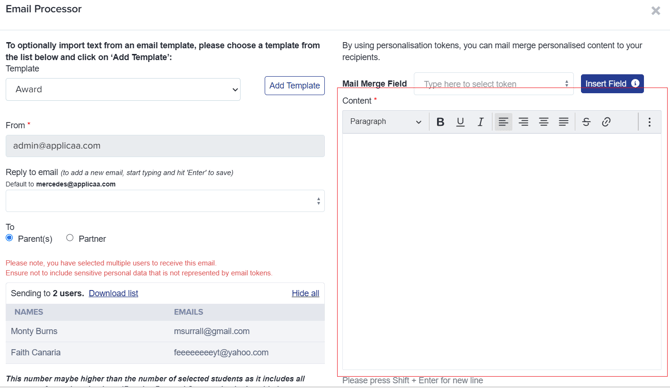
- Choose a **pre-made email template** from the dropdown or type your own message.
- If using a template, select it from the **Template dropdown**, then click **Add Template**.
- If typing manually, enter your message in the **Content** field.
4. **Send the Email:**
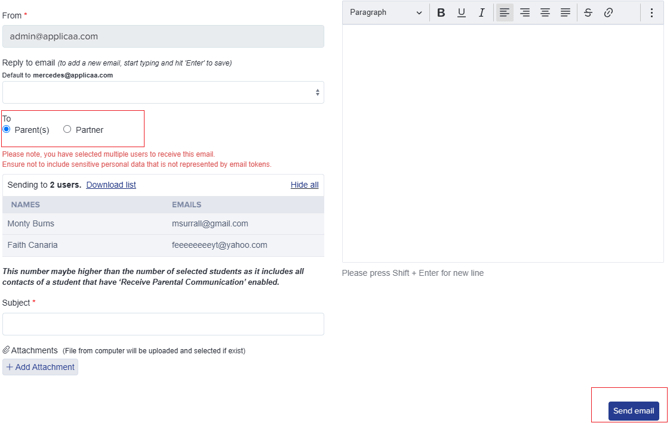
- Choose your recipients.
- Click **Send Email** to notify all selected students.
- [Getting Started](https://helpdesk.applicaa.com/bursaryplus/getting-started?hsLang=en-gb)
- [Maintenance and Reporting](https://helpdesk.applicaa.com/bursaryplus/maintenance-and-reporting?hsLang=en-gb)
- [Bursary Settings](https://helpdesk.applicaa.com/bursaryplus/bursary-settings?hsLang=en-gb)
- [Communications and Renewals](https://helpdesk.applicaa.com/bursaryplus/communications-and-renewals?hsLang=en-gb)
[.png?width=250&height=86&name=Applicaa%20Logos%20(2).png "Applicaa Logos (2)")](http://applicaa.com)
[mailto:email@email.com](mailto:email@email.com)
Copyright © 2026, Applicaa