---
title: How to Link Your Bursary Form to Your School Website
description: This guide will show you how to link the bursary application form to your school website, allowing external applicants to access it.
---
[Skip to content](https://helpdesk.applicaa.com/bursaryplus/how-to-link-your-bursary-form-to-your-school-website#main-content)
English - United Kingdom
Show submenu for translations
.png?width=150&height=52&name=Applicaa%20Logos%20(2).png)
Open main navigation
Close main navigation
- English - United Kingdom
Show submenu for translations
How can we help you?
- There are no suggestions because the search field is empty.
1. [Bursary+](https://helpdesk.applicaa.com/bursaryplus?hsLang=en-gb)
2. [Getting Started](https://helpdesk.applicaa.com/bursaryplus/getting-started?hsLang=en-gb)
# How to Link Your Bursary Form to Your School Website
## This guide will show you how to link the bursary application form to your school website, allowing external applicants to access it.
First, you need to obtain the URL or application form link from Bursary+.
**Note:** In **Admissions+**, multiple forms exist, but for bursary applications, you can only set **one** URL.
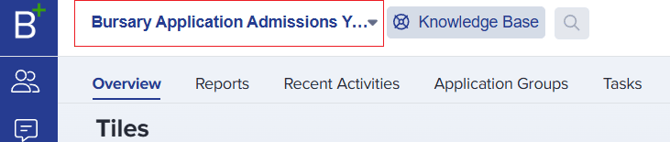
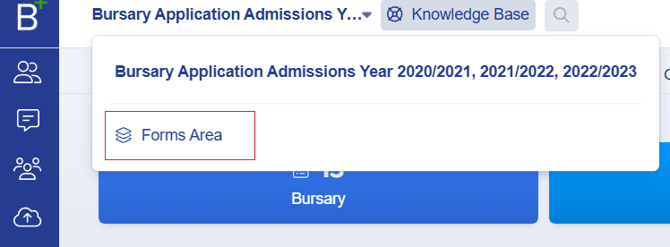
1. Click on the **blue text** located next to the **Knowledge Base** button, then select **Forms Area.**
****
****
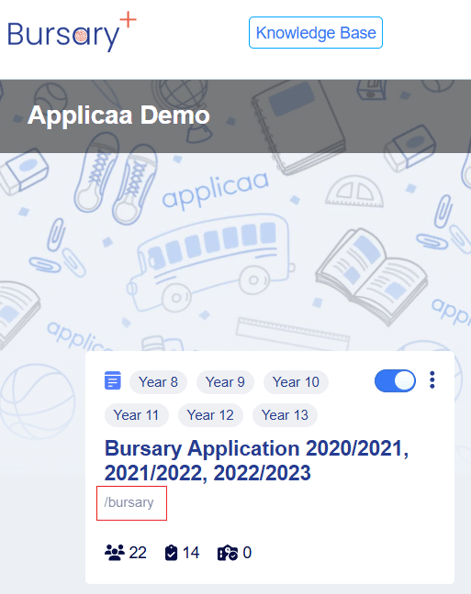
2\. Hover your pointer over the **title** of the form you wish to link to your school website.
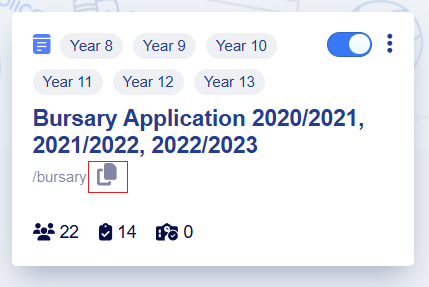
3\. Click on the **copy icon** to copy the **Bursary form URL**.
- **Hyperlink the URL** to a button or text in the appropriate area of your school website.
- Once done, every time a student clicks the hyperlink, they will be directed to the **Bursary landing page**, where they can start their application.
### **What to do if no URL is showing**
If no link/URL appears in the **Forms Area**, follow these steps to update it:
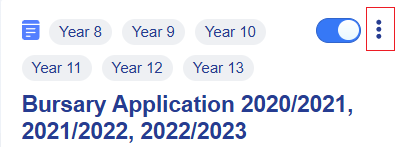
1. Click the **kebab menu** (three dots) beside the toggle bar for the form.
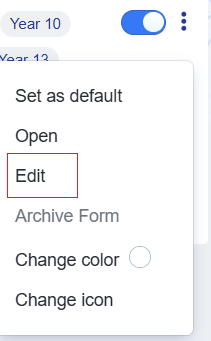
2. Select **"Edit."**
3. A pop-up window will appear. Scroll down to the field labeled **"Customise the ending of the URL for this form."**
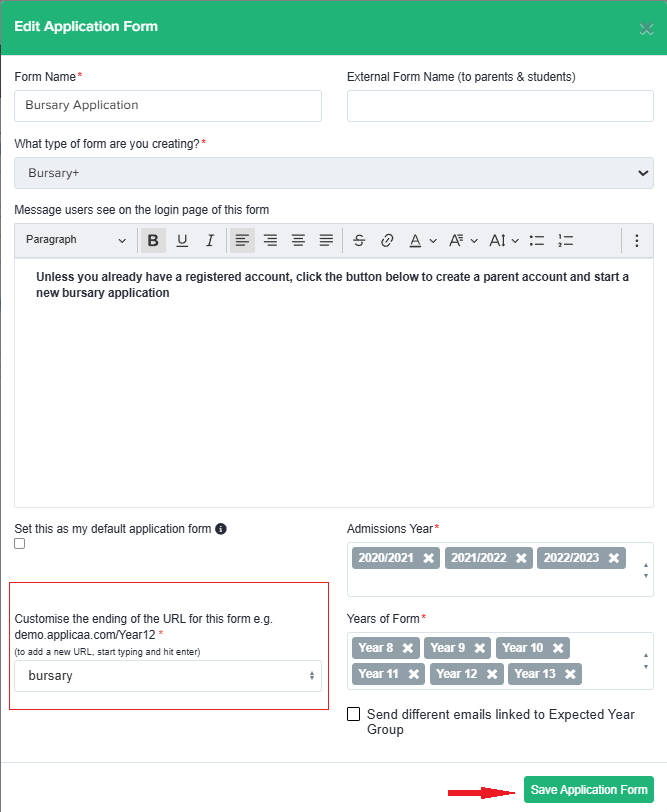
4. If you're satisfied with the new URL, click **"Save Application Form."**
- [Getting Started](https://helpdesk.applicaa.com/bursaryplus/getting-started?hsLang=en-gb)
- [Maintenance and Reporting](https://helpdesk.applicaa.com/bursaryplus/maintenance-and-reporting?hsLang=en-gb)
- [Bursary Settings](https://helpdesk.applicaa.com/bursaryplus/bursary-settings?hsLang=en-gb)
- [Communications and Renewals](https://helpdesk.applicaa.com/bursaryplus/communications-and-renewals?hsLang=en-gb)
[.png?width=250&height=86&name=Applicaa%20Logos%20(2).png "Applicaa Logos (2)")](http://applicaa.com)
[mailto:email@email.com](mailto:email@email.com)
Copyright © 2026, Applicaa