---
title: How to Add Students to an Application Group in B+
description: Once you have created your application group, this article will show you how you can add students to it.
---
[Skip to content](https://helpdesk.applicaa.com/bursaryplus/how-to-add-students-to-an-application-group-in-b#main-content)
English - United Kingdom
Show submenu for translations
.png?width=150&height=52&name=Applicaa%20Logos%20(2).png)
Open main navigation
Close main navigation
- English - United Kingdom
Show submenu for translations
How can we help you?
- There are no suggestions because the search field is empty.
1. [Bursary+](https://helpdesk.applicaa.com/bursaryplus?hsLang=en-gb)
2. [Getting Started](https://helpdesk.applicaa.com/bursaryplus/getting-started?hsLang=en-gb)
# How to Add Students to an Application Group in B+
## Once you have created your application group, this article will show you how you can add students to it.
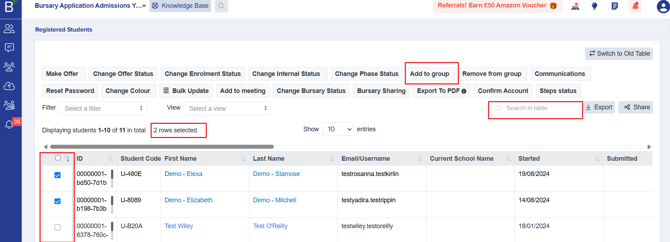
On your dashboard, click on a group of students you wish to add. For this example, let's go with **Registered Students**. Search for the students you'd like to add in the **Search in Table** box.
You need to select students first in order for the options at the top to appear. Click on **Add to group** option.
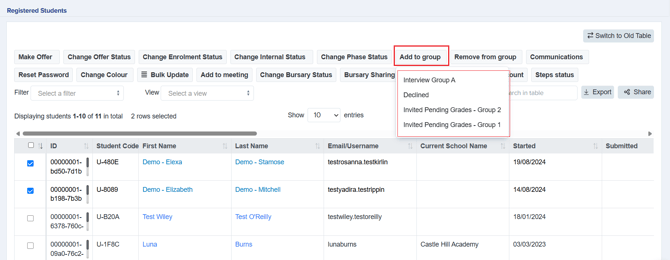
It will show you a list of available application groups, so just click on the name of the group in the dropdown.
To check, go to the **Dashboard** and scroll down to the **Application Group** section.
Click on the **group title** to view all students or the **number on the right** if you'd like to view them specifically as **internal or external students**.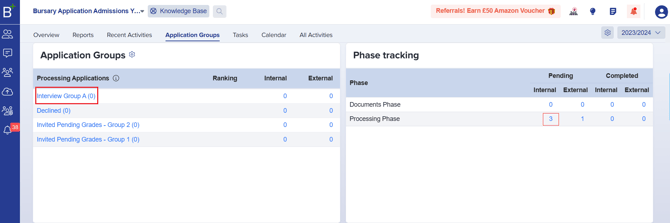
You can also remove a student from a group by selecting the student, then clicking on **Remove from Group** and selecting the group you'd like the student to be removed from in the dropdown.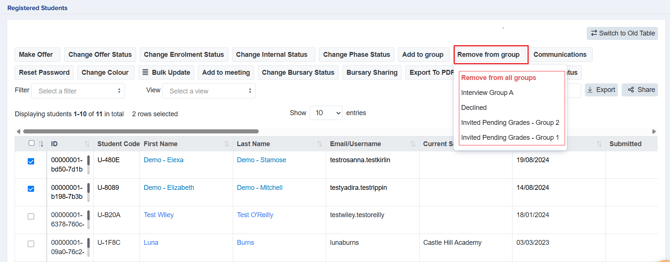
- [Getting Started](https://helpdesk.applicaa.com/bursaryplus/getting-started?hsLang=en-gb)
- [Maintenance and Reporting](https://helpdesk.applicaa.com/bursaryplus/maintenance-and-reporting?hsLang=en-gb)
- [Bursary Settings](https://helpdesk.applicaa.com/bursaryplus/bursary-settings?hsLang=en-gb)
- [Communications and Renewals](https://helpdesk.applicaa.com/bursaryplus/communications-and-renewals?hsLang=en-gb)
[.png?width=250&height=86&name=Applicaa%20Logos%20(2).png "Applicaa Logos (2)")](http://applicaa.com)
[mailto:email@email.com](mailto:email@email.com)
Copyright © 2026, Applicaa