---
title: How to Add Hyperlinks in B+
description: This guide will show you how to add hyperlinks to email templates and application forms in your Bursary+ platform.
---
[Skip to content](https://helpdesk.applicaa.com/bursaryplus/how-to-add-hyperlinks-in-b#main-content)
English - United Kingdom
Show submenu for translations
.png?width=150&height=52&name=Applicaa%20Logos%20(2).png)
Open main navigation
Close main navigation
- English - United Kingdom
Show submenu for translations
How can we help you?
- There are no suggestions because the search field is empty.
1. [Bursary+](https://helpdesk.applicaa.com/bursaryplus?hsLang=en-gb)
2. [Getting Started](https://helpdesk.applicaa.com/bursaryplus/getting-started?hsLang=en-gb)
# How to Add Hyperlinks in B+
## This guide will show you how to add hyperlinks to email templates and application forms in your Bursary+ platform.
### Adding Hyperlinks to Email Templates
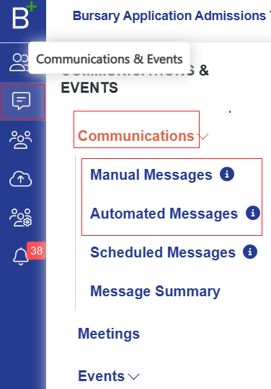
1. Navigate to **Communications & Events \> Communications** and select **Manual Messages** to create a new template, or search for an existing one in **Automated Messages.**
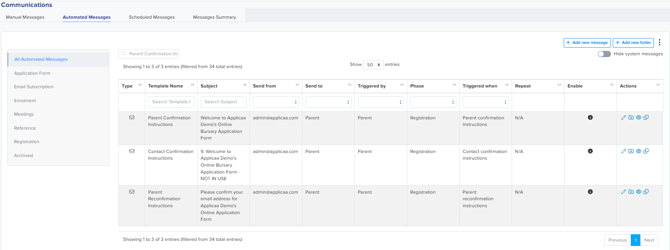
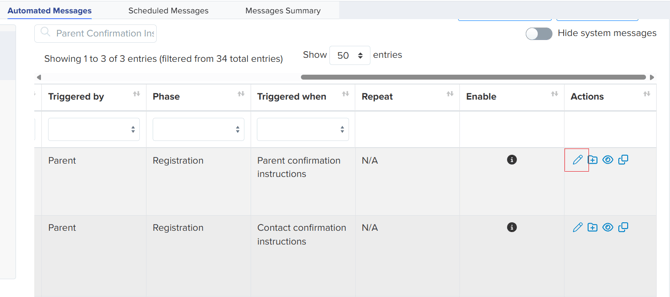
2. Click the **pencil icon** to edit the template.
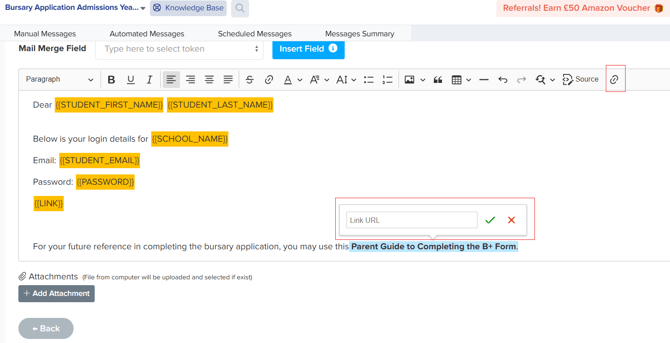
3. In the template editor, highlight the text you want to link.
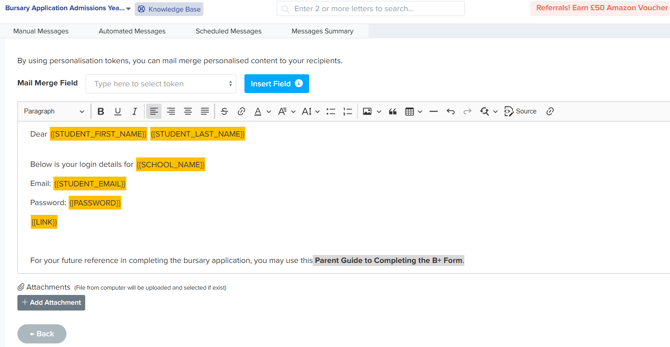
4. Click the **hyperlink button**, paste the URL, and click the **green check button** to save.
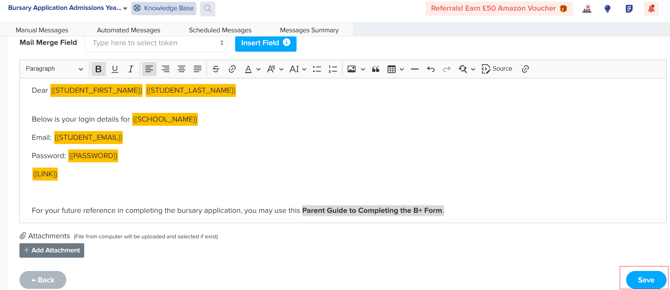
5. Click **Save** to finalise your template.
### Adding Hyperlinks to the Application Form
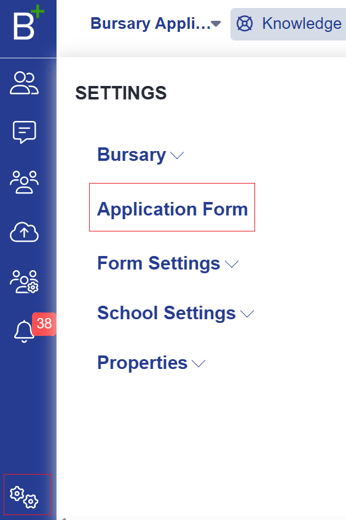
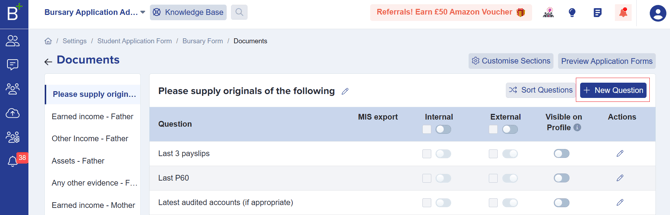
1. Go to **Settings \> Application Form** and open the step where you want to add the link (e.g., Documents Step).
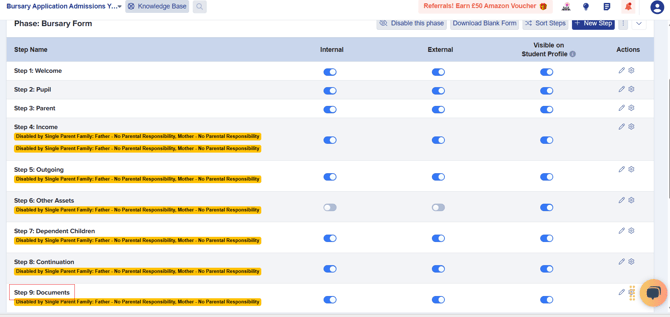
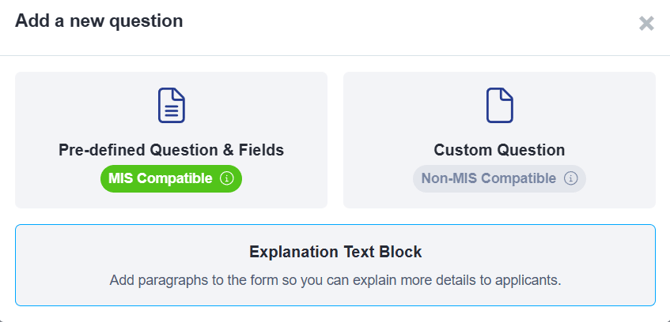
2. Click **+ New Question** and select **Explanation Text Block.**
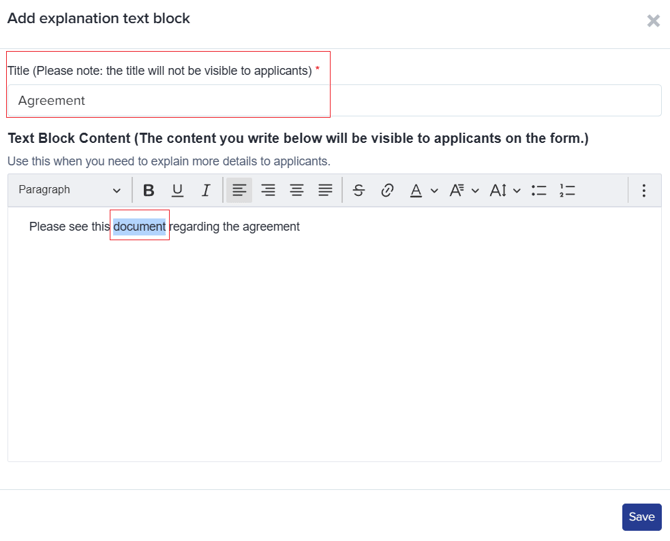
3. Enter a title, then in the **Text Block Content** field, highlight the word to be linked.
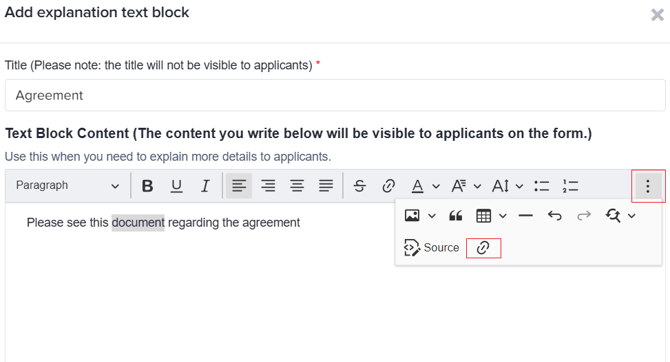
4. Click the **hyperlink button**, add the URL, and save.
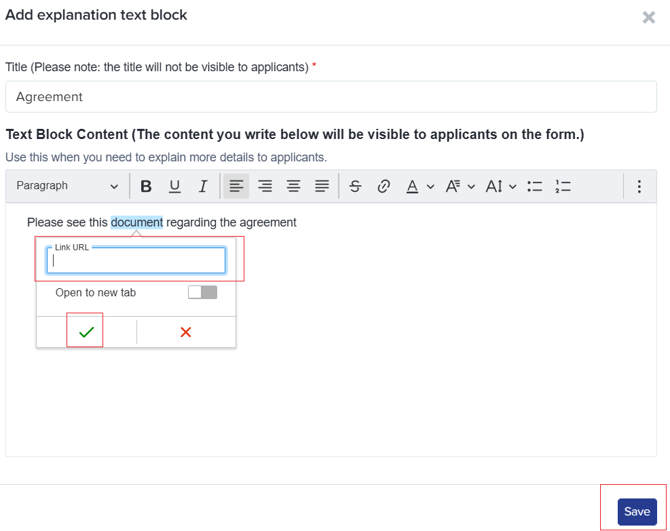
This ensures applicants and recipients have easy access to important links without cluttering the form or emails.
- [Getting Started](https://helpdesk.applicaa.com/bursaryplus/getting-started?hsLang=en-gb)
- [Maintenance and Reporting](https://helpdesk.applicaa.com/bursaryplus/maintenance-and-reporting?hsLang=en-gb)
- [Bursary Settings](https://helpdesk.applicaa.com/bursaryplus/bursary-settings?hsLang=en-gb)
- [Communications and Renewals](https://helpdesk.applicaa.com/bursaryplus/communications-and-renewals?hsLang=en-gb)
[.png?width=250&height=86&name=Applicaa%20Logos%20(2).png "Applicaa Logos (2)")](http://applicaa.com)
[mailto:email@email.com](mailto:email@email.com)
Copyright © 2026, Applicaa