.png?width=150&height=52&name=Applicaa%20Logos%20(2).png)
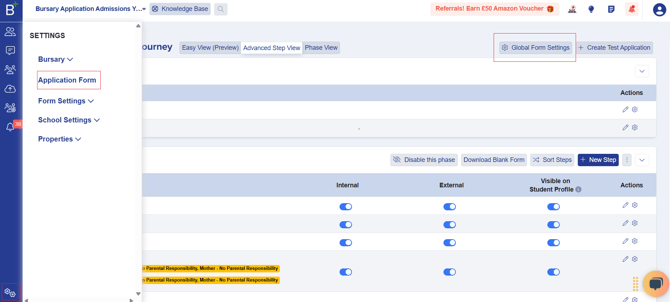
To access the Global Form Settings, go to Settings > Application Form. You will find the Global Form Settings button in the upper-right corner of your screen.
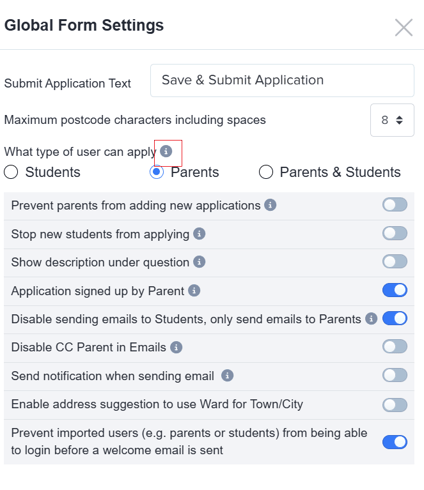
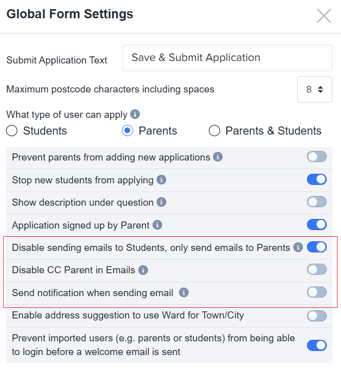
Once clicked, you will see various toggles that allow you to apply specific actions to the form. Hover over each ⓘ icon to learn more about what each option does.
Key Features of Global Form Settings
-
Disabling the Form for New Applications
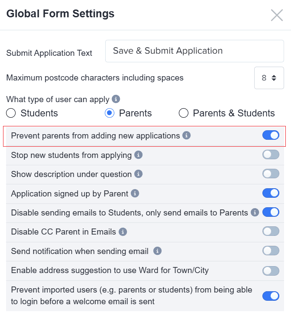
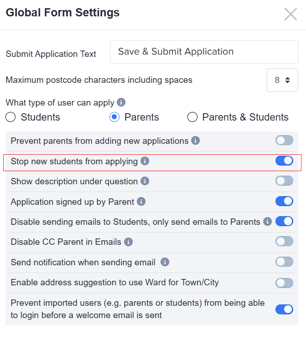
If you want to lock the application form for parents or students, you can:-
Prevent parents from adding new applications.
-
Stop new students from applying.
-
-
Submit Application Button Text
Update the text on the button that parents/students click when submitting their application.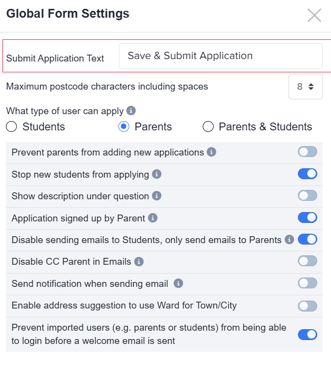
-
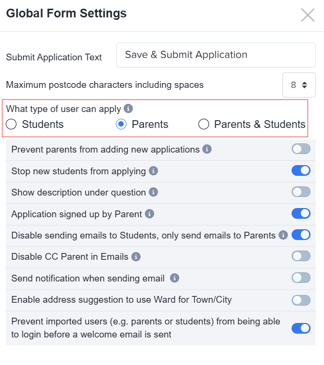
User Type Selection
-
For Year 7 applications, set the user type as Parents.
-
For Year 12 applications, set the user type as Students.
-
-
Show Description Under Question
If enabled, the question description will appear directly below the question instead of as a pop-up.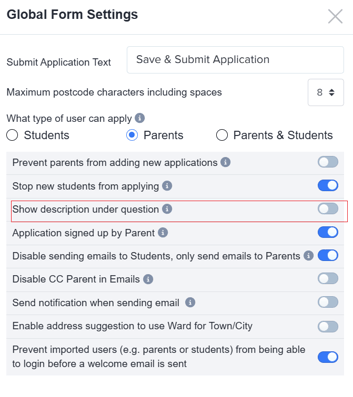
-
Application Signed Up by Parent
If enabled, this displays a message on the registration page indicating that a parent is registering on behalf of their child.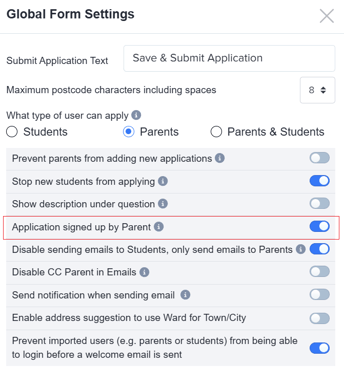
-
Email Settings
-
Disable sending emails to students, only send to parents – If enabled, emails will be sent exclusively to parents.
-
-
-
Disable CC Parent in email – If enabled, parents will not be copied when emails are sent to students.
-
Send notification when sending an email – If enabled, a notification will appear on the student’s or parent’s homepage when an email is sent.

-
-
Additional Features
-
Enable address suggestion to use Ward for Town/City – If enabled, address suggestions will be provided on the application form.
- Prevent imported users (e.g. parents or students) from being able to login before a welcome email is sent
-