---
title: How to send a quick email to a group via Bursary16+ platform
description: This article will show you how to communicate with a specific group of students via email using your Bursary16+ platform.
---
[Skip to content](https://helpdesk.applicaa.com/b16/how-to-send-a-quick-email-to-a-group-via-bursary16-platform#main-content)
English
Show submenu for translations
[.png?width=200&height=69&name=Applicaa%20Logos%20(2).png)](https://www.applicaa.com)
Open main navigation
Close main navigation
- English
Show submenu for translations
How can we help you?
- There are no suggestions because the search field is empty.
1. [Bursary 16+](https://helpdesk.applicaa.com/b16?hsLang=en)
2. [Checks, Troubleshooting & Go-Live](https://helpdesk.applicaa.com/b16/checks-troubleshooting-go-live?hsLang=en)
# How to send a quick email to a group via Bursary16+ platform
## This article will show you how to communicate with a specific group of students via email using your Bursary16+ platform.
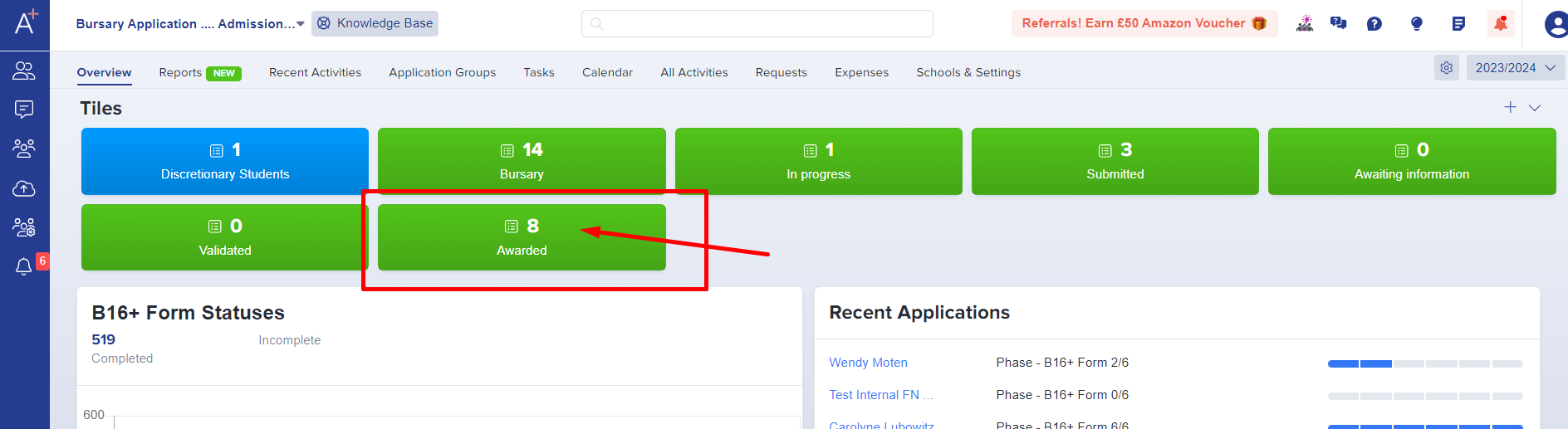
For example, if you would like to send an email to all students you've been awarded for a bursary band (changed the status to **Awarded**)
First, go to Registered students and click on the 'Awarded' dashboard card and from there, select all the students and click the '**communications**' button from the Advanced filter.
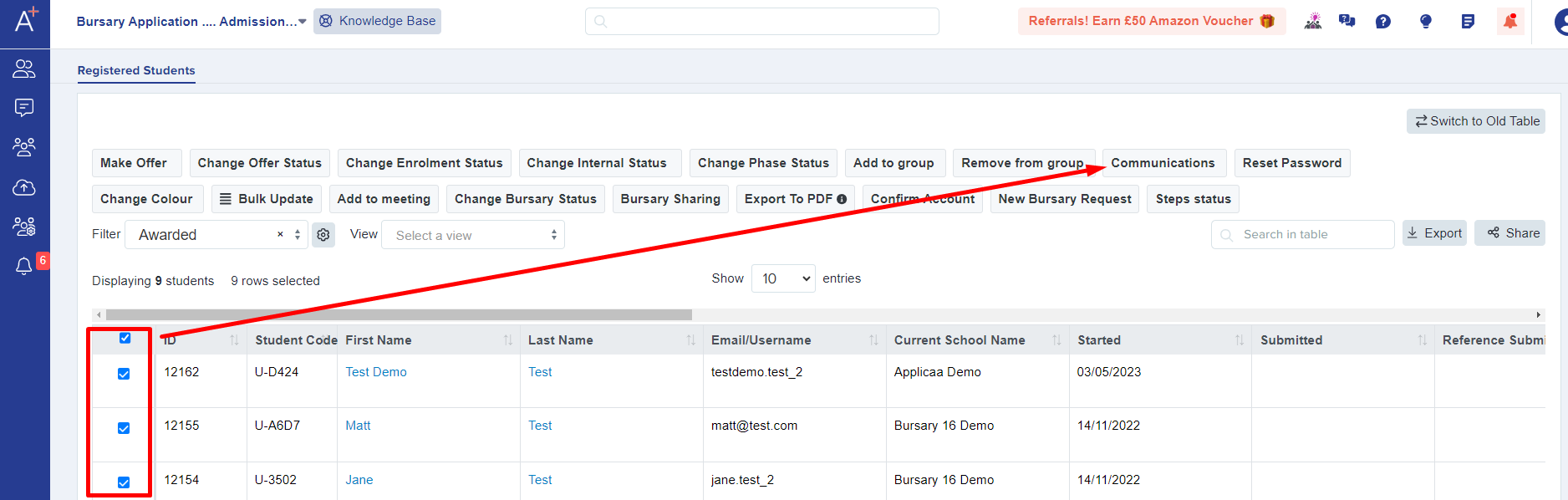
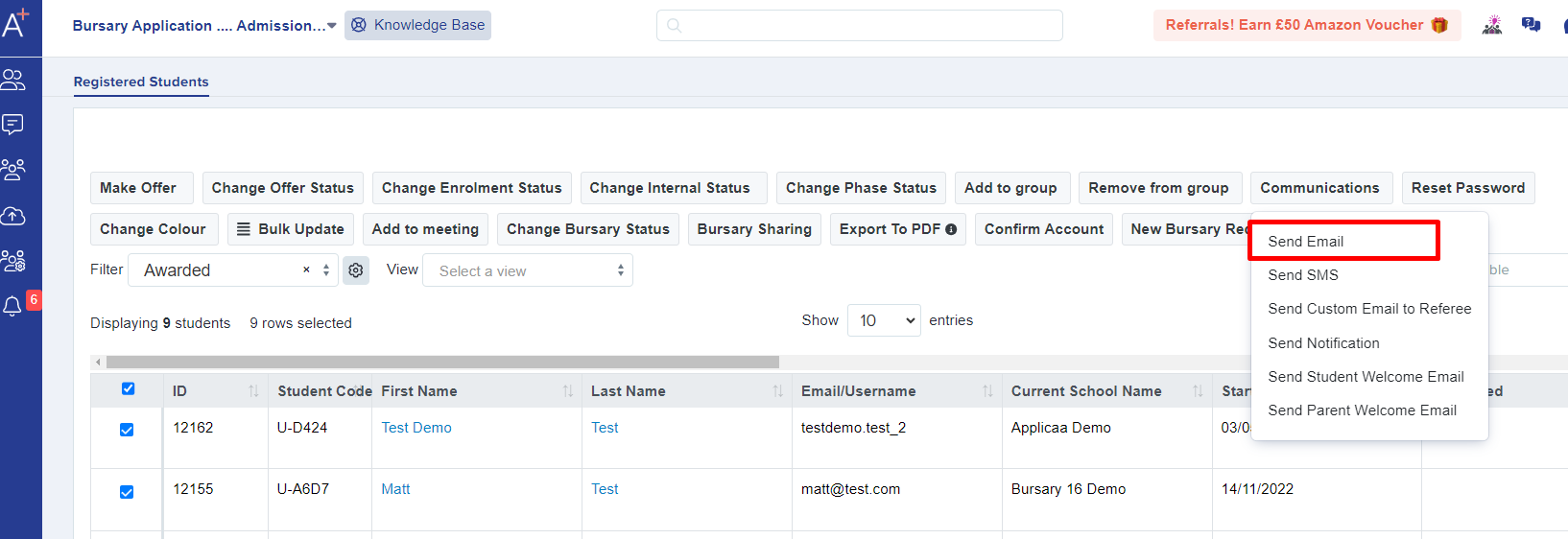
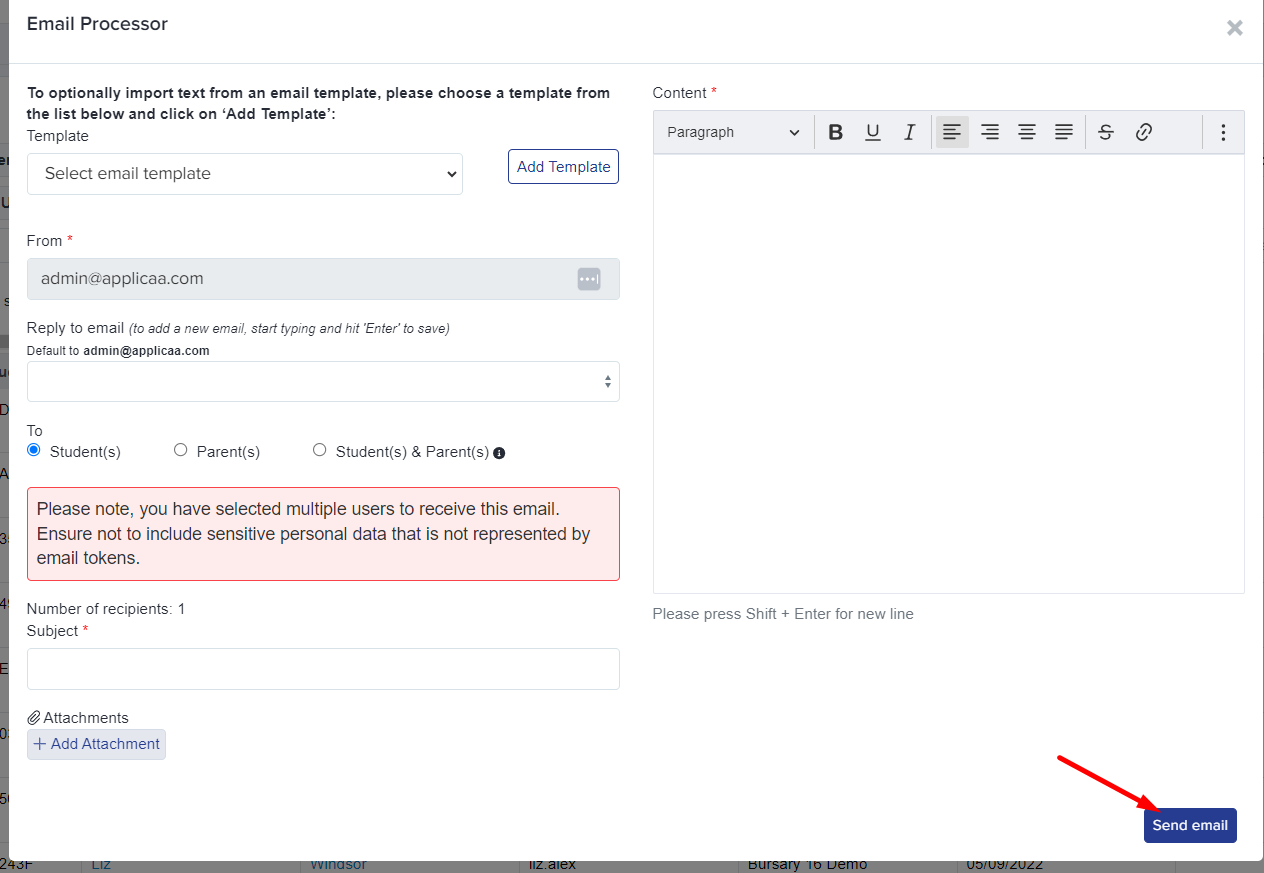
From the dropdown select '**Send email**'. You may create a template prior sending the email to the students but you can also compose an email template and send it straight to the students or parents.
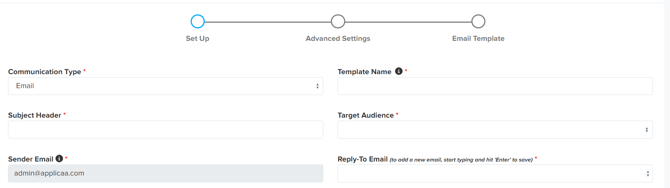
In composing an email template, you need to complete all asterisked fields in the setup screen.
If you have already created an email template you can just choose from the dropdown & then click the '**Add template**' button and proceed in sending the email. In addition, you can also add an attachment if you'd like.
If you haven't composed the template yet, you can now add the content of your email in the description box on the right.

Once done, click **send email.**
****
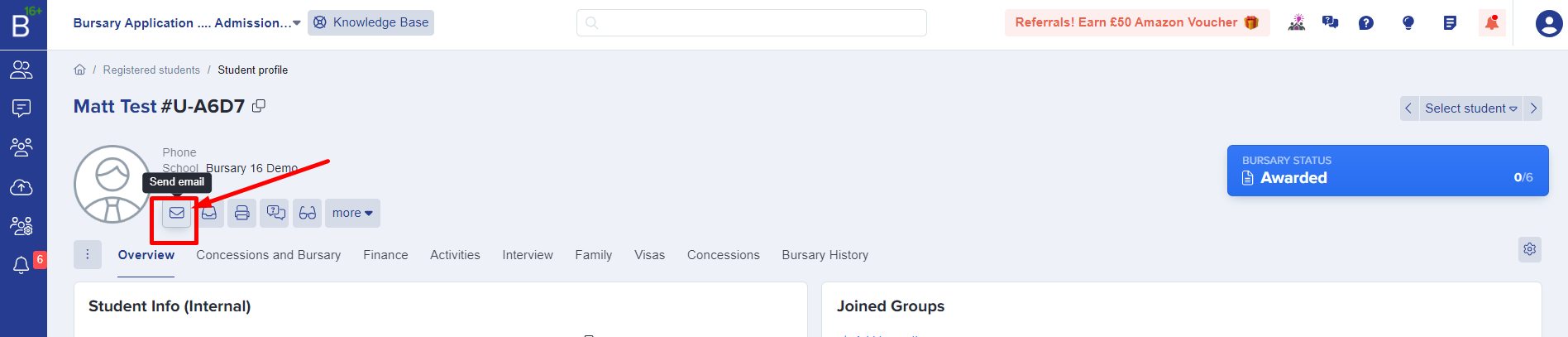
If you wish to send an email to an student from their student profile, you may do so by going into their student profile and click the **send email** button on the left side.
- [Getting started](https://helpdesk.applicaa.com/b16/getting-started?hsLang=en)
- [Your Second Cycle and Beyond](https://helpdesk.applicaa.com/b16/your-second-cycle-and-beyond?hsLang=en)
- [Student Requests & School Expenses](https://helpdesk.applicaa.com/b16/student-requests-school-expenses?hsLang=en)
- [Staff and Student Settings](https://helpdesk.applicaa.com/b16/staff-and-student-settings?hsLang=en)
- [Managing Data](https://helpdesk.applicaa.com/b16/managing-data?hsLang=en)
- [Checks, Troubleshooting & Go-Live](https://helpdesk.applicaa.com/b16/checks-troubleshooting-go-live?hsLang=en)
[.png?width=250&height=86&name=Applicaa%20Logos%20(2).png "Applicaa Logos (2)")](http://applicaa.com)
[mailto:email@email.com](mailto:email@email.com)
Copyright © 2026, Applicaa