---
title: How to manually add applicants into your Bursary16+ platform
description: In this article, you will learn how you can manually add a student to create a bursary account without importing them or asking them to self-register
---
[Skip to content](https://helpdesk.applicaa.com/b16/how-to-manually-add-applicants-into-your-bursary16-platform#main-content)
English
Show submenu for translations
[.png?width=200&height=69&name=Applicaa%20Logos%20(2).png)](https://www.applicaa.com)
Open main navigation
Close main navigation
- English
Show submenu for translations
How can we help you?
- There are no suggestions because the search field is empty.
1. [Bursary 16+](https://helpdesk.applicaa.com/b16?hsLang=en)
2. [Managing Data](https://helpdesk.applicaa.com/b16/managing-data?hsLang=en)
# How to manually add applicants into your Bursary16+ platform
## In this article, you will learn how you can manually add a student to create a bursary account without importing them or asking them to self-register
Manually adding a student can be done within the Manage Users area.
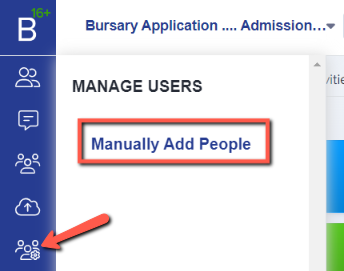
To manually add an account, click on the "manage users" button and then click on "Manually add people."
You will then be asked if you would like to manually add a parent, a student or staff.
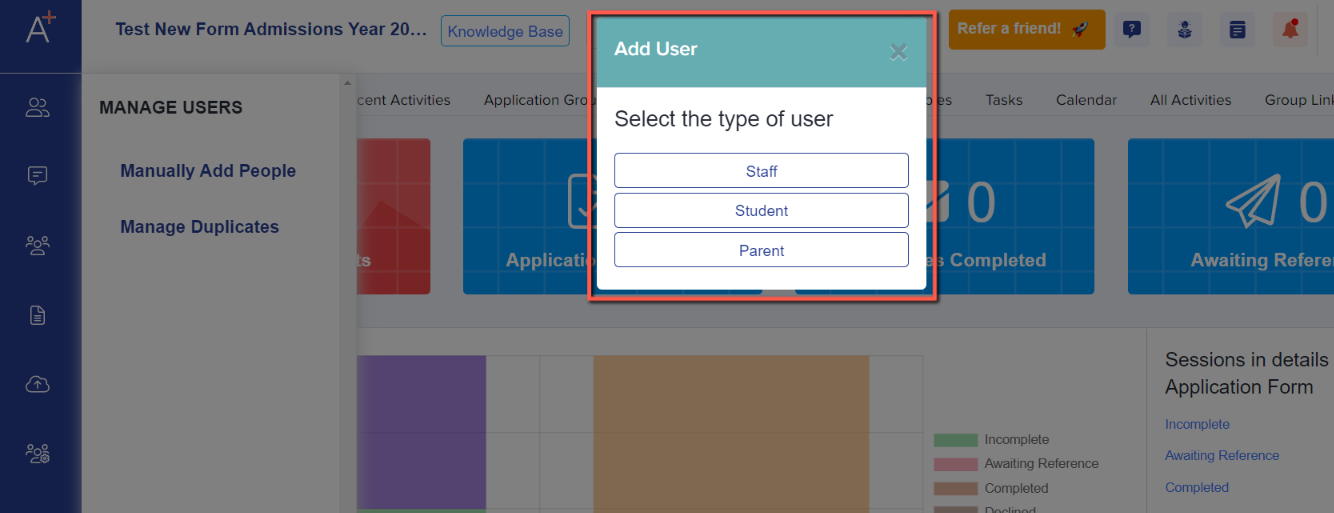
**Typically, bursary applications are handled by the student, so the most likely option to choose will be "student".**
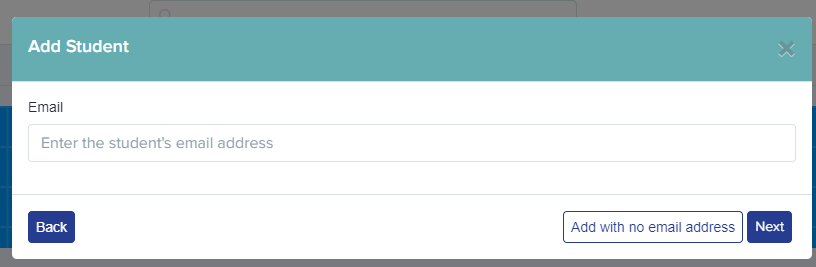
Add their email address and click "next".
Add their first and last names, plus any other optional information if known, and then "save".

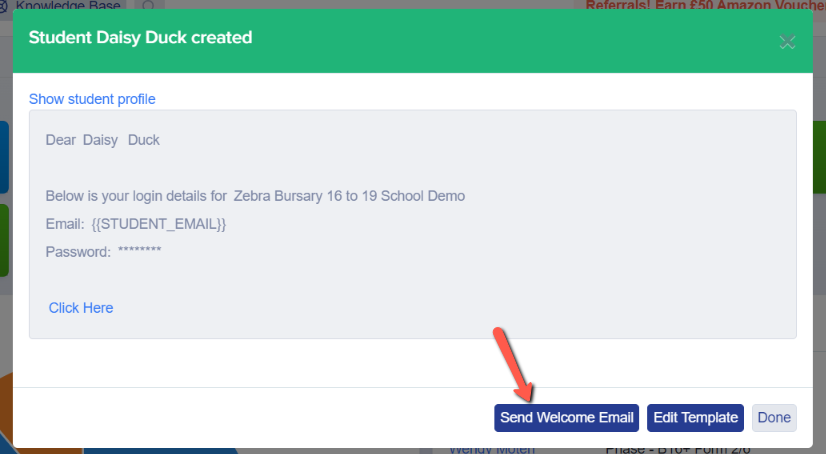
You will then be prompted to send them the welcome email, so they receive their system-generated password and are able to log in and complete the bursary application form.
- [Getting started](https://helpdesk.applicaa.com/b16/getting-started?hsLang=en)
- [Your Second Cycle and Beyond](https://helpdesk.applicaa.com/b16/your-second-cycle-and-beyond?hsLang=en)
- [Student Requests & School Expenses](https://helpdesk.applicaa.com/b16/student-requests-school-expenses?hsLang=en)
- [Staff and Student Settings](https://helpdesk.applicaa.com/b16/staff-and-student-settings?hsLang=en)
- [Managing Data](https://helpdesk.applicaa.com/b16/managing-data?hsLang=en)
- [Checks, Troubleshooting & Go-Live](https://helpdesk.applicaa.com/b16/checks-troubleshooting-go-live?hsLang=en)
[.png?width=250&height=86&name=Applicaa%20Logos%20(2).png "Applicaa Logos (2)")](http://applicaa.com)
[mailto:email@email.com](mailto:email@email.com)
Copyright © 2026, Applicaa