---
title: How to Enable Bursary Request Notification
description: This article will tell you how you can enable Bursary request notifications
---
[Skip to content](https://helpdesk.applicaa.com/b16/how-to-enable-bursary-request-notification#main-content)
English
Show submenu for translations
[.png?width=200&height=69&name=Applicaa%20Logos%20(2).png)](https://www.applicaa.com)
Open main navigation
Close main navigation
- English
Show submenu for translations
How can we help you?
- There are no suggestions because the search field is empty.
1. [Bursary 16+](https://helpdesk.applicaa.com/b16?hsLang=en)
2. [Student Requests & School Expenses](https://helpdesk.applicaa.com/b16/student-requests-school-expenses?hsLang=en)
# How to Enable Bursary Request Notification
## This article will tell you how you can enable Bursary request notifications
After students have completed and submitted their Bursary form application and and they have been awarded the Bursary, students will now have the option to submit requests from the student homepage.
As an admin, you may receive notifications once a student has submitted a Bursary request.
To enable this, go to your "Requests" Tab from the Dashboard

Then, navigate to the right hand side where you can see the email notifications. This is where you can either **enable** or **disable** it. You may also set your preferred number of request approvers on the **Number of authorisations per request** on the above field.

Once you have enabled the notification, all the staff members who have permissions to approve, view, edit etc.. will be the ones who will receive the Bursary request notifications.
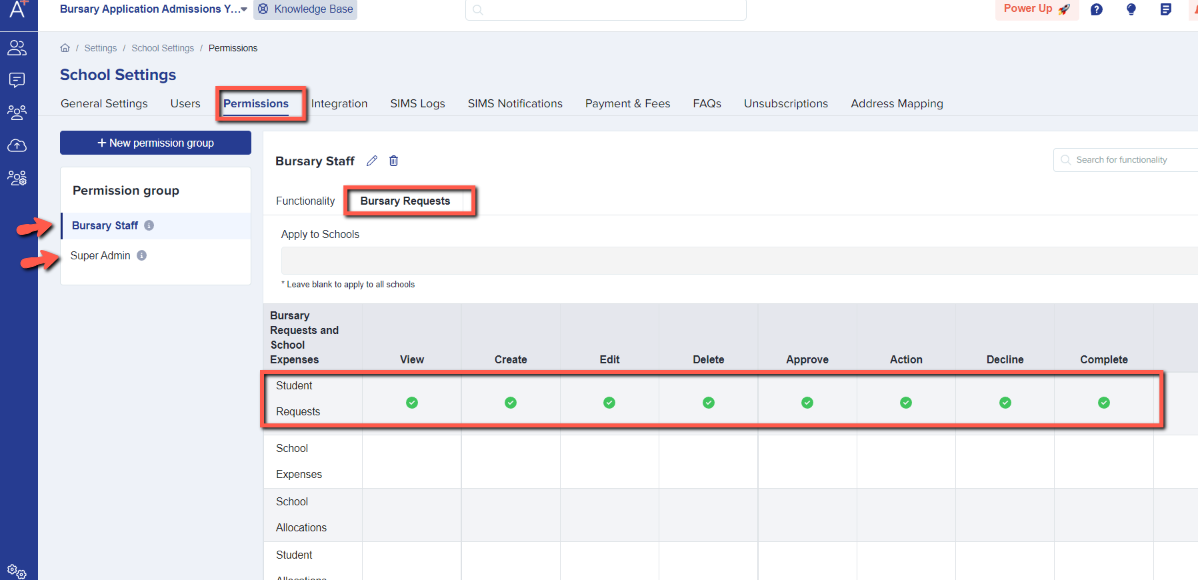
You may check your staff permissions by going into Settings \> School Settings \> Users and then navigate to Permissions \> Bursary Requests.
- [Getting started](https://helpdesk.applicaa.com/b16/getting-started?hsLang=en)
- [Your Second Cycle and Beyond](https://helpdesk.applicaa.com/b16/your-second-cycle-and-beyond?hsLang=en)
- [Student Requests & School Expenses](https://helpdesk.applicaa.com/b16/student-requests-school-expenses?hsLang=en)
- [Staff and Student Settings](https://helpdesk.applicaa.com/b16/staff-and-student-settings?hsLang=en)
- [Managing Data](https://helpdesk.applicaa.com/b16/managing-data?hsLang=en)
- [Checks, Troubleshooting & Go-Live](https://helpdesk.applicaa.com/b16/checks-troubleshooting-go-live?hsLang=en)
[.png?width=250&height=86&name=Applicaa%20Logos%20(2).png "Applicaa Logos (2)")](http://applicaa.com)
[mailto:email@email.com](mailto:email@email.com)
Copyright © 2026, Applicaa