---
title: How to Edit the Student Homepage in Your Bursary16+ System
description: This article will show you how to customise the student homepage, which is the first page students see when they log in to your bursary platform.
---
[Skip to content](https://helpdesk.applicaa.com/b16/how-to-edit-the-student-homepage-in-your-bursary16-system#main-content)
English
Show submenu for translations
[.png?width=200&height=69&name=Applicaa%20Logos%20(2).png)](https://www.applicaa.com)
Open main navigation
Close main navigation
- English
Show submenu for translations
How can we help you?
- There are no suggestions because the search field is empty.
1. [Bursary 16+](https://helpdesk.applicaa.com/b16?hsLang=en)
2. [Getting started](https://helpdesk.applicaa.com/b16/getting-started?hsLang=en)
# How to Edit the Student Homepage in Your Bursary16+ System
## This article will show you how to customise the student homepage, which is the first page students see when they log in to your bursary platform.
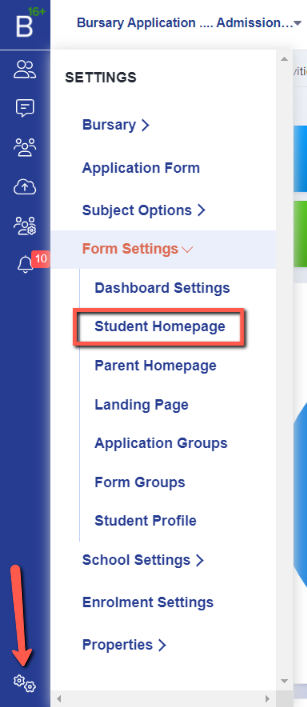
Navigate to '**Settings**' \> '**Form Settings**' \> '**Student Homepage**'.
**NOTE**: The **student homepage** is **only visible to students** logging in. If your application form is set to allow parents to log in, they will only see the parent homepage.
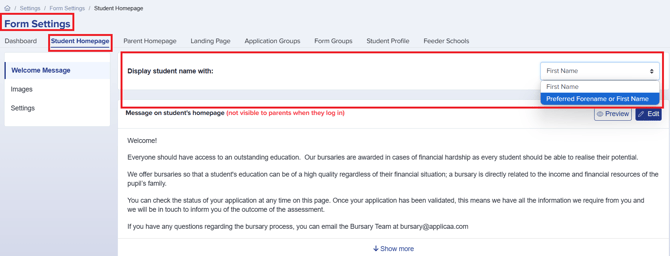
On the **Student Homepage**, a configuration option is available for how the student's name will be displayed.
If you select **'Preferred Forename or First Name,'** students will be greeted by their preferred name if they have provided one. Otherwise, it will default to their legal first name.
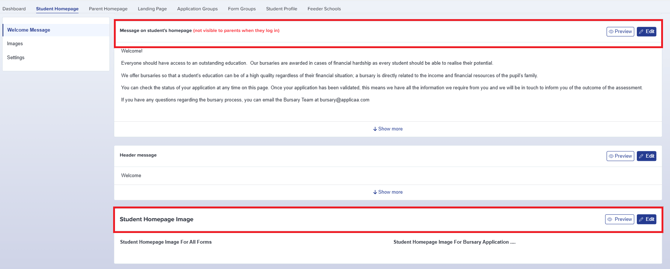
You can also **edit/customise the welcome message and image** by clicking the '**Edit**' *button*. Additionally, you can see how this will appear to a student by clicking the '**Preview**' *button*.
**File Upload Guidelines:**
- You can upload files with a *maximum size* of **25MB per file**.
- Images will be **automatically resized to 800x800 or smaller***, based on their original dimensions.*
- [Getting started](https://helpdesk.applicaa.com/b16/getting-started?hsLang=en)
- [Your Second Cycle and Beyond](https://helpdesk.applicaa.com/b16/your-second-cycle-and-beyond?hsLang=en)
- [Student Requests & School Expenses](https://helpdesk.applicaa.com/b16/student-requests-school-expenses?hsLang=en)
- [Staff and Student Settings](https://helpdesk.applicaa.com/b16/staff-and-student-settings?hsLang=en)
- [Managing Data](https://helpdesk.applicaa.com/b16/managing-data?hsLang=en)
- [Checks, Troubleshooting & Go-Live](https://helpdesk.applicaa.com/b16/checks-troubleshooting-go-live?hsLang=en)
[.png?width=250&height=86&name=Applicaa%20Logos%20(2).png "Applicaa Logos (2)")](http://applicaa.com)
[mailto:email@email.com](mailto:email@email.com)
Copyright © 2026, Applicaa