---
title: How to add or remove students in bursary application groups
description: Once you have created application groups in your bursary system, this article will show you how you can add students to it.
---
[Skip to content](https://helpdesk.applicaa.com/b16/how-to-add-or-remove-students-in-bursary-application-groups#main-content)
English
Show submenu for translations
[.png?width=200&height=69&name=Applicaa%20Logos%20(2).png)](https://www.applicaa.com)
Open main navigation
Close main navigation
- English
Show submenu for translations
How can we help you?
- There are no suggestions because the search field is empty.
1. [Bursary 16+](https://helpdesk.applicaa.com/b16?hsLang=en)
2. [Managing Data](https://helpdesk.applicaa.com/b16/managing-data?hsLang=en)
# How to add or remove students in bursary application groups
## Once you have created application groups in your bursary system, this article will show you how you can add students to it.
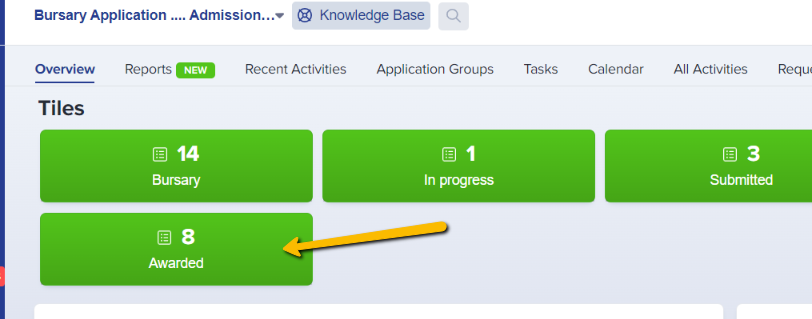
On your dashboard, click to select a group of students you wish to add. For this example, let's go for "Awarded".
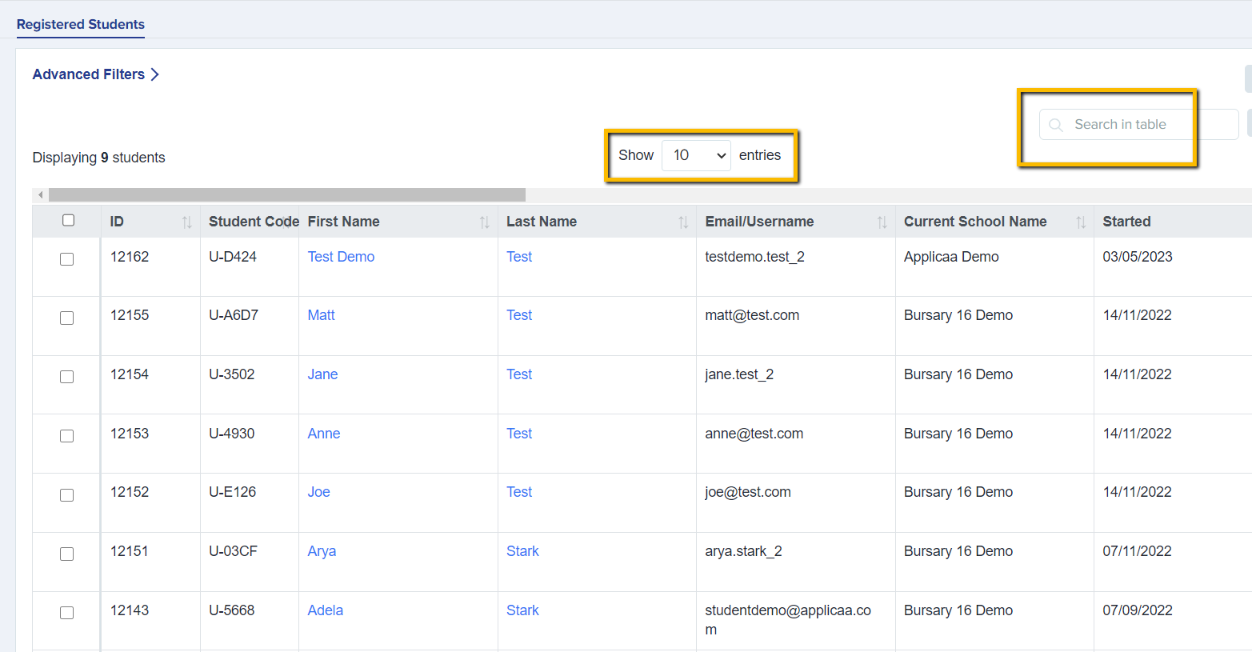
Search for the students you'd like to add to a group, on the 'search in table' box or by scrolling through the list.
You need to select students first in order for the action buttons at the top to show.
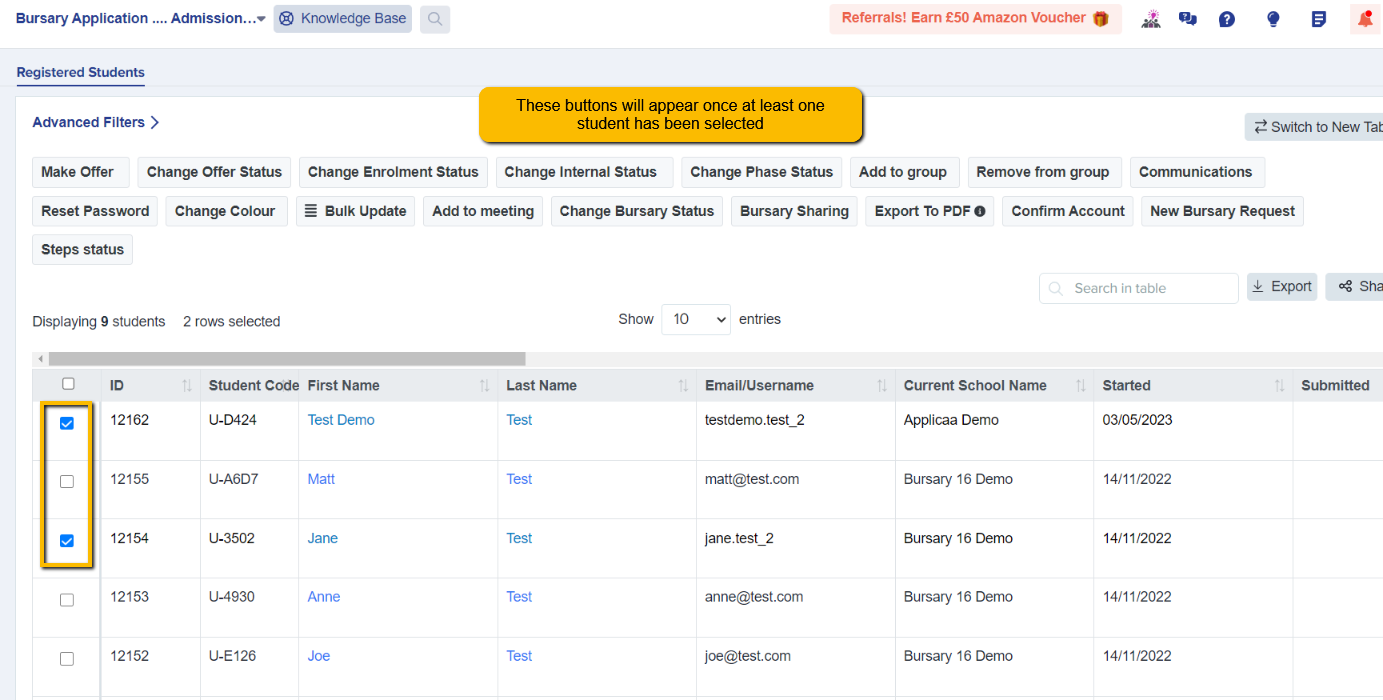
It will show you the list of application groups available so just click on the name of the group you want to add them to in the dropdown.

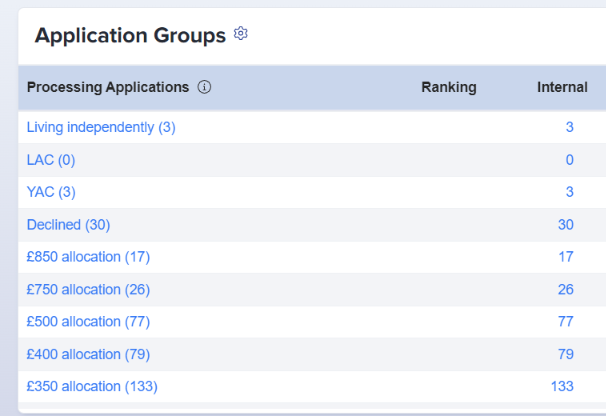
To check, you can go to your main dashboard and scroll down to the 'Application Groups' section.
Click on the group title to view all of the students in any given group.
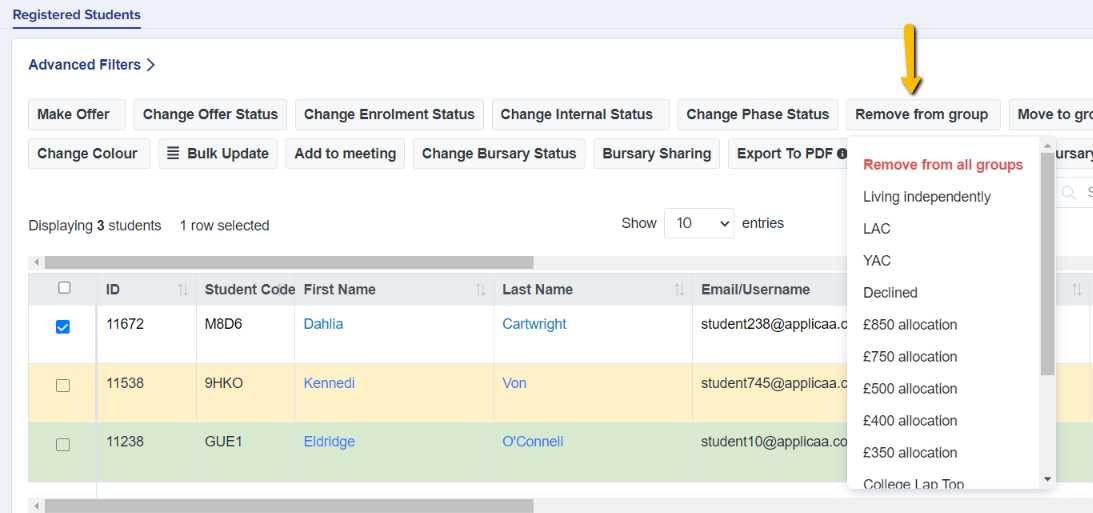
You can also remove a student from a group by selecting the student and then clicking on
'Remove from Group' and select the group you'd like the student to be removed from. You can remove them from a single group, or from all groups if they belong to more than one:
- [Getting started](https://helpdesk.applicaa.com/b16/getting-started?hsLang=en)
- [Your Second Cycle and Beyond](https://helpdesk.applicaa.com/b16/your-second-cycle-and-beyond?hsLang=en)
- [Student Requests & School Expenses](https://helpdesk.applicaa.com/b16/student-requests-school-expenses?hsLang=en)
- [Staff and Student Settings](https://helpdesk.applicaa.com/b16/staff-and-student-settings?hsLang=en)
- [Managing Data](https://helpdesk.applicaa.com/b16/managing-data?hsLang=en)
- [Checks, Troubleshooting & Go-Live](https://helpdesk.applicaa.com/b16/checks-troubleshooting-go-live?hsLang=en)
[.png?width=250&height=86&name=Applicaa%20Logos%20(2).png "Applicaa Logos (2)")](http://applicaa.com)
[mailto:email@email.com](mailto:email@email.com)
Copyright © 2026, Applicaa