---
title: How to access your remaining bursary onboarding tasks
description: This article will show you how you can access your onboarding task tab, which contains a list of tasks to successfully complete your initial setup
---
[Skip to content](https://helpdesk.applicaa.com/b16/how-to-access-your-remaining-bursary-onboarding-tasks#main-content)
English
Show submenu for translations
[.png?width=200&height=69&name=Applicaa%20Logos%20(2).png)](https://www.applicaa.com)
Open main navigation
Close main navigation
- English
Show submenu for translations
How can we help you?
- There are no suggestions because the search field is empty.
1. [Bursary 16+](https://helpdesk.applicaa.com/b16?hsLang=en)
2. [Getting started](https://helpdesk.applicaa.com/b16/getting-started?hsLang=en)
# How to access your remaining bursary onboarding tasks
## This article will show you how you can access your onboarding task tab, which contains a list of tasks to successfully complete your initial setup
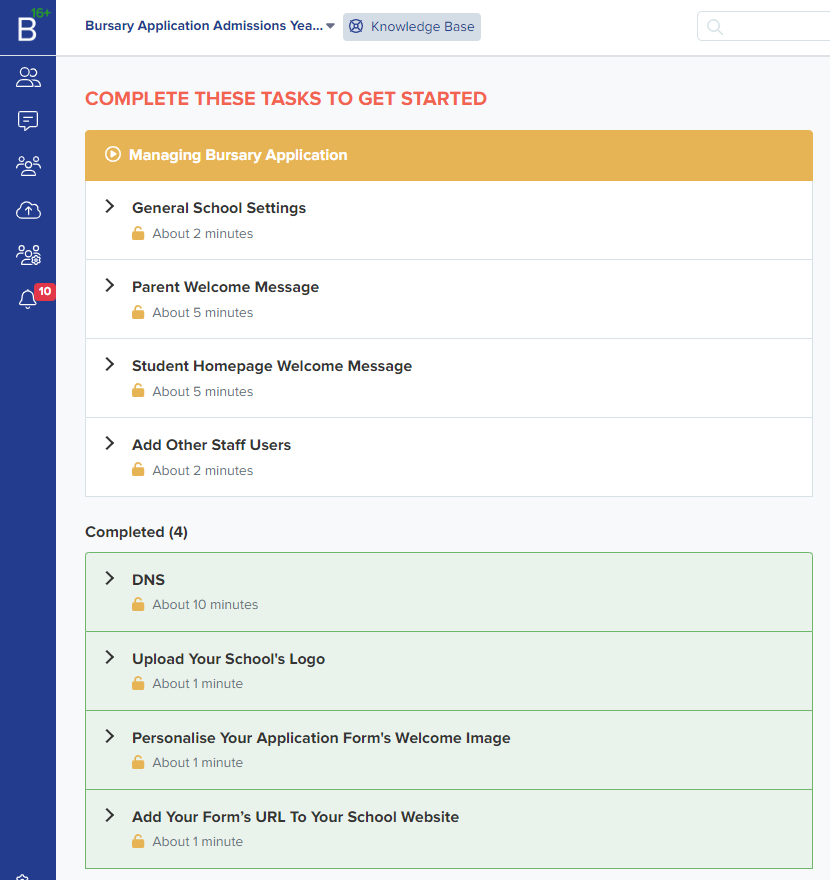
Onboarding tasks give you instructions or steps for you to start setting up your platform.
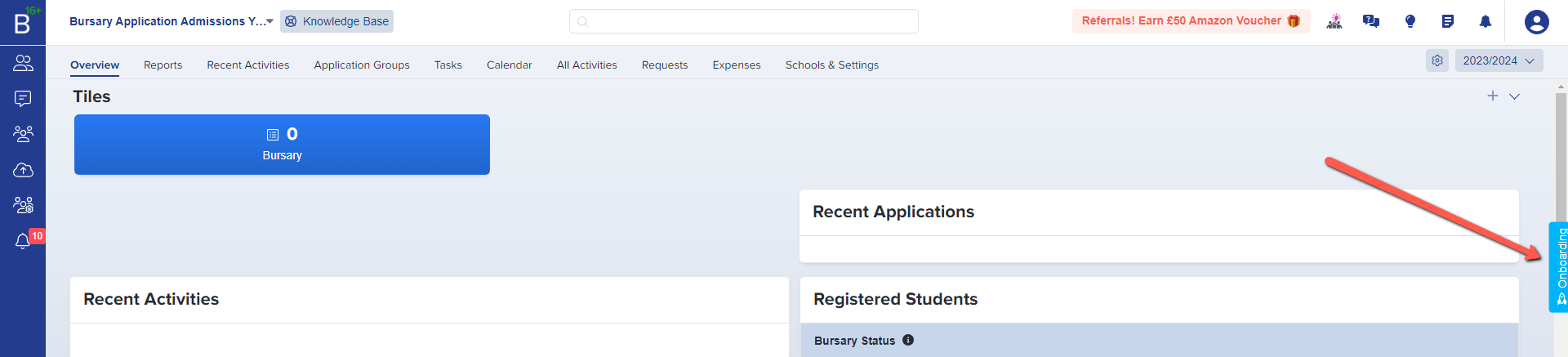
To access your onboarding task tab, log-in to your Bursary16+ link, and on the Dashboard, click on the blue onboarding tab button. This is over the scrollbar, on the right of the screen.
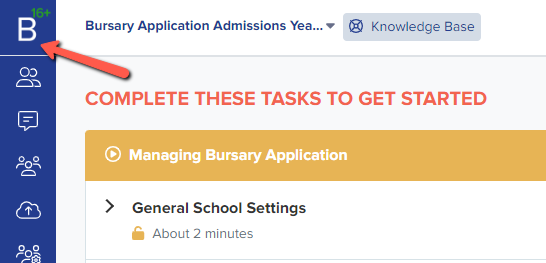
If you want to go back to the main page where you can see the Dashboard, just click on the B16+ on the upper left corner of your screen.
- [Getting started](https://helpdesk.applicaa.com/b16/getting-started?hsLang=en)
- [Your Second Cycle and Beyond](https://helpdesk.applicaa.com/b16/your-second-cycle-and-beyond?hsLang=en)
- [Student Requests & School Expenses](https://helpdesk.applicaa.com/b16/student-requests-school-expenses?hsLang=en)
- [Staff and Student Settings](https://helpdesk.applicaa.com/b16/staff-and-student-settings?hsLang=en)
- [Managing Data](https://helpdesk.applicaa.com/b16/managing-data?hsLang=en)
- [Checks, Troubleshooting & Go-Live](https://helpdesk.applicaa.com/b16/checks-troubleshooting-go-live?hsLang=en)
[.png?width=250&height=86&name=Applicaa%20Logos%20(2).png "Applicaa Logos (2)")](http://applicaa.com)
[mailto:email@email.com](mailto:email@email.com)
Copyright © 2026, Applicaa