---
title: Activating two-factor authentication (2FA) or Single Sign-on in your Bursary16+ platform
description: This guide will show you how to set the two-factor authentication (2FA) on Bursary16+
---
[Skip to content](https://helpdesk.applicaa.com/b16/activating-two-factor-authentication-2fa-or-single-sign-on-in-your-bursary16-platform#main-content)
English
Show submenu for translations
[.png?width=200&height=69&name=Applicaa%20Logos%20(2).png)](https://www.applicaa.com)
Open main navigation
Close main navigation
- English
Show submenu for translations
How can we help you?
- There are no suggestions because the search field is empty.
1. [Bursary 16+](https://helpdesk.applicaa.com/b16?hsLang=en)
2. [Getting started](https://helpdesk.applicaa.com/b16/getting-started?hsLang=en)
# Activating two-factor authentication (2FA) or Single Sign-on in your Bursary16+ platform
## This guide will show you how to set your login requirements on Bursary16+
Note: You need to have the right permissions to be able to change these settings. Super Admin users within your school can complete this task (you can check your permission levels by visiting Settings \> School Settings \> Users).
**To check and set your 2FA settings:**
Click on Settings \> Security \> Login Settings.
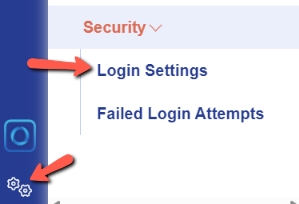
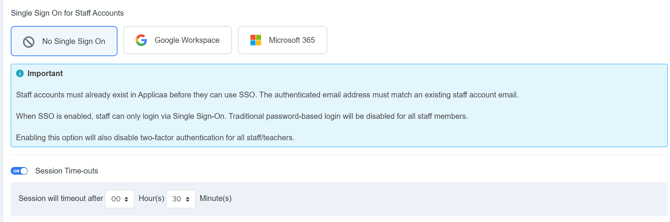
Here you can enable two-factor authentication by toggling the button on for staff, students and parents (if applicable).

You can also control Single Sign-On settings here, and your default system timeouts.
- [Getting started](https://helpdesk.applicaa.com/b16/getting-started?hsLang=en)
- [Your Second Cycle and Beyond](https://helpdesk.applicaa.com/b16/your-second-cycle-and-beyond?hsLang=en)
- [Student Requests & School Expenses](https://helpdesk.applicaa.com/b16/student-requests-school-expenses?hsLang=en)
- [Staff and Student Settings](https://helpdesk.applicaa.com/b16/staff-and-student-settings?hsLang=en)
- [Managing Data](https://helpdesk.applicaa.com/b16/managing-data?hsLang=en)
- [Checks, Troubleshooting & Go-Live](https://helpdesk.applicaa.com/b16/checks-troubleshooting-go-live?hsLang=en)
[.png?width=250&height=86&name=Applicaa%20Logos%20(2).png "Applicaa Logos (2)")](http://applicaa.com)
[mailto:email@email.com](mailto:email@email.com)
Copyright © 2026, Applicaa